
Practical tips for renters and small apartments that want devices to last through cooking timers, delivery tracking, and a full errand run without a panic charge.
You’ll get quick wins you can do in minutes and longer-term habits that keep your phone and other gear reliable without buying a new unit.
Expect honest tradeoffs: some settings save power but may slow notifications or trim performance. You decide what is worth it for daily use.
This short primer covers quick settings, charging habits, apartment-friendly setup and safety, and common mistakes. Steps vary by Android version and phone brand, but you’ll spot the same options under different menu names.
For simple, renter-ready devices and low-clutter routines, see budget-friendly picks and smart plugs that cut standby draw at best budget home gadgets.
Key Takeaways
- Small setting changes give fast savings; charging habits give long-term wins.
- In apartments, use set-and-forget routines to reduce clutter and risk.
- Some power saves affect features; weigh the tradeoffs for your day.
- Watch for overheating and background apps to avoid faster drain and harm.
- Steps vary by device and OS; look for equivalent options if names differ.
Real benefits of better battery life in a small apartment
In a compact apartment, managing power well makes daily tech less stressful. Small changes cut wasted energy and keep your phone and other devices useful when you need them most.
Lower power use without buying new gadgets. Lower screen brightness and shorten screen timeout to cut the biggest drain. These tweaks cost nothing and often add hours of usable time.
Fewer cables and less clutter
Fewer emergency charges mean fewer cords across counters and nightstands. That reduces mess and the chance of tripping or knocking things over in a small kitchen.
Safety wins
Less heat buildup matters. Avoid charging on soft surfaces and don’t hide devices under pillows. Using the original power adapter is safer than random chargers that may run hot or damage the device.
More reliable daily tech
Your phone stays ready for grocery lists, contactless payments, recipe videos, and music while you clean. If your phone controls smart lights or a lock, steady power means fewer annoying outages.
Budget vs premium: a cheap multi-port charger clears outlet fights, while a certified premium charger and cable keep temperatures lower and compatibility better. Aim for routines that work every day, not perfect stats. For smart home picks that help reduce standby draw, see home problem solver mix.
Who needs this battery life guide and what to expect
This section explains who benefits most and what to expect from small, renter-friendly changes.
If your phone dies before dinner even on a normal day, this is for you. You’ll get practical steps that often add hours back without new gear.
If you rely on one device for door codes, speaker controls, laundry apps, and banking, a short outage is a real problem. These tips help keep that single device ready for the whole day.
If you live in a studio, quiet, low-heat charging at night matters. Use slower charging overnight, a vented surface, and avoid heavy cases to cut heat and noise.
Pros and cons of stretching a device vs replacing it
- Pros: Cheaper, fast wins, and less e-waste.
- Cons: You may accept slower performance, delayed notifications, or dimmer screen comfort when using Low Power modes.
- When to replace: If battery health is poor and you hit low percentage by midday, a swap often restores real-day reliability.
Quick settings that stop battery drain today
You can reclaim hours of usage with a few renter-friendly screen and app adjustments. Start with easy changes that work while you cook, stream, or run errands.
Screen brightness and timeout that actually move the needle
Lower screen brightness to a comfortable indoor level. Then set a shorter screen timeout so the display turns off quickly when idle. This prevents the screen from burning power on the counter while you cook.
Adaptive brightness made simple
Turn on adaptive brightness so the phone adjusts automatically between bright and dim rooms. It saves you fiddling with the slider and prevents long periods at max brightness.
Dark theme: when it helps
Dark mode helps most on OLED or AMOLED screens. If you spend time in bright apps or already keep the screen dim, the gain may be small. Still, it’s an easy switch to try.
Low Power Mode in real life
Low Power Mode reduces background sync, visual effects, and frequent updates. Use it when you need your device to last until bedtime. Expect slower notifications and fewer animations as tradeoffs.
Cut hidden drain from apps and notifications
Restrict background activity for apps that don’t need constant updates. Mute noisy notifications that wake the screen. This stops apps from waking your device every few minutes.
Connectivity and location checklist
- Use Wi‑Fi at home instead of mobile data.
- Turn off Bluetooth when not using earbuds.
- Disable Location/GPS unless you’re navigating.
- Use Airplane mode if you don’t need calls or data.
Widgets, live wallpapers, and always-updating home screens
Keep only the widgets you actually use, like weather and calendar. Remove live wallpapers and pages that refresh constantly. This reduces background usage and visual updates.
Everyday high-drain tasks to limit when you need extra time
Avoid long streaming sessions, extended GPS navigation, hotspot use, heavy games, and long camera recordings when you’re low. Pause these tasks until you can charge safely.
| Setting | Action | Real-life benefit |
|---|---|---|
| Screen brightness | Lower to indoor level / enable adaptive | Fewer hours lost while cooking or prepping |
| Screen timeout | Set 15–30 seconds | Stops the display from staying on on countertops |
| Low Power Mode | Enable when short on power | Extends runtime with small feature tradeoffs |
| Background app activity | Restrict or off for unused apps | Reduces unseen drain and constant wakeups |
| Connectivity | Use Wi‑Fi, turn off Bluetooth/Location | Lower network power draw in a small apartment |
Battery health and charging habits that improve longevity
A few clear practices around charging and heat control protect performance over time. Check what uses the most power and make small changes that pay off every day.
How to check usage and spot power-hungry apps
Open the usage screen on your phone to see which apps top the list. Social, video, navigation, and shopping apps often appear first.
Restrict background activity for offenders. That simple step stops constant wakeups and unexpected drain.
Keep it cool: heat, cases while charging, and why it matters
Heat is non-negotiable. Overheating speeds wear and can reduce overall health. Avoid charging in direct sun or under pillows.
If your phone gets warm, remove a thick case while charging. A cool device ages more slowly.
Use the right charger: budget vs premium
Budget chargers are fine as spares. Premium, certified chargers usually give steadier power, run cooler, and cause fewer quirks.
Use the adapter that came with your phone or a reputable replacement for safe, compatible charging. For official tips, see maximizing performance.
Charging routine and everyday maintenance
You don’t need regular zero-to-full cycles. Topping up is fine. Occasionally draining under 10% helps the meter recalibrate.
Charging while using the phone adds heat. Lower brightness or pause heavy tasks during top-ups.
Keep software and apps updated, restart if you see odd drain, and remove unused accounts so apps stop syncing. For deeper checks on health, consult a dedicated resource at battery health advice.
„Small, consistent habits beat one-off fixes. Keep things cool, use trusted chargers, and tidy apps for the best longevity.“
For affordable charging gear and renter-friendly picks, see budget charger options.
Setup time, space needs, noise levels, and power consumption
A renter-friendly charging plan focuses on short wins you can do in minutes and deeper fixes that pay off later. Start with quick settings and one neat charging spot. Then add device audits and a better charger when you have more time.
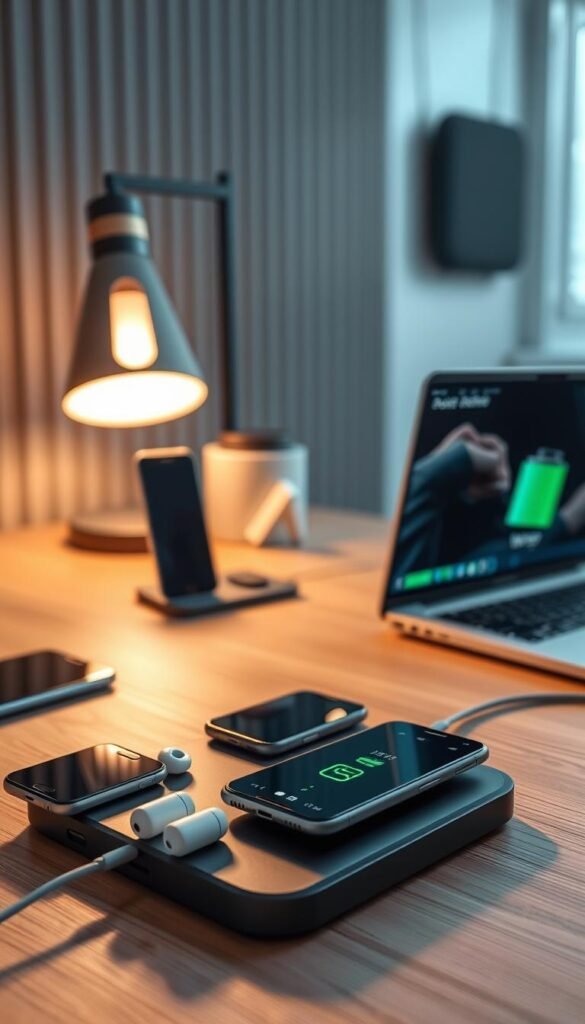
Setup time: quick changes vs deeper fixes
Quick wins (minutes): lower screen brightness, shorten screen timeout, enable Battery Saver, and silence keyboard sounds. These settings give fast benefit.
Deeper fixes (longer): audit apps, restrict background sync, and upgrade to a multi-port charger or compact station. App audits take more time but cut steady drain.
Space requirements: small-studio solutions
Pick one designated spot near an outlet. A slim multi-port wall charger or short cable keeps counters and nightstands tidy.
Renter-friendly idea: a compact charging dock or a single tray on a nightstand reduces cable clutter and keeps the kitchen counter clear.
Noise levels: coil whine and buzzing chargers
Some cheap pads and chargers hum in quiet rooms. If you hear coil whine, move the charger a few feet from the bed or try a different cable.
Premium chargers often run quieter and have better build quality. If noise bothers you, upgrading is worth it for nightly peace.
Power consumption: what runs when the screen is off
Even idle, your phone can use power for syncing, background updates, and notifications. Use Do Not Disturb overnight and restrict background data for nonessential apps.
For step-by-step Android settings you can change now, see this quick settings walkthrough: change Android phone settings.
Common mistakes that drain battery (and how to fix them)
A handful of routine slip-ups cause most unexpected drops in charge; here’s how to stop them.
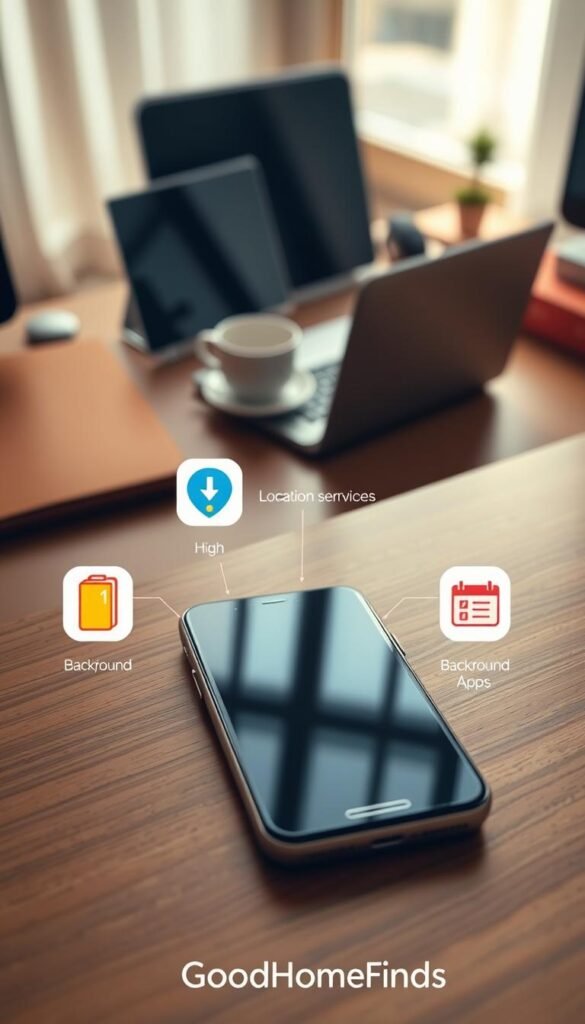
High-drain apps running in the background
#1 silent mistake: letting heavy apps run unrestricted while you do nothing. Check your usage screen and restrict background activity for offenders.
Disable background refresh for social and shopping apps. Stop unnecessary syncs so the phone does not wake constantly.
Screen brightness and long screen-on time
Max brightness and long screen timeout burn power fast, even when the device sits idle.
Set a shorter timeout and lower brightness. Use adaptive brightness so you don’t keep fiddling with the slider.
Always-on connectivity
GPS, Bluetooth, hotspot, and mobile data are helpful but costly when left on all day.
Turn them off when you don’t need them. Airplane mode is a fast fix for focused periods.
Skipping system and app updates
Updates often include efficiency fixes. Ignoring them can keep poor behavior in place.
Install system and app updates regularly. For Android-specific tips, see this quick walkthrough at minimize Android drain.
Overheating while charging
Charging in sunlight, a hot room, or under a thick case speeds wear and can degrade performance.
Charge on a hard, cool surface and remove bulky cases if the phone gets warm.
Cheap or incompatible chargers
Budget chargers can work short term but may cause extra heat, slow charging, and disconnects.
Use the original adapter or a certified replacement for safer, steadier power. Learn more about hidden drainers and simple fixes at hidden drainer fixes.
Troubleshooting ladder: quick to deep
- Reboot first. A restart often clears rogue processes.
- Install updates and then review app usage stats.
- Restrict or uninstall problem apps and mute noisy notifications.
- Backup your data before a factory reset. Use reset only if other steps fail.
„Small, consistent habit changes stop most unexpected drops and keep your device reliable.“
Conclusion
Finish strong with simple steps that make daily power needs predictable and safe.
Core takeaway: small, repeatable habits—screen control, smarter background app limits, safer charging, and basic maintenance—deliver the biggest gains for device reliability.
Today: lower brightness and timeout, enable Battery Saver rules, and mute unneeded notifications. This weekend: audit apps, tidy your charging spot, and check chargers and cables.
Keep charging cool, quiet, and clutter-free in a small apartment. If a setting breaks something you rely on, adjust it—savings should support your routine, not hinder it.
Monthly check: review usage, remove unused apps, and install updates. For deeper reading on degradation and extended service, see battery degradation explained and tips to extend longevity at how to double lifespan.