This practical guide helps you build a calmer, safer, renter-friendly home office that fits a small apartment. You’ll get real advice from 8+ years of WFH refreshes and brands that work in daily life.
You’re aiming for fewer cables, fewer wasted watts, and less clutter. Expect better calls, cooler hotspots where you sit, and gear choices that save energy by actually turning things off. Not a gadget showcase. This is about living with your tools.
This guide walks you step by step: plan first, then foundations (desk and chair), screens and ports, lighting/power/cables, audio and storage, and finally maintenance, mistakes, and budget. I’ll name real examples like Uplift, BenQ, Philips Hue, Plugable, and Humanscale with honest pros and cons so you can pick what’s worth it.
Small-space realities matter: motor noise, heat from docks and power bricks, and limited outlets. You can do a basic build in an hour or spend a weekend for a clean advanced build with mounts and trays. Aim for a setup you can clean and reset in five minutes.
Key Takeaways
- Practical, renter-friendly designs beat flashy gear for daily use.
- Energy-smart means truly switching things off and using efficient lighting.
- Expect small-space issues: noise, heat, and limited power outlets.
- Real brands and honest pros/cons help you decide what’s worth buying.
- You can finish a basic build in about an hour or a full clean build over a weekend.
- Keep it easy to clean—5 minutes to reset keeps the area tidy long-term.
- For more real-life fixes and ideas, see this home problem solver mix.
What a Great Desk Tech Setup Looks Like in Real Life
A great small-apartment build feels effortless. You reach what you need. Nothing hums or runs hot enough to bother you or your neighbors.
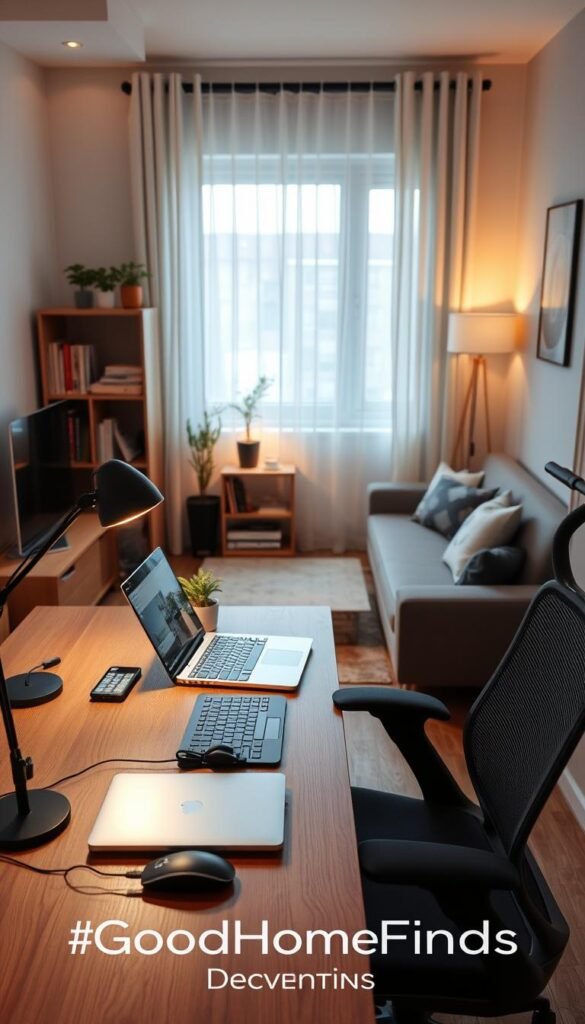
Small-apartment priorities: keep front space clear for typing, use the back edge for cables and a USB light bar, and pick one side as a charging zone.
Small-apartment priorities: space, noise, and heat
Small rooms change the rules. You sit closer to gear, so fan noise, coil whine, and warm adapters become obvious fast.
Heat basics are simple: give docks and power bricks airflow. Don’t stack chargers in drawers. Lighting diffusion channels help dissipate heat.
Comfort basics that matter more than “cool” gadgets
Comfort beats gimmicks. Chair fit, monitor height, and even simple lighting shape your day more than flashy accessories.
Simple test: if you can’t wipe the surface clean in under two minutes, your experience is too busy for an apartment.
- Reach: keep daily items within an arm’s span.
- Quiet: prefer smooth/quiet motors (Uplift noted for this) over extra features.
- Cool: avoid tight cable piles that trap heat.
| Priority | What to do | Why it matters |
|---|---|---|
| Front edge | Keep clear for typing and review | Improves posture and daily comfort |
| Back edge | Route cables and place lighting | Reduces clutter and aids cooling |
| Side zone | Dedicated charging area | Keeps batteries and adapters organized |
Real benefits you’ll actually notice day to day
Real benefits are simple and visible. You should feel less friction when you start work, and finish the day with less mess and less wasted power.

Fewer distractions with a cleaner desk and fewer cables
A clear surface reduces small visual interruptions that break focus. Fewer cables and fewer loose items mean fewer micro-pauses during work.
One-cable docking is a practical win. Plugging a laptop into a single dock stops the daily tangle of adapters and restores a tidy routine.
Lower power waste with smarter charging and lighting
Automated shutoffs cut phantom loads. An Aeotec smart plug can turn lights and chargers off on a schedule so adapters stay cool and use less electricity.
Good task light like the BenQ ScreenBar Halo reduces squinting and eye fatigue without blasting your whole room with light.
Better meeting quality with simple audio/video upgrades
Clear voice matters more than ultra-high resolution. A modest microphone or better headset makes calls sound professional and keeps neighbors happy.
Dual monitors or an easy KVM switch reduce window juggling and boost productivity. Logitech peripherals often last long between charges, so you waste less time hunting for batteries.
- Energy & safety: scheduled charging limits warm adapters and lowers risk.
- Maintainable wins: a 5-minute nightly reset and a dedicated charging spot keep benefits long-term.
- Renter-friendly: better lighting and audio improve calls without permanent changes.
Who needs this (and who can keep it simple)
Figure out who will get the most value from a quieter, more organized home work area.
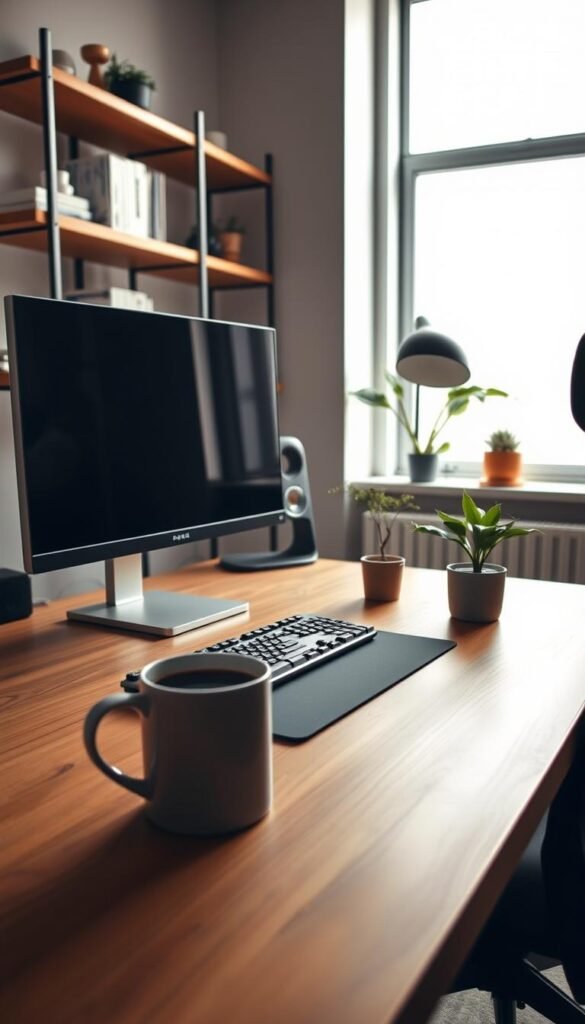
You need compact layouts and quiet gear. Choose one good monitor, reliable power, and low-noise lighting. That reduces heat and keeps outlets usable.
Creators and power users
If you edit video, run multiple screens, or juggle heavy apps, a stable dock and dual monitors speed your work. Better lighting and audio cut friction when you switch devices.
Anyone sharing space
Roommates, partners, or kids change priorities. You may prefer headphones, warmer evening light, and a tidy background that hides household clutter.
Pick what fits your preferences. Minimalism and power-user builds both work if you control noise, heat, and outlet placement. Being mindful of neighbors means choosing smoother motors and ventilated power placement.
| User | Key need | Quick fix |
|---|---|---|
| Remote worker | Reliable audio/video | One monitor + headset |
| Student (small space) | Compact, quiet gear | Monitor arm + USB light |
| Creator / power user | Multiple displays, stable dock | Thunderbolt dock + dual screens |
| Shared home | Low noise, neat background | Headphones + warm lamp |
Plan your desk area before you buy anything
Start by mapping your work area so every item has a clear place. This planning-first approach saves money and avoids ill-fitting purchases.

Measure surface and mark reach zones
Measure the desk surface and note depth and width. Mark three reach zones: immediate (daily items), near (weekly use), and far (rare items).
This method keeps daily items close and moves bulky gear out of the way. You’ll avoid buying monitor arms or shelves that don’t fit.
Count outlets and plan power
Check outlet locations and count available plugs. Note which outlets are switched and where a surge protector will sit.
Safety rule: don’t daisy-chain power strips or extension cords. That creates overload risk and messy cables.
Pick a video-call friendly layout
Choose a camera angle and simple background before rearranging furniture. A neutral wall, tidy shelf, or plant works well for calls.
If you can’t drill into the wall, use adhesive hooks or a freestanding shelf. Keep heavy items off questionable mounts to stay renter-friendly.
One clear layout goal
- One cable path from desk to outlet
- One charging zone for phones and batteries
- One spot to store misc items off the surface
Plan first, buy later. A small bit of measuring and mapping prevents wasted purchases and keeps your home office calm and safe.
Desk and chair foundations that don’t waste money
Start with comfort that lasts: a few right choices will save money and prevent daily aches. Pick what fits your body and your room. Small changes pay off every workday.
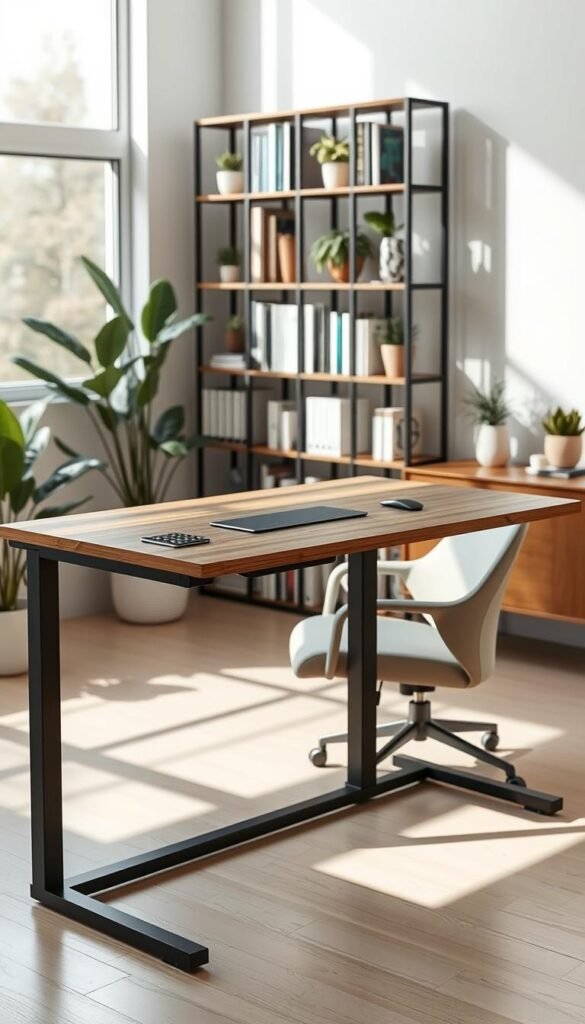
Standing vs fixed: when height adjustment pays off
If you sit long hours, a standing desk can reduce stiffness and boost energy. You don’t need to stand all day. Try short standing intervals of 15–30 minutes to start.
Budget vs premium options
FlexiSpot covers basics at a lower price. Fully Jarvis and Uplift feel sturdier and often include better controls and warranty. For many people, the extra cost buys durability and quieter motors.
Noise and apartment reality
“Quiet motors” still make a sound. In small rooms, vibration and wobble feel worse because monitors are closer. Uplift Standing Desk V2 is noted for smooth, quiet travel, which matters early mornings and late nights.
Chair reality check
The best office chair is the one that fits you. Steelcase Think is a solid example, but not a universal fit. Try before you buy if possible.
„Spend on comfort first — daily problems cost more than one purchase.“
Value rule: prioritize seating and stable height control. These reduce aches and keep your workday running smoothly.
Monitor setup that improves work without eating your space
Picking the right screen plan saves space and improves your daily productivity.
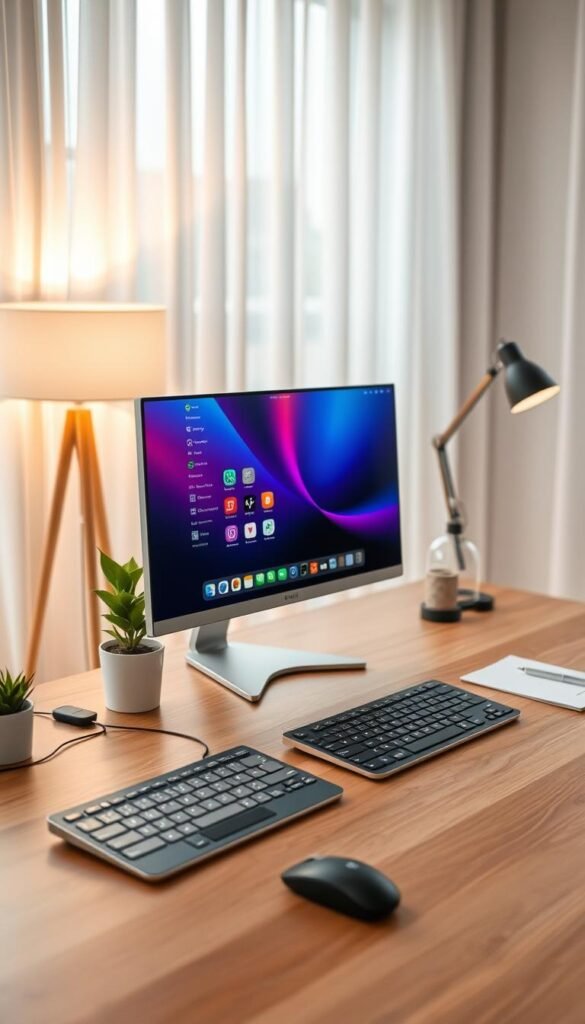
One monitor often fits small areas best. If your work is email, chat, or light admin, a single 24–27-inch screen gives clear text and enough room for one full window plus a reference pane.
When two monitors help
If you write and research, code while testing, or use many apps, two monitors reduce window switching and boost productivity. Dual 27-inch 4K monitors shine for multitasking, especially with a built-in KVM that lets you flip between two computers with a puck control.
Right-size for small spaces
The 24–27-inch sweet spot balances usable screen area and physical space. Bigger screens can crowd a small surface and force awkward neck turns.
Arms vs stands
Monitor arms free surface space and let you fine-tune height and distance. They take time to mount and route cables. Fixed stands are easier but use more space.
Ergonomics and real-life notes
- Top of the screen at eye level to avoid neck strain.
- Keep a comfortable viewing distance so text is readable without leaning in.
- Check 4K scaling before buying. Sharper image can mean tiny text without proper scaling.
| Choice | Best for | Space needed | Effort to install |
|---|---|---|---|
| Single 24–27″ monitor | Email, admin, light design | Minimal (18–24″ width) | Low |
| Dual 27″ 4K with KVM (BenQ example) | Research, editing, multitasking | Large (48–60″ width) or with arms | Medium–High (mounting, cabling) |
| Monitor arms | Small apartments needing surface space | Depends on clamp or grommet location | Medium (setup and adjustment) |
Laptop dock, hub, and ports: fewer dongles, fewer headaches
A single, well-chosen dock can turn a pile of adapters into one tidy connection.
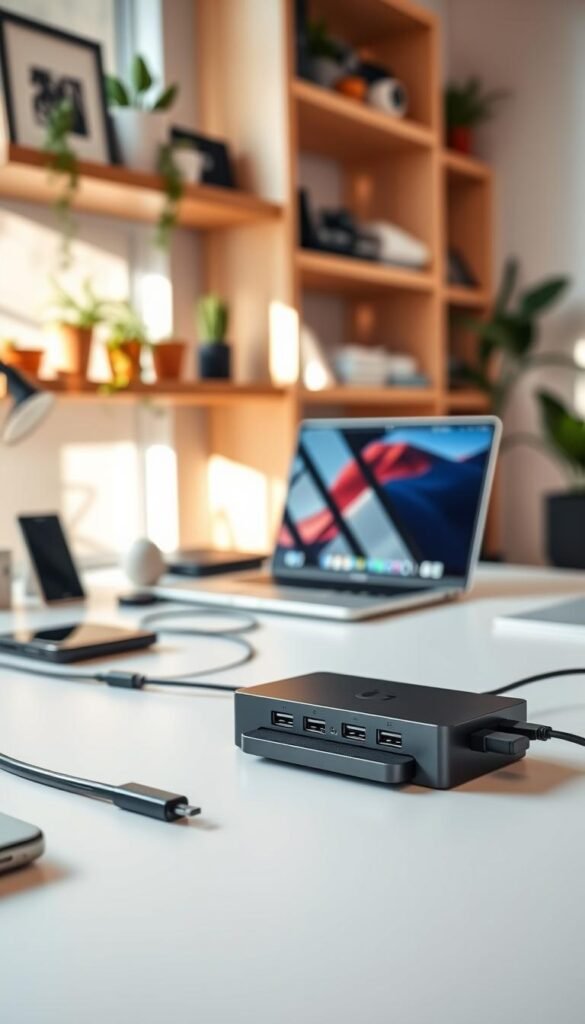
What a good dock fixes: one cable for charging, displays, ethernet, and accessories. That stops daily dongle chaos and makes your workflow predictable.
Practical compatibility guidance
Match the dock to your laptop port and power needs. Check that the dock supports the monitor types you plan to use. If you run two screens, confirm the dock can drive both at the resolution you want.
Real-world example
The Plugable TBT4-UDZ is a Thunderbolt 4 dock with 100W power delivery, 2.5GbE, 2× HDMI, 2× DisplayPort, multiple USB-C/USB-A ports, SD/microSD, and audio. It sits under the laptop and reduces the need for extra adapters.
Budget hub vs premium dock
Hubs are fine if you need a few ports occasionally. Upgrade to a premium dock if you dock daily, run multiple screens, or need stable transfers and calls.
Heat and power note: docks can run warm. Give them airflow and avoid tight pockets with power bricks.
| Need | Good option | Why |
|---|---|---|
| Occasional ports | Basic USB hub | Cheap, small, portable |
| Daily docking, dual monitors | Thunderbolt 4 dock (Plugable) | Stable video, 100W charging, Ethernet |
| Limited budget, single monitor | USB-C hub with HDMI | Low cost, fewer features |
Small-space tip: mount or place the dock consistently to keep cables short and cleaning quick.
Keyboard, mouse, and desk mat choices for comfort and durability
Small choices like keys and a mouse shape how smoothly your workday runs. Pick input gear for comfort and long-term reliability rather than looks. A good setup makes the whole experience less fussy.
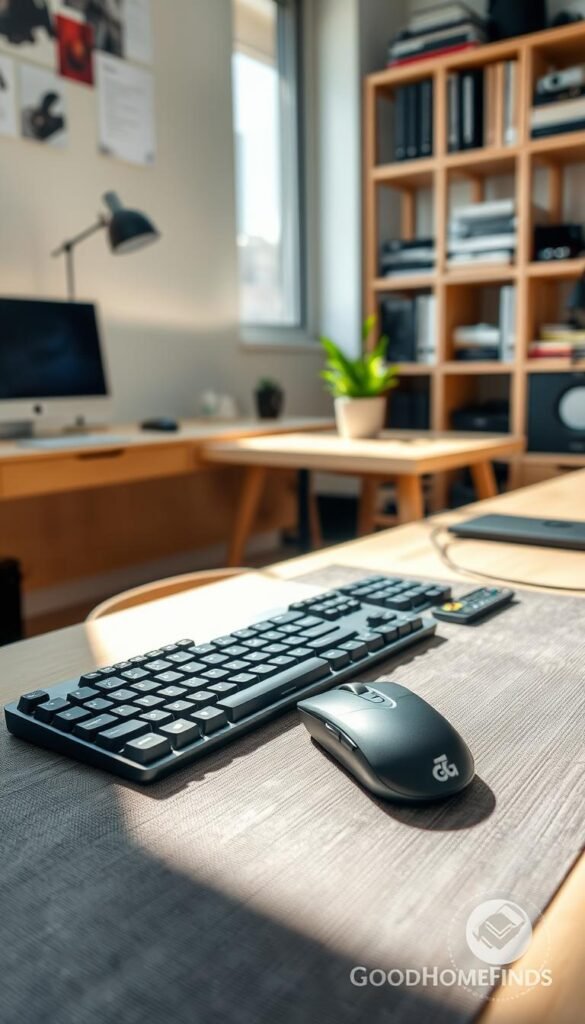
Wireless vs wired: battery life and reliability trade-offs
Wireless reduces clutter and helps renters avoid extra holes or anchors. Models like the Logitech MX Keys for Mac and MX Master 3 offer outstanding battery life and strong customization through Logi Options+.
Wired gear is simpler. It is steady and avoids receiver glitches. If you dislike occasional power-cycling or troubleshooting, a wired keyboard and mouse can be a better daily choice.
Desk pad and mouse pad: why they help day-to-day
A mat protects the surface, reduces noise, and smooths mouse movement. It also makes wiping crumbs and dust easier and slightly dampens typing sound for shared walls.
- Practical tip: pick one weekly time to charge or swap batteries so you don’t hunt mid-day.
- Real-life note: MX devices may need a receiver reset sometimes and heavy typers can wear keys over years.
- Match to preferences: compact keyboards save space; full-size helps if you use a number pad daily.
Choose what feels right. Small accessories change your comfort more than a flashy upgrade. Prioritize quality and simple maintenance for better day-to-day results.
Lighting that helps your eyes without turning your desk into a disco
Practical light changes deliver big comfort gains without flashy color tricks. Aim for even, gentle illumination that reduces eye strain and keeps you looking natural on calls.

Task lighting that works in apartments
A USB monitor light bar like the BenQ ScreenBar Halo is a strong, renter-friendly choice. It mounts on your monitor and frees up surface area.
Why it helps: better keyboard visibility, less overhead glare, and a cleaner workspace. The Halo runs on USB and uses a control puck for quick adjustments.
Warm vs cool light: simple rules
Use cooler light in the day for focus and alertness. Switch to warmer light in the evening to wind down.
Color reproduction matters. Pale or dark wall finishes change how light reads. Lighter walls reflect more, so you may need lower brightness.
Smart lighting basics that stay practical
Philips Hue with a motion sensor can save energy by turning lights on only when you enter. Automations via Hubitat or HomeKit keep it simple.
- Keep it modest: avoid RGB disco modes for daily work.
- Hub note: some smart products need a hub; skip it unless you like tinkering.
- Heat & lifespan: use aluminum diffusion channels for LED strips to reduce hotspots and extend life.
For renter-friendly lighting products and ideas that fit small homes, see this best home finds for renters.
Power, safety, and energy saving for a desk full of electronics
Power choices are the quiet infrastructure that keeps your home office safe and efficient.
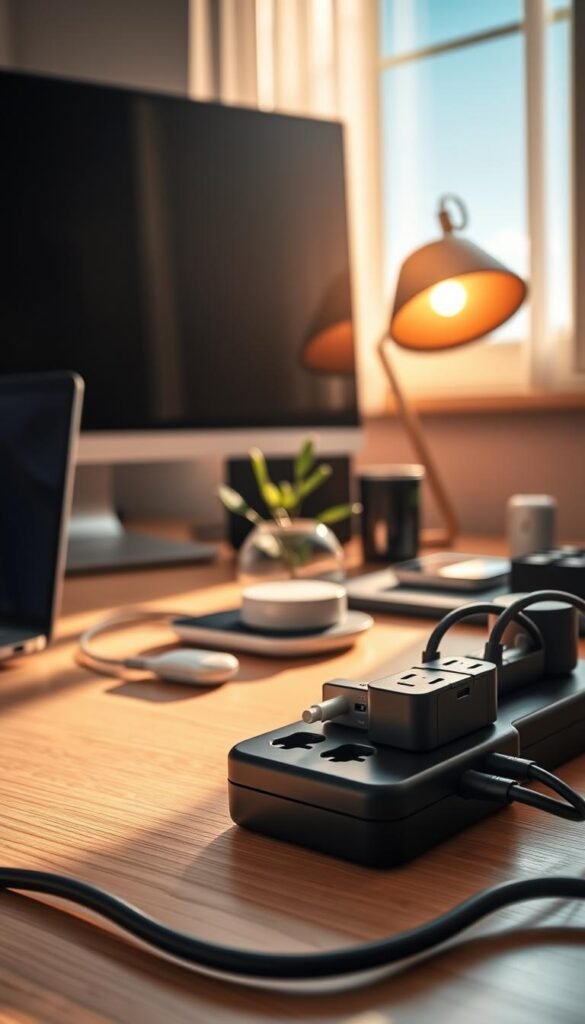
Power consumption basics: many devices sip energy when idle. Chargers and docks can stay warm if left plugged in. That adds cost and risk over weeks and months.
What typically stays plugged in
Monitors, a dock, router or modem, speakers, lighting, and phone chargers are the usual suspects. Keep a clear list so you know what to cut at day’s end.
Smart plugs and scheduled „real off“
Smart plugs are an easy energy win. Use an Aeotec smart plug to schedule the BenQ ScreenBar Halo to cut power each night. That gives true off, lowers heat, and limits phantom draw.
Surge protection and overload risks
A quality surge protector protects expensive products better than cheap strips. One well-rated 16-outlet unit placed in a cable tray beats several scattered power bars.
Practical safety rules: don’t daisy-chain strips. Keep high-draw appliances off your office circuit. If you want a buying guide, see a trusted review of the best surge protector at best surge protectors.
Heat and ventilation
Give docks and power bricks breathing room. Don’t trap them in drawers, under rugs, or in tight bundles of cables. A little airflow is the simplest way to prevent heat buildup and extend gear life.
Cable management that stays tidy after the first week
Start by making cables invisible so your area stays usable after the first week. Small changes now prevent slow drift back into clutter.
The easiest wins are short and fast. Swap to shorter cables, cut extra adapters, and pick one dedicated charging spot. This stops cords from spreading across your surface and floor.
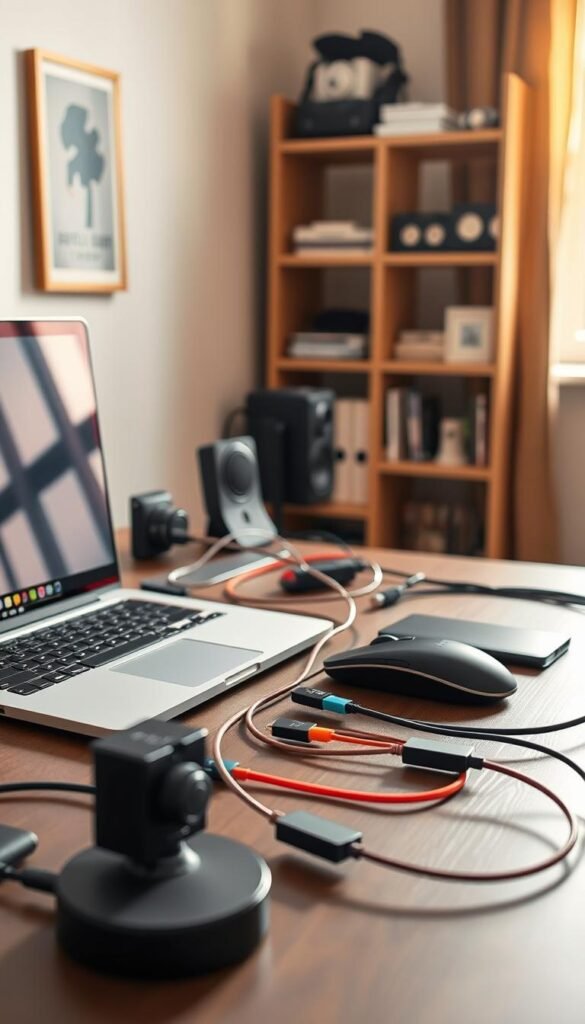
The under-desk containment trick
If cables aren’t captured they will creep back into view. An under-desk basket hides a surge protector and excess length while staying easy to access. For a proven option, consider the NeatTech basket.
Maintenance-friendly tools
- Sleeves and looms bundle multiple cords so they act like one clean line.
- Reusable ties and labels let you adjust without cutting anything.
- Slim patch cables reduce bulk and are easier to route in tight spaces.
Routing for safety and comfort
Keep cables out of the chair path and away from feet. Route them along the rear edge and into the tray. Leave enough slack so a height change doesn’t yank plugs.
Budget vs premium — what’s worth buying
Cheap clips and ties work for basic needs. Upgrade to a quality tray and better cables if you run many devices and want a clean, lasting look. Good management reduces heat, eases cleaning, and saves time every week.
Audio setup for calls and focus (without annoying neighbors)

Speakers vs headphones: if your walls are thin or you share a room, headphones are usually the renter-friendly pick. They cut spill and keep late calls from waking others. Small nearfield speakers work if you live alone and want natural sound.
Understanding what “quiet” really means
Quiet isn’t just low volume. It is about sound leakage and bass. Even small speakers can leak. Open-back headphones also leak. Choose closed-back cans to keep audio private.
When a dedicated mic matters more than a better camera
People tolerate so-so video but bad audio kills meetings. A modest dedicated mic or a headset with a good boom improves clarity the most.
- When to upgrade mic: heavy meetings or frequent recordings.
- Quick wins: mute shortcut, lower bass, test with someone in the next room.
- Small-space tip: soft furnishings and a rug cut echo without new gear.
Practical rule: prioritize meeting quality over perfect picture. For renter-friendly audio products and budget options, see this budget gadget guide.
Small-space storage and desk accessories that earn their footprint
In small apartments, every accessory must justify its footprint by saving time or clearing surface clutter.
Earn their footprint: if an item doesn’t save you daily minutes or clear surface space, it doesn’t belong on your main workspace. Keep your choices lean and functional.

Under-surface drawers that clear the surface
Under-mount drawers are a high-value upgrade for compact homes. They free the top surface and add secure storage without taking floor space.
Real example: an Uplift under-mount locking drawer uses premium slides and a rear cable grommet. It hides small electronics and keeps charging cables tidy and out of sight.
Vertical storage to reclaim horizontal space
Use shelves, wall organizers, or freestanding panels to move everyday items up and off the surface. Vertical solutions improve background aesthetics for calls and make cleaning easier.
- Simple organization plan: one drawer for cables and batteries, one for stationery, one for random items that clutter the surface.
- Renter-friendly options: adhesive shelf brackets, floating shelves, and clipped organizers avoid wall damage.
- Design tip: match materials and colors for a calm look; prioritize function first.
„Fewer items on the surface equals faster wipe-downs and less dust around electronics.“
For more practical ideas on keeping surfaces clear and organized, check these desk organization ideas.
Setup time: what to expect for a basic vs advanced build
Some builds are a quick morning refresh; others demand a full weekend of measuring and mounting. Be honest about your available time and skill. That keeps frustration low and results higher.
Quick path: get working fast
What you do: laptop, one monitor, one charger, one cable path to power.
Plan for 30–90 minutes. Unpack the monitor, connect power and video, check display scaling, and run a short call to verify audio. This gives you a usable office in a morning.
Weekend path: tidy, tested, and permanent
What you do: dual monitors, arms, a dock, under-desk tray, and full cable management.
Expect 4–8 hours across a day or two. Measuring, mounting arms, and routing cables properly takes patience. Label ports and test waking, sleeping, and KVM switching before final ties.
Real time sinks and practical flow
Common delays: mounting arms, rerouting when a cable is too short, and testing that devices wake reliably after sleep. Standing surfaces need extra slack for height changes, which adds measuring and anchor points.
„Set functionality first, then hide cables. Rushing final tie-downs causes more rework.“
| Plan | Time | Why it matters |
|---|---|---|
| Quick path | 30–90 minutes | Fast start; minimal cable management |
| Weekend path | 4–8 hours | Clean routing, mounts, labels, and testing |
| Stop point | Any time you feel rushed | Pause before final tie-downs to avoid mistakes |
Common mistakes that cost money, comfort, or safety
Small missteps add up fast in small homes. A few simple choices can turn a promising work area into a cramped, hot, or noisy hassle. Focus first on placement, power, and light before buying extras.
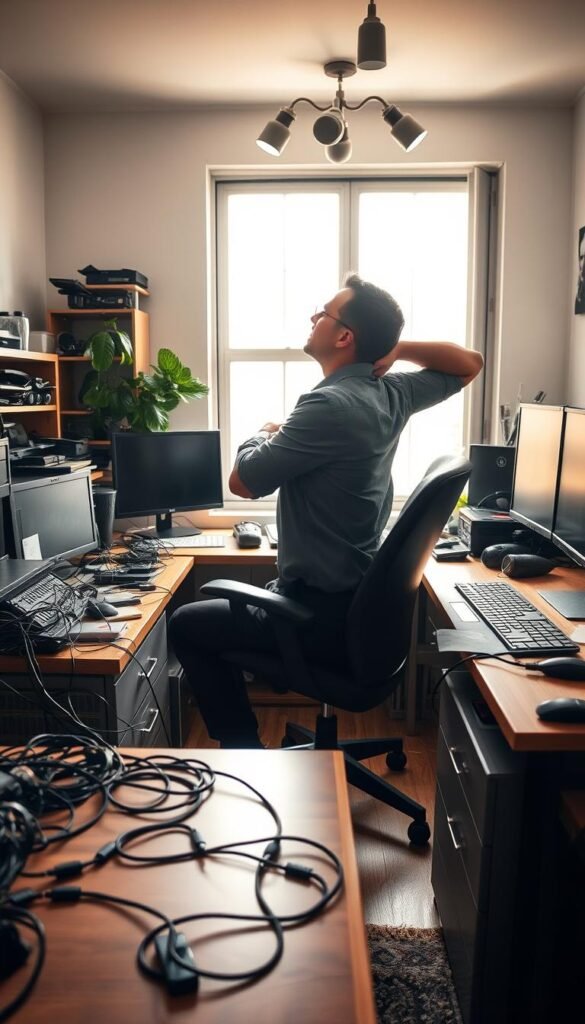
Buying gear before measuring your room
The most expensive mistake is buying first and measuring later. You may end up returning items, wasting shipping fees, or forcing a cramped layout that ruins ergonomics and budget.
Measure depth and width. Map reach zones and outlet locations. This prevents monitor arms that don’t fit and shelves that block view or airflow.
Overloading power strips or hiding hot bricks
Don’t daisy-chain extension cords or crowd power bricks into drawers. Overloaded strips can trip breakers and create real safety risks in older apartments.
- Keep high-draw gear on its own protected circuit when possible.
- Give bricks airflow—avoid tight bundles or enclosed boxes where heat builds.
Quality surge protection and a single, well-organized power path are worth the spend for long-term safety.
Chasing more screens instead of better placement and lighting
Two monitors jammed into a tiny surface often feel worse than one properly placed monitor with good task light. A single, well-sized screen plus a monitor arm and proper light can beat the cluttered alternative.
Ignoring noise and heat until it’s daily
Noisy motors, fans, or warm docks become a habit breaker. If your standing furniture or power gear is loud, you’ll avoid features you paid for and may annoy housemates.
Simple fix mindset: optimize placement, secure ventilation, and upgrade one core item (chair, monitor, or power) before adding extras.
For ergonomics and long-term health guidance, see this office ergonomics guide.
Maintenance and upkeep: keep performance high with low effort
Good maintenance saves money and prevents surprise failures. A little attention each month keeps your home office running cool and quiet. Follow a simple routine and you’ll avoid common safety and performance problems.

Monthly checks: dust, cable slack, and loose mounts
Monthly checklist you can stick to:
- Dust vents, fans, and connectors. Dust blocks airflow and raises heat around docks, chargers, and power bricks.
- Check cable slack, especially on height-adjustable surfaces. Leave gentle loops so movement does not tug plugs.
- Tighten any mounts and monitor arms that wiggle. Loose hardware shortens lifespan and risks falls.
Battery and charging habits that reduce waste and clutter
Make charging predictable. Pick one visible charging spot and use it every day.
Practical habits:
- Charge wireless peripherals on a schedule so spare cables do not lie around.
- Top up batteries rather than fully draining them often. That extends battery life and cuts replacements.
- Use a single multi-port hub or charger at your charging spot to reduce cable clutter and make missing items obvious.
When to replace cables, surge protectors, and cheap hubs
Inspect cords and accessories quarterly. Replace any cable that is frayed, loose, or causes dropouts. A failing cable becomes a daily annoyance and a safety risk.
Surge protectors: replace if they’re over five years old or if they experienced a big electrical event. Don’t assume a stepped-on or discolored protector still protects your gear.
Hubs and docks: cheap hubs can be handy. But if you troubleshoot the hub weekly, upgrade to a reliable dock. Spending on a stable hub often saves time and avoids data or display issues.
„Small, regular checks keep things safe and save money over time.“
Practical tip: store spare short cables and a tested replacement hub in an easy drawer so you can swap quickly if something fails. For minimalist guidance on overall layout and choices, see this minimalist desk guide and this renter comparison.
Budget vs premium desk tech setup: where to save and where to spend
Spend where it matters so your work area stays useful, quiet, and safe.
Start by prioritizing comfort and safety. Buy a chair that fits your body and a stable surface you will actually use each day. A reliable surge protector matters more than decorative lighting for long-term safety and energy savings.
Where to spend
Chair and core surface: pick an office chair that supports you and a stable table or standing desk if you will use it often.
Safe power: invest in a quality surge protector and consider smart plugs for scheduled „real off“ to cut phantom draw.
One core monitor: a BenQ that you enjoy using daily is worth the cost for comfort and less eye strain.
Where to save
Hold off on many accessories and décor until basics are solved. Hue lighting and fancy smart extras are optional. A budget standing desk like FlexiSpot can work fine; Fully Jarvis and Uplift feel sturdier and quieter but cost more.
Upgrade path
Buy less more often. Add cable management first, then a monitor light (BenQ ScreenBar Halo), then a reliable dock, and only add a second monitor if it truly improves flow.
| Priority | Budget option | Premium option |
|---|---|---|
| Surface | FlexiSpot standing desk — functional | Fully Jarvis / Uplift — quieter, longer warranty |
| Seating | Good mid-range office chair — basic support | Ergonomic high-end chair — better fit, durability |
| Monitor & lighting | Value 24–27″ monitor + simple lamp | BenQ monitor + ScreenBar Halo for eye comfort |
| Power & energy | Decent surge protector + smart plug | High-quality surge protector, scheduled smart off |
„Spend on comfort and safety first. Extras come later.“
For practical budget desk options and examples, see this budget desk options.
Conclusion
strong, Finish with practical routines that keep your work area safe, tidy, and useful every day. The best desk and setup is the one you can maintain without constant fiddling.
Plan first. Measure the surface and outlets before you buy. That simple step protects your budget and prevents cramped layouts that hurt comfort and productivity.
Daily wins are straightforward: fewer cables, smarter power shutoffs, better lighting, and clearer meetings. These changes improve comfort and real-world productivity fast.
Next steps: pick your foundations, choose one good monitor, add safe power and a surge protector, tidy cables with a tray, then try a motion sensor and a smart plug if it helps.
Keep a monthly check and a five-minute nightly reset. A clear surface makes cleaning quick and keeps charging zones tidy in the kitchen or other shared spots. Small maintenance keeps your office and daily electronics reliable for years.