Practical home tech that works in real life. You want a small, reliable group of devices you use every day. This is not a complex project you babysit. It is a short list of tools that cut waste, save time, and fit rental life.
The foundation is a strong, secure Wi‑Fi network and a simple app you actually open. Many people begin with a speaker or display as a control hub. Matter and QR codes now make onboarding easier for many devices.
Expect low effort wins from voice control, a couple of lights or plugs, and one routine that answers the common „did I leave it on?“ question. This guide covers ecosystem choice, Wi‑Fi checks, starter devices, budget vs premium buys, time estimates, common mistakes, and basic maintenance.
Start small: pick a platform, check your network, buy 2–4 starter devices, name rooms, and create 1–2 routines. For small apartments, pay attention to outlet limits, neighbor noise, and placement. For practical picks and budget ideas see budget home gadgets.
Key Takeaways
- Begin with a tight, daily-use kit rather than many gadgets.
- Strong Wi‑Fi and one easy app matter more than features.
- Aim for energy savings, safety, and renter-friendly installs.
- Start with a speaker/display, then add lights and plugs.
- Buy 2–4 reliable devices and stop once it feels normal.
Real benefits you’ll actually notice from a smart home
Small automations that run without fuss are the ones you actually use every day. They do practical work: shave minutes off chores, lower waste, and reduce anxiety about things you forget.
Energy savings that show up on your bill
Heating and cooling matter most. A thermostat that turns down when you leave cuts the biggest waste. Smart plugs and routines stop devices that stay on for no reason.
Where savings are real: if your schedule varies or you forget adjustments. Where they are small: if building heat is fixed or you already manage temps tightly.
Everyday convenience that adds up
Voice timers, quick music, and single commands to leave make small wins stack fast. A „turn everything off“ routine saves a few trips through the apartment.
Safety and peace of mind without full surveillance
Doorbell cameras and one indoor camera aimed at an entryway give useful alerts for packages and visitors. Use motion notices, selective recording, and clear placement to avoid overreach.
„You can add security without covering every room.“
Better routines in the kitchen and cleaning
- Speaker timers and voice prompts while cooking.
- Routines that start a robot vacuum when you leave.
- Smart plugs that cut power to high‑watt appliances you worry about.
Be honest: if you dislike notifications or extra apps, limit alerts and use fewer routines. The point is practical help, not more friction.
Who needs this and who should skip it for now
Not every apartment benefits from connected devices; pick what actually helps you live easier.
Who this fits: You want a practical home that handles a few daily tasks without constant fiddling. Renters like you benefit because many items plug in and travel with you. Devices such as speakers, bulbs, and plugs work without drilling or rewiring.
Small‑space realities: Outlets and counter space are limited. Plan placement carefully. A bad choice is more annoying in a studio than in a house. Think about where one device will live before you buy three.
Minimum tolerance and privacy
If you refuse to manage logins or updates, stick to big brands and fewer devices. Apartment Wi‑Fi congestion can make things unreliable. A stable network and a guest/IoT VLAN help reliability and security.
When to skip and alternatives
- Skip now if your internet is flaky, your building uses a shared network you can’t secure, or you won’t accept always‑on mics/cameras.
- If you pause, start with one speaker for timers or use non‑cloud timers and power strips for daily gear.
- Make sure controls are shared with roommates so everyone can use the same system.
„If your Wi‑Fi is stable, you’re comfortable with a voice assistant, and you’ll spend an hour setting up, this is worth it.“
Need a comparison for renter‑friendly options? See our renter comparison to pick the right devices and platform.
Plan your ecosystem first: Google Home, Alexa, or Apple Home
Choose the platform that matches the phones and people in your home. This keeps everyday control simple and reduces friction when you add devices.
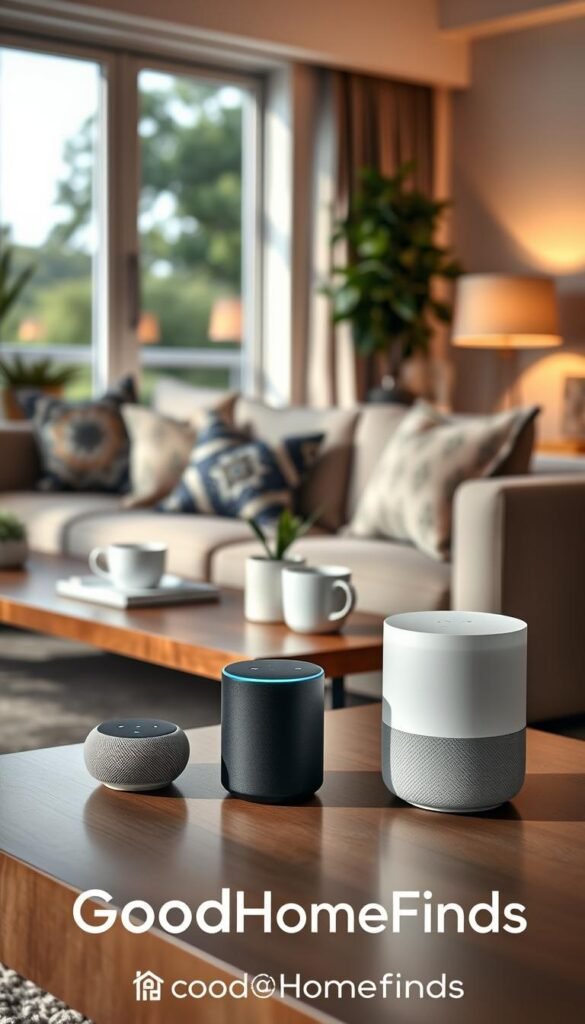
Match by phone and household: Android users often find google home the smoothest route. iPhone households tend to prefer Apple Home. Alexa works well when you want broad product choices and budget speakers.
How to pick a practical main platform
Pick one main system so voice, app, and automations behave predictably. A single hub—usually a speaker or display—gives local voice control and a simple place guests can tap.
What “works with” labels actually mean
Works with labels mean basic commands and pairing are supported. They do not promise full features. Expect basic on/off and timers. Advanced options may remain in the maker’s app.
Why Matter compatibility matters
Matter makes devices more likely to work across google home, Alexa, and Apple Home. A Matter-capable product is less likely to become a dead-end when you change phones or platforms.
„If a device supports Matter, it’s more likely to keep working when your phone or platform changes.“
- Pros: Easier cross-platform connection and simpler onboarding.
- Cons: Some advanced features still live in manufacturer apps.
- Small-apartment tip: Pick the ecosystem that gives quick voice control and clear app tiles so you don’t rely on perfect automations.
Get your network ready: Wi‑Fi strength, apartment congestion, and security basics
Good coverage, not peak speed, is what keeps your devices behaving in daily life. In a small home, the router should blanket the place so the spots you use—doorway, kitchen, and bedroom—get consistent signal.
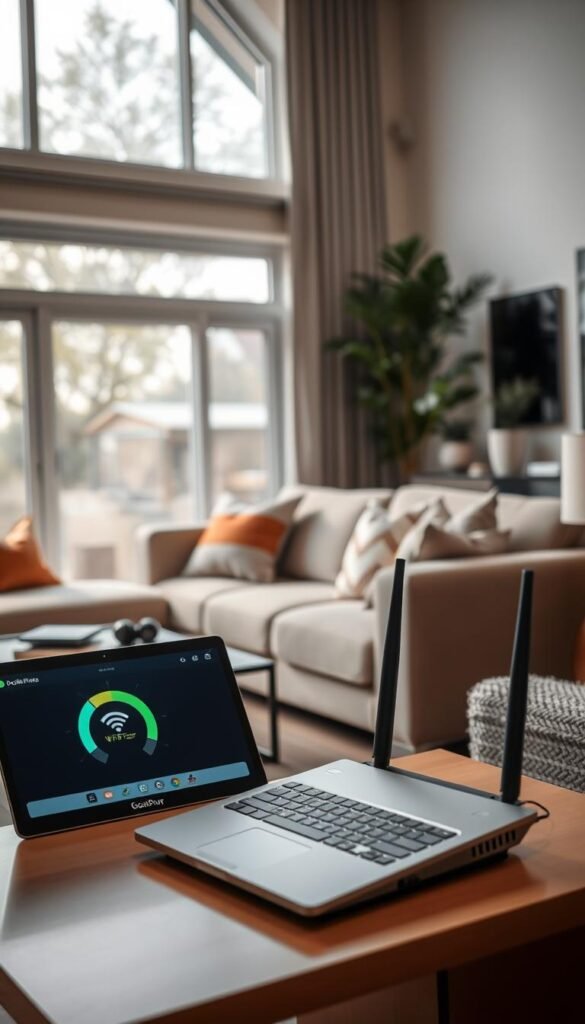
What “strong Wi‑Fi coverage” means in a small apartment
Strong coverage means reliability. Your internet plan can be fast, but devices fail when the signal drops where they sit.
Put the router in a central, open spot. Avoid hiding it behind furniture or in a closet. That reduces dead zones quickly.
Common pairing snag: 2.4 GHz vs 5 GHz
Many devices pair only on 2.4 GHz. If your router uses one combined name, the device may not see the right band.
Options: temporarily join the 2.4 GHz band, or split network names so each band has its own SSID. This is a simple step that saves time during device onboarding.
Simple security moves: strong passwords, guest network, and device accounts
Use a long Wi‑Fi password and enable a guest or IoT network for visitors and plugs. A separate network limits risk and keeps your main devices safer.
Use unique account passwords for each device and turn on multi-factor authentication when an app offers it. These are small steps with big security benefits.
| Issue | Quick fix | Why it matters |
|---|---|---|
| Dead zones | Move router central, avoid closets | Devices keep connection where you place them |
| Band mismatch | Use 2.4 GHz for pairing or split SSIDs | Stops failed pair attempts and wasted time |
| Security risk | Create guest/IoT network; strong passwords | Keeps home accounts and devices isolated |
Troubleshooting note: If a device flakes out, suspect band mismatch or weak coverage before assuming it is broken. Count outlets near the router and your target spots so you avoid awkward extension cords and blocked power strips.
„Most connection problems are a placement or band issue, not the device.“
Choose your starter kit: the best first smart home devices for real life
Pick a small set of devices that solve real chores, not a long wish list you never use. For a small apartment, aim for usefulness over novelty. A tight kit reduces noise, saves power, and stays renter-friendly.
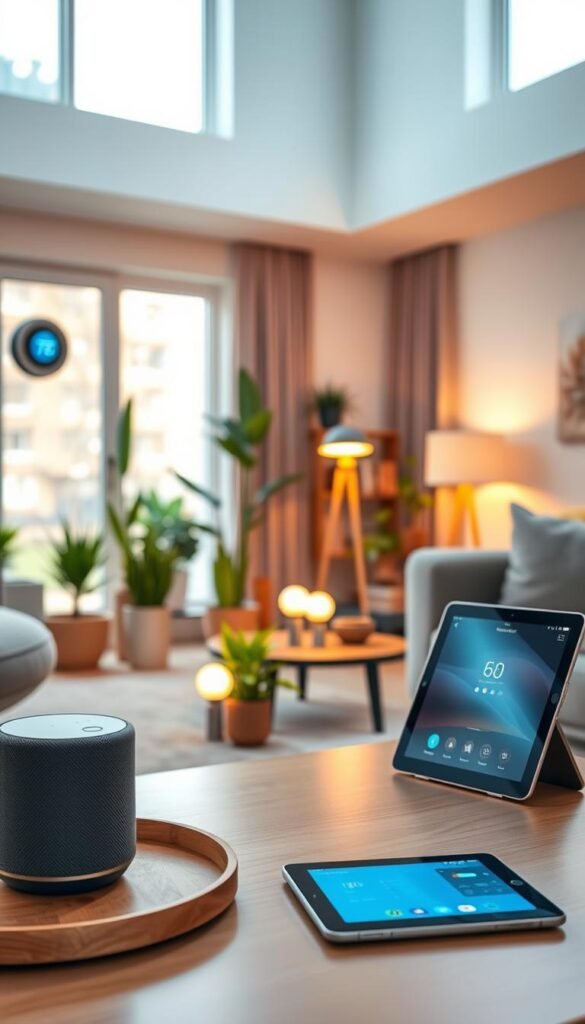
Speakers and displays as the easiest hub
A speaker or display works as a practical hub. It gives voice control, shows timers, and lets guests tap controls without your phone.
Why it helps: voice commands speed common tasks and a screen (like Nest Hub or Google Nest) shows quick context.
Lighting that won’t annoy roommates
Lights need simple answers to the switch problem. Use lamp bulbs or smart switches and label toggles so everyone knows what to do.
Tip: keep one or two lights per room to avoid confusing guests.
Plugs, thermostats, and cameras
Smart plugs are underrated heroes. Use them for fans, chargers, or holiday lights to cut standby power and add routines.
Thermostats pay off when you control HVAC and your schedule changes. In many rentals they won’t save much if heat is building-managed.
Put cameras and doorbells at entry points only. Expect subscription fees for recorded history and set notifications so chimes won’t wake the whole apartment.
- Starter order: a speaker/display, two plugs, one or two lights, then optionally a thermostat or doorbell/camera.
- Check outlets, Wi‑Fi at the door, and mounting options (use adhesives to avoid damage).
Budget vs premium: what’s worth paying for in your first smart setup
Deciding when to splurge comes down to reliability and how often you interact with a device.
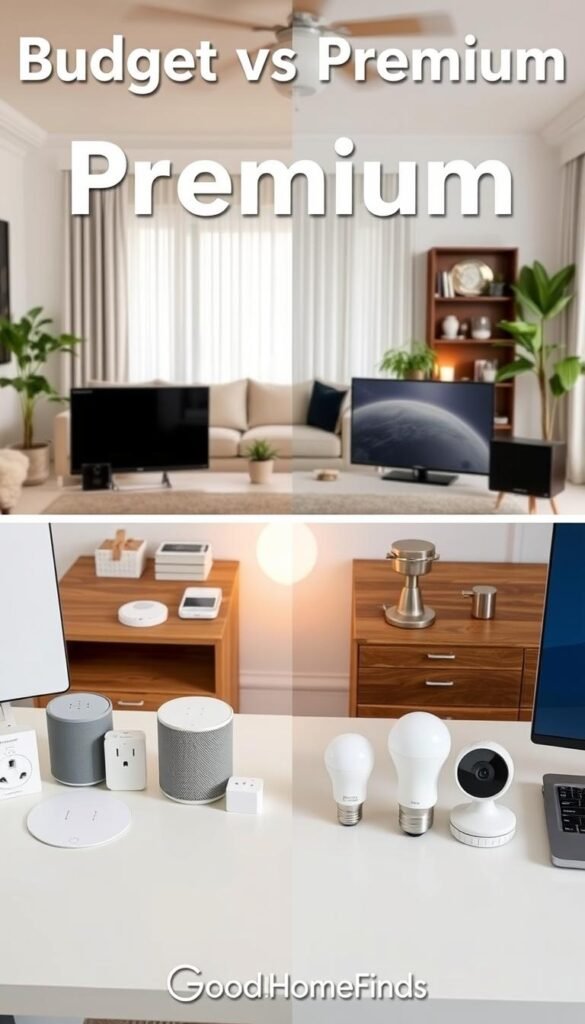
Where budget options are totally fine
For many needs, inexpensive products do the job. Use budget plugs, a basic speaker, and plain white bulbs to get core benefits. These devices save power and add routines without a big spend.
Where premium earns its price
Spend more on gear you touch daily: the main speaker or display, primary lights, and entry cameras or thermostats are worth premium buys. They give better reliability, a smoother app experience, and longer support.
Hidden costs to watch
Subscriptions for cloud video history, replacement batteries, and extra hubs can add monthly or one‑time costs. Hubs may require outlets or Ethernet and reduce congestion, but they raise upfront price.
„Spend on what you use every day; save on what runs itself.“
| Category | Budget pros | When to upgrade |
|---|---|---|
| Plugs & bulbs | Cheap, easy to replace, renter‑friendly | Upgrade if frequent disconnects or advanced scenes needed |
| Speakers & displays | Affordable voice control options (Alexa often cheap) | Choose premium for better mic, screen, and local processing |
| Cameras & doorbells | Basic motion alerts; low cost | Pay for premium if you need reliable video, longer history, or better low‑light sensors |
| Thermostats | Simple models control schedules | Premium models save more energy and offer longer software support |
For renters, prioritize portable items you can take with you. If you want a deeper cost breakdown, see a clear guide on smart home costs.
Setup time: what to expect from unboxing to working routines
Getting devices working takes more than a quick plug. Expect a mix of easy wins and a few pauses for firmware, accounts, or Wi‑Fi bands. Be honest: some items take minutes, others need planning.
Typical time windows for speakers, lights, plugs, and cameras
Speakers and plugs: many pair in 5–15 minutes. They usually appear in the app fast and respond to voice control quickly.
Lights: bulbs vary. A simple bulb often pairs in 5–20 minutes. A hardwired switch can take longer due to wiring or breaker checks.
Cameras and doorbells: plan 20–45 minutes. You’ll test angles, notification settings, and sometimes mount hardware.
What makes setup faster
Having a hub already on the network speeds things. Matter QR codes and Fast Pair-style flows cut the steps. Keep your phone on the same Wi‑Fi band the device needs while pairing.
Naming, rooms, and groups so voice commands work the first time
Name devices like you live there. Use clear names: “Kitchen Speaker,” “Bedroom Lamp,” “Entry Light.”
Group similar items into rooms such as “kitchen lights” so voice control addresses all bulbs at once. Avoid duplicate names; they confuse assistants and routines.
Space, outlets, and placement checks before you mount anything
Test signal and camera view before drilling. Confirm outlets are reachable and not blocked by furniture.
For small apartments, place speakers where they hear you without blasting volume. Pick gentle notification tones so neighbors and roommates aren’t disturbed.
| Device | Typical time | Quick tips |
|---|---|---|
| Speaker | 5–15 min | Power on, open app, allow mic, name room |
| Plug | 5–15 min | Keep phone on 2.4 GHz if needed; test load |
| Light (bulb) | 5–20 min | Power cycle per instructions; group into room |
| Camera / Doorbell | 20–45 min | Test view, notifications, and power; scan Matter QR before mounting |
Stop point: when voice control works for at least one room and one routine runs reliably, pause. That keeps the process tidy and prevents device overload.
For an unboxing walkthrough that shows clear pairing steps and accessories, see this detailed unboxing and setup walkthrough.
Common mistakes that make smart home setups feel “broken”
Many broken-feeling setups come down to mismatched devices, poor Wi‑Fi, or ignored maintenance. You can fix most problems without replacing everything.
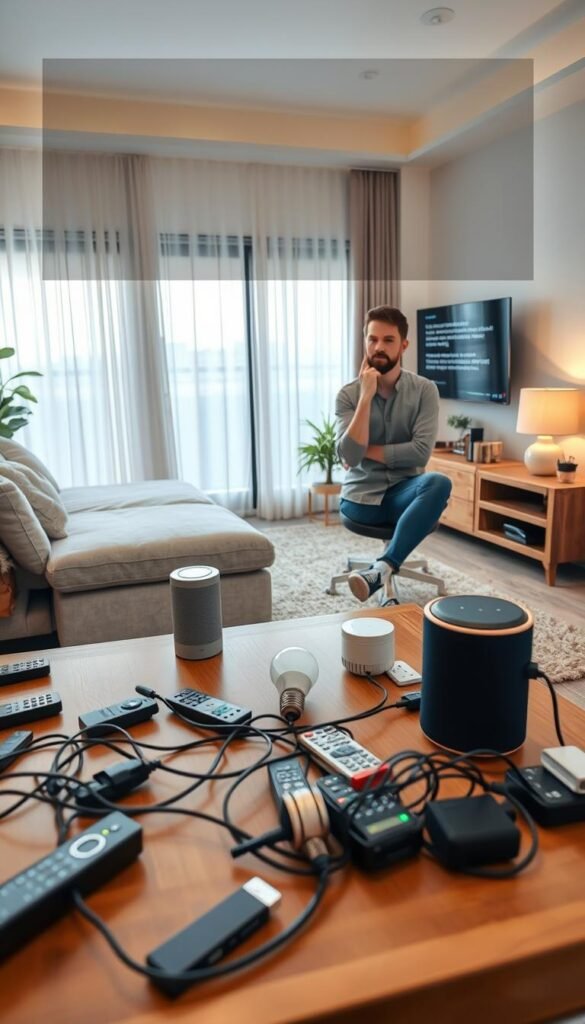
Buying devices that don’t match your platform or needs
The #1 mistake is buying gadgets that list compatibility but don’t deliver the controls you expect in your chosen platform.
A camera or bulb may pair but lack key features in your app. Check what the manufacturer supports in Google, Apple, or Alexa before you buy.
Overloading the network or poor router placement
Too many devices on one congested network makes everything slow or flaky.
Put the router centrally. If a device needs 2.4 GHz for pairing, switch bands while you add it. A small network move often ends the lag.
Ignoring real-world constraints: noise, lights, and tight spaces
Think about where a device lives. Blinking LEDs can wake you. Doorbell chimes may be too loud. Some plugs block nearby outlets.
Place speakers away from beds, choose quieter tones, and test physical fit before mounting.
Skipping maintenance: batteries, updates, and cleaning
Maintenance matters. Battery cameras need charging. Motion sensors collect dust. Firmware updates can change how routines run.
Schedule a quick monthly check. Keep chargers handy and apply updates on a stable network.
Rushing into complex automation
Complicated automation chains fail more often and are harder to troubleshoot.
Start with one reliable routine — for example, a Good Night routine that turns off lights and cuts power to plugs. Expand only after that works every day.
Privacy and security slip-ups
Reuse passwords, skip MFA, or place a camera where it feels intrusive and you’ll stop using it.
Simple fixes: unique passwords, multi-factor authentication, and deliberate camera placement that respects privacy and still gives security.
„Most broken setups improve when you simplify routines, improve Wi‑Fi placement, and standardize device names.“
When you need a quick reality check on failing systems, read this short analysis of common failures: why your smart home may feel. It gives practical prompts to help you diagnose the issue and clean up the system.
Keep it running: maintenance, power use, noise, and simple troubleshooting
Keeping your home reliable is about small habits, not constant tinkering. A short monthly routine preserves convenience, limits waste, and keeps security tight.
Power consumption basics: some devices stay ready and draw steady power — speakers, hubs, and cameras. Others mostly sleep until triggered, like many sensors. That means your daily power use mixes steady draws and short bursts.
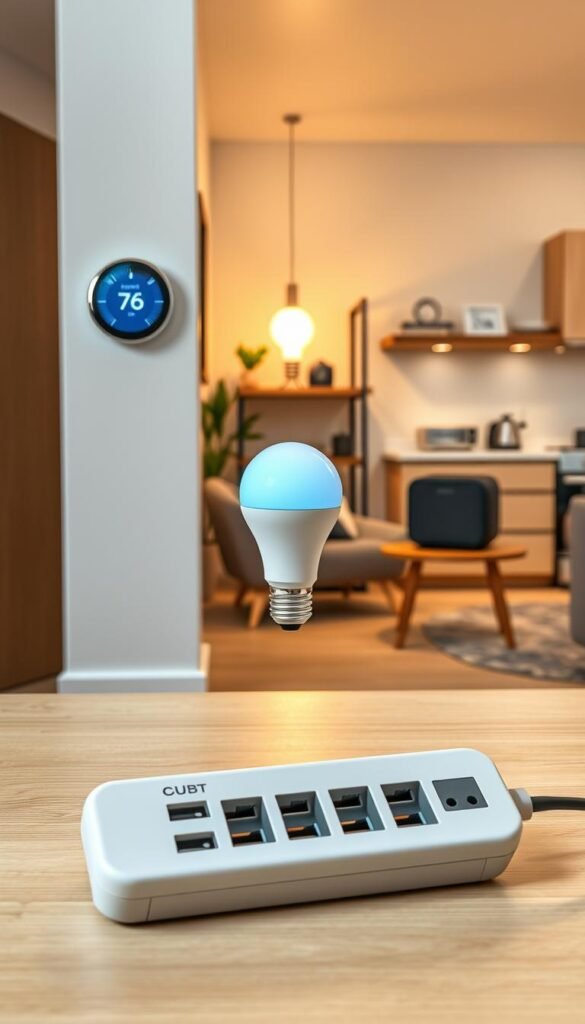
- Schedule nonessential plugs to turn off overnight (chargers, holiday lights).
- Lower default speaker volume and set quiet notification tones for night.
- Limit camera zones and disable needless motion alerts to reduce cloud use and power draw.
Bedroom comfort and noise checks
Place speakers and displays where microphones won’t pick up sleep sounds. Use mute buttons or scheduled off times for devices in sleeping areas.
Choose devices with dimmable indicator lights or cover bright LEDs with a small piece of opaque tape if the maker doesn’t offer a low-light option.
Quick troubleshooting checklist
If a device won’t connect or respond, follow this simple sequence:
- Confirm your internet is working in the room and the network name matches the band the device needs.
- Move the device closer to the router or remove it from crowded power strips.
- Reboot the device and the router, then reopen the app and check status.
- If needed, re-run pairing steps or scan the Matter QR (when applicable).
Maintenance rhythm: once a month check for firmware updates, wipe dusty sensors, recharge batteries, and prune automations you no longer use. Rotate passwords occasionally, keep multi-factor authentication on, and remove old accounts or devices when roommates move out.
„Aim for a system that works 95% of the time with easy fixes, not a perfect sci‑fi home.“
For deeper troubleshooting on appliances and devices that show hardware faults, see this practical guide on appliance troubleshooting. For HVAC and seasonal care that affects power and comfort, this DIY maintenance guide is helpful: keep it running.
Conclusion
End with a clear, low-effort plan so the system stays useful.
Pick one ecosystem, confirm reliable Wi‑Fi, buy a small starter kit, and build routines only after the basics work. This practical approach gives fast, real benefits like lower energy use, smoother kitchen and cleaning tasks, and more peace of mind around lights and entry points.
If your internet is flaky, you share a network you can’t secure, or you avoid microphones and cameras, it’s fine to pause. Favor Matter-capable devices when you can; it reduces dead ends and eases future upgrades. For onboarding tips see device onboarding, and for a quick primer on what a smart home offers.
Plan an hour or two for your first batch, test signal, outlet access, and noise before mounting. Avoid too many devices or complex automation too soon. Do a quick monthly check to keep the system reliable, quiet, and worth the value.