No hype. No gadget hoarding. You get a short set of tools and habits that fit a small apartment and your real life. This is about getting your time back, not collecting subscriptions or notifications.
Over half of Americans say they try to do two or more things at once. This guide frames a practical plan to lower that multitasking load and boost daily productivity. You’ll see honest pros and cons for each pick.
Expect renter-friendly advice for limited outlets, thin walls, and tight counters. Every recommendation lists setup effort, ongoing maintenance, and budget vs premium trade-offs.
From passwords and calendars to quiet kitchen and cleaning gadgets, the focus is compatibility, energy saving, and safety. Follow one clear rule: if a tool saves five minutes once but costs thirty minutes a week, skip it.
Goal: fewer “where did my day go?” moments and fewer small mistakes that add stress.
Key Takeaways
- Adopt a compact, renter-friendly set of tools that free up time.
- Look for low setup and low maintenance to keep gains real.
- Prioritize energy, safety, and compatibility from the start.
- Avoid gear that creates more overhead than value.
- You’ll cover daily electronics, smart home basics, kitchen, and cleaning gadgets.
- Each recommendation shows effort, upkeep, and budget vs premium choices.
What a Simple Tech Routine Looks Like in a Small Apartment
Living in a small apartment means every plug, counter, and quiet hour counts. You need gear that saves energy, fits in a closet or on a narrow shelf, and stays quiet for shared walls.
Start with what you already own. Use built-in calendar and mail features on iOS, Android, Windows, or macOS before adding new apps. These cover most needs and cut hours spent learning another service.
Decision filter: will this save energy, save space, or reduce weekly stress? If not, skip it.
- Small-apartment baseline: fewer outlets, limited storage, and noise matters more than in larger homes.
- Pick tools with low friction: prefer phone or laptop features first, then add a dedicated app only if needed.
- Compatibility matters: if a device does not sync across your main devices, you will stop using it.
Quick checklist: power, noise, storage
| Factor | What to check | Why it matters | Example |
|---|---|---|---|
| Wattage / power use | Label or spec sheet (watts) | Avoid overloaded circuits and high bills | Smart plug with energy meter |
| Noise level | Operational dB and motor type | Thin walls mean a loud fan is a roommate problem | Stick vacuum vs large upright |
| Storage footprint | Counter vs closet vs under-bed | Small items free up counter space | Collapsible kettle |
„Prioritize surge protection and plan where high-watt appliances will run.“
Upkeep note: Even „set-and-forget“ things need checks. Clean filters, run password audits, and tweak labels every few months.
Real benefits
A few focused changes stop your day from slipping through the cracks. You get clear, practical outcomes that matter in a small apartment: less clutter, lower noise, and fewer interruptions that steal your time.
Less time lost to multitasking
Multitasking cuts into focus. Pew found about 52% of adults try to do two or more things at once. That constant switching makes your day feel shorter.
Upside: Fewer app switches and consolidated alerts mean you spend more real minutes on work that matters.
Downside: Focus modes can hide a critical ping if set too strict.
Lower risk from weak passwords and repeated logins
Use a password manager to reduce repeated logins. Autofill stops you from recycling weak passwords and saves keystrokes.
Upside: Better account security with less hassle. You won’t need to memorize dozens of logins.
Downside: Managers add a small learning curve and one master password to protect.
Fewer missed tasks and wasted money
Less context switching means fewer missed bills and fewer duplicate purchases. You catch tasks before they slip past you.
- Practical wins: fewer late fees, fewer reorders, and fewer follow-up emails.
- Apartment payoff: fewer devices crowding counters and fewer noisy extras running in the background.
„The goal is not perfection. It is fewer preventable problems during your work and home week.“
Who needs this
Sharing a compact home with work and life on the same devices creates real friction every day. You’ll benefit if you blend job tasks and personal life in a small space. The fixes here focus on low-noise gear, cross-device compatibility, and clear digital boundaries.

Remote and hybrid workers
You use fewer gadgets for both job and home work. That means single sign-ons, calendar rules in Google or Outlook, and Slack Do Not Disturb are lifesavers.
Apartment dwellers who value quiet
Thin walls make loud motors and bright displays a real problem. Pick compact, low-noise devices and schedule heavy chores for daytime to keep roommates happy.
Busy households and shared accounts
Shared calendars, shopping lists, and streaming services work best with simple rules. Use shared Google calendars for availability and a password manager to avoid swapping credentials.
- Practical: one shared calendar, one shopping list, clear chores schedule.
- Privacy: share availability without sharing private details or passwords.
- Reduce app fatigue: prefer background services that run quietly, not more apps you must check.
„You can share devices safely and keep personal boundaries with the right settings and a good password manager.“
For renter-friendly, budget options that actually matter, see this guide to smart, affordable gear: best budget home gadgets.
Make passwords effortless with a password manager (security with less work)
Remember one strong master password and let a manager do the rest.
A password manager stores unique credentials, fills sign-ins in your browser, and ends sticky-note password dumps. Productivity coach Samphy Y recommends Dashlane and says it saved them from remembering „406 passwords.“ Browser integration and autofill mean faster logins on a tiny couch workspace.
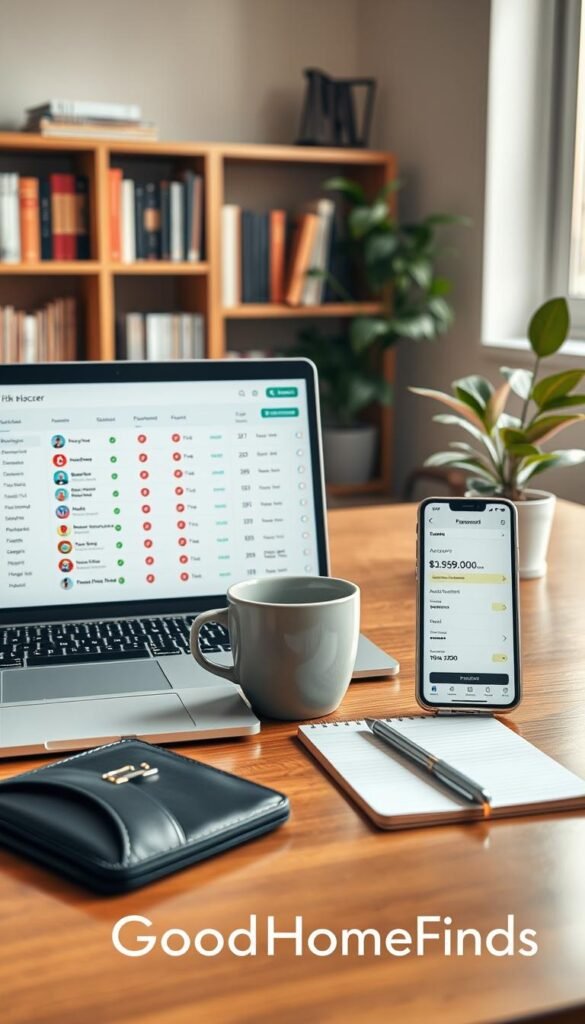
Real use case: one master password instead of dozens
You create one strong master password. The manager generates unique passwords for sites. Autofill signs you in instantly. Result: fewer lockouts, fewer resets, and less mental overhead when you switch devices.
Budget vs premium: free tiers vs paid features worth paying for
| Feature | Free tier | Paid tier |
|---|---|---|
| Vault & autofill | Included | Included |
| Multi-device sync | Often limited | Yes, seamless |
| Sharing & emergency access | Basic or none | Secure sharing, recovery |
| Breach monitoring | Limited alerts | Real-time monitoring & dark web checks |
Pros and cons: convenience vs learning curve
- Pros: fewer lockouts, stronger unique passwords, faster logins, less mental load.
- Cons: short setup effort, need to protect the master password, and a learning step to import old logins.
Maintenance: how often to update, audit, and clean up old logins
Do a quick audit every month for weak or reused passwords. Delete accounts you no longer use. After major breaches, update critical logins immediately.
„Pick a manager you trust and treat the master password like the key to your front door.“
Options to try: Dashlane, 1Password, LastPass. Each integrates with browsers and mobile apps to save time and raise account security.
Clean up inbox chaos with email filters, labels, and Undo Send
You can make urgent messages jump to the top and hide low-value noise automatically. The goal is fewer interruptions and faster scanning so you spend less time dealing with email and more time doing work that matters.
Surface urgent messages with filters and rules
In Gmail create labels and filters in Settings so messages from important senders land where you want. Filter by sender, subject, or keywords and choose „Skip Inbox“ or „Apply label“ to keep noise out of view.
In Outlook use Home > Rules > Create Rule to sort, flag, or move messages. Make a rule that flags mail from your boss and routes newsletters to a Promotions or Read-Later folder.
Catch mistakes with a longer Undo Send window
Gmail lets you set Undo Send to 5, 10, 20, or 30 seconds. Increase this to 20–30 seconds to recover from wrong recipients or missing attachments.
Schedule emails to protect work-life boundaries
Use Gmail’s Schedule send or Outlook’s „Do not deliver before“ to avoid late-night pings. Batch outgoing mail at a few set times so you reduce the amount of incoming replies at odd hours.
„Filters surface what matters; a weekly check prevents important messages from getting trapped.“
Pros and cons
- Pros: fewer distractions, faster triage, and less inbox dread.
- Cons: sloppy filters can hide important mail. Set a weekly quick review of filtered folders to catch misses.
Stop the scheduling back-and-forth with smarter calendars
Scheduling by email eats your focus and stretches a fifteen-minute decision into an hour.
Use your calendar to share availability, not meeting details. In Google Calendar set sharing to show only free/busy. That lets people pick slots without seeing titles or guest lists.
In Outlook choose permission levels. Give coworkers „Can view when I’m busy“ instead of full details. This keeps privacy and avoids accidental oversharing.
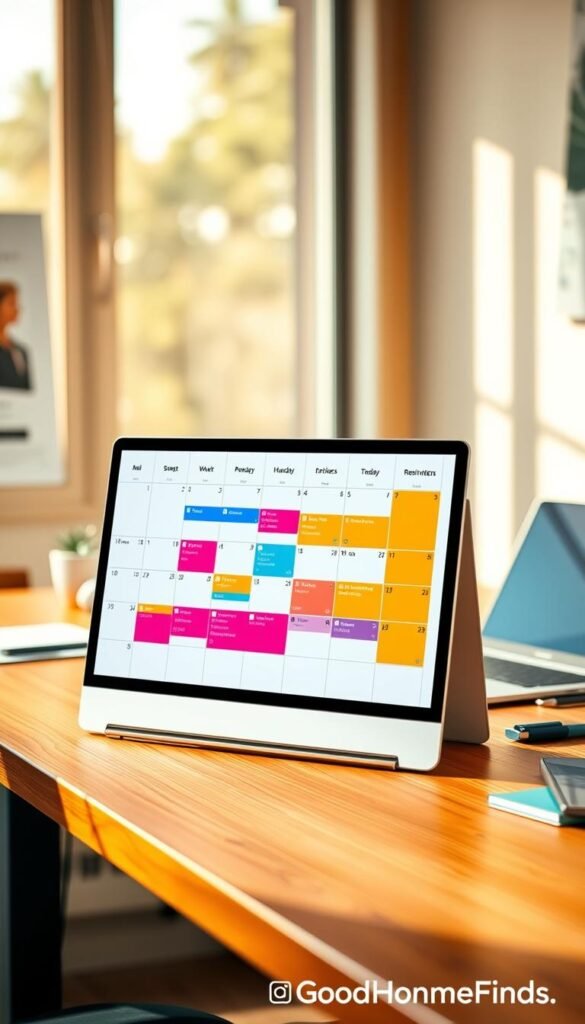
Calendly vs Doodle
Calendly is a link-based booking page. Send it to clients and let them choose from preset times. Doodle is a poll-style option for groups. People vote on possible times without syncing deep calendar access.
| When to use | Strength | Best for |
|---|---|---|
| Calendly | Automated booking | Clients and repeated meetings |
| Doodle | Quick group coordination | One-off group sessions |
Apartments win. Fewer scheduling pings mean fewer notifications through thin walls and less screen time. Set tight availability windows so your calendar does not fill with awkward late-evening meetings.
„Share free/busy and use a booking link when possible—cut the back-and-forth and keep your day predictable.“
Automate focus time across phone, laptop, and messaging apps
Constant pings make deep work fragile when your living room doubles as an office. You cannot rely on willpower alone to block notifications. Automation protects scheduled hours so you actually get work done.
Google Calendar Focus Time
Set Focus Time slots in Google Calendar to reserve blocks for deep work. Turn on the option to auto-decline meetings so invites don’t break your flow. Treat these blocks like real appointments.
iOS Focus and Do Not Disturb
Use iOS Focus to silence non-urgent alerts on your phone and other Apple devices. Choose allowed people and apps so family or building management can still reach you.
Slack Do Not Disturb
Schedule Slack DND for after-hours to protect evenings. Use channel-level overrides for truly critical work streams.
„Whitelist essentials and run a one-day test to confirm you didn’t mute the wrong alerts.“
Pros: fewer interruptions, better concentration, cleaner boundaries. Cons: risk of silencing the wrong alerts — whitelist key contacts and test.
Reduce eye strain and late-night scrolling with automatic screen settings
Evening screen glare can steal sleep hours and leave you groggy the next day. Bright, blue-leaning displays make it hard to wind down. It’s easy to forget to dim them manually.
Windows: open Settings > System > Display. Turn on Night Light and pick a schedule. Set it to warm the color in the evening so you don’t have to think about it.
Mac: go to System Preferences > Displays > Night Shift. Choose Sunset to Sunrise for a one-time setup that follows natural light. This reduces blue light automatically.
Power and brightness basics
Lowering brightness cuts power use and eases late-night work in a small room. A slightly dimmer evening default stops glare in a studio or bedroom office.
If you want more guidance on reducing eye strain, check this eye-strain guide. For renter-friendly fixes that save energy, see this budget home fixes.
„Set Night Light or Night Shift once and let your devices follow the sun.“
Type less: text expansion, voice typing, and small automations
Typing the same address, Wi‑Fi details, or polite roommate replies gets old fast. Use text expansion and voice typing to speed routine messages and first drafts. These tools cut repetitive keystrokes and keep your headspace free.
Text expansion for repeated replies and household admin
Type a short shortcut and a longer phrase appears. Use it for your full address, building entry notes, Wi‑Fi info for guests, or standard messages to service providers.
Options: TextExpander (Mac), PhraseExpress or Breevy (Windows), and Gmail canned responses.
Talk-to-type for drafts and quick lists
Dictation saves time for rough drafts and checklists. On Windows press Win+H. On Mac enable Voice Control in Accessibility.
Note: Dictation often needs a quick edit pass to fix punctuation and short words.
Browser extensions that reduce tab overload
Use extensions to save pages for later, suspend idle tabs, or organize sessions. Fewer open tabs means less mental clutter and a cleaner browser experience.
| Task | Low-cost option | Pros | Cons |
|---|---|---|---|
| Repeated replies | Gmail canned responses | Fast setup, no extra software | Limited cross-device sync |
| Shortcuts & phrases | TextExpander / Breevy | Works across apps, robust templates | Paid tiers for sync |
| Tab management | Session/suspend extensions | Less memory use, save reading list | Too many extensions can slow browser |
„Keep only the extensions you use weekly and run a quick edit pass after dictation.“
Pros: faster replies, fewer mistakes, clearer focus. Cons: setup time and occasional cleaning of shortcuts and extensions.
For more dictation options and reviews, see this guide to text dictation software.
Smart home basics that make sense for apartments (quiet, compact, and safe)
A compact smart setup should focus on quiet wins that actually save time and energy.
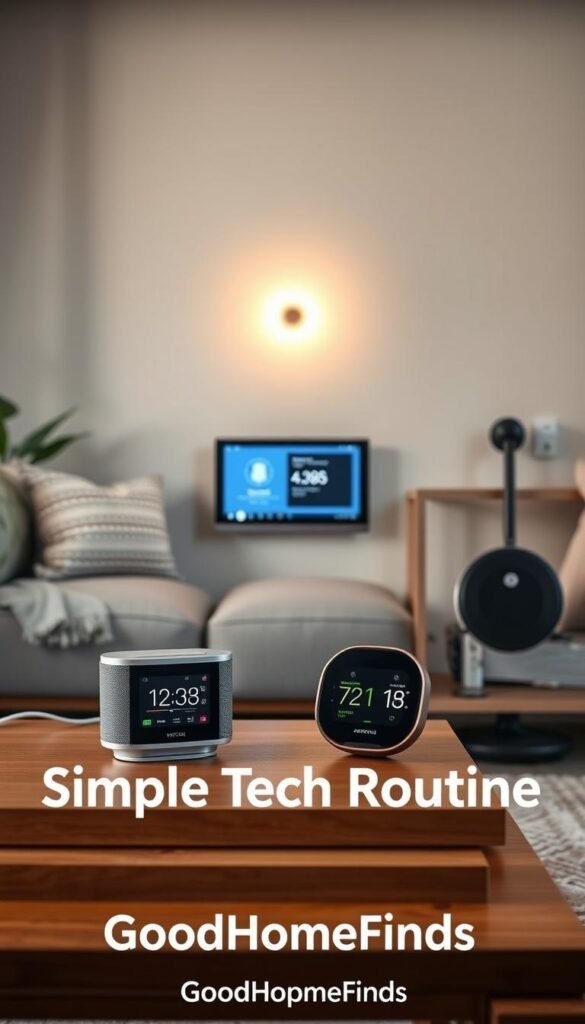
Define apartment-smart. Pick equipment that is quiet, compact, and low-maintenance. Aim for a few reliable things you use daily, not a houseful of gadgets that need babysitting.
What’s worth it
The core trio is smart plugs, smart bulbs, and one speaker or display. Smart plugs let you schedule small, safe appliances. Bulbs give instant light schedules with zero storage footprint.
Energy-saving routines
Schedule lights for evenings and set automatic shutoff for items like fans or kettles you can safely automate. That cuts standby power and trims your monthly draw.
Safety first
Avoid daisy-chaining power strips. Spread high-watt appliances across outlets and add a surge protector for sensitive equipment. If an outlet feels warm, stop and re-evaluate.
Budget vs premium
Budget devices handle basic on/off schedules fine. Premium gear wins when app quality, reliability, and smoother automations matter to your daily life.
No-hype rule: if a smart feature creates more notifications than it removes, simplify it.
For hands-on picks and renter-friendly options, see the best smart home devices and quick home finds.
Kitchen tech that earns its counter space
A well-chosen few kitchen tools can free counter space and save you real minutes each day. In a small apartment, counter area is limited. Your rule: only leave out items you use most days.
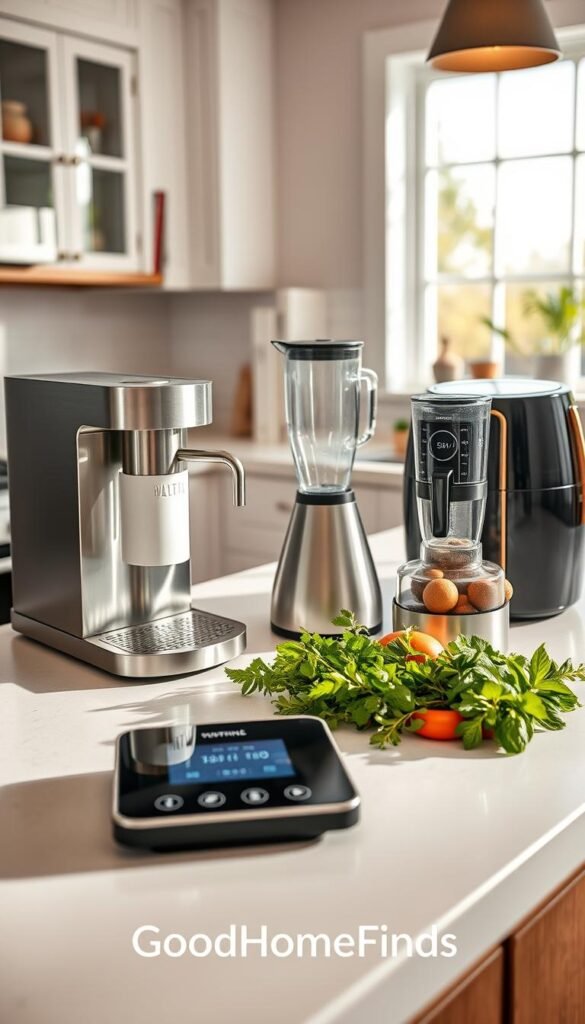
Space requirements
What stays out: daily coffee or tea gear, a compact toaster or air fryer you use often, and a cutting board that doubles as prep space.
What stores away: specialty gadgets you touch once a month, bulky mixers, and single-use tools. Keep those in a closet or under-bed tote.
Noise levels
Loud blenders, grinders, and old exhaust fans travel through thin walls. Choose quieter models or run noisy jobs during daytime.
If roommates sleep early, test an appliance once to judge its decibel level before you commit to leaving it on the counter.
Power consumption
High-watt appliances can trip circuits in older buildings. Avoid running multiple high-draw items at once.
Plug heavy gear directly into a wall outlet, keep cords tidy, and never overload outlets near sinks.
Budget vs premium
| Feature | Budget | Premium |
|---|---|---|
| Noise | Often louder | Quieter motors |
| Durability | Good for light use | Built to last daily use |
| Value | Works fine if used rarely | Worth it if you use it a lot |
Maintenance matters. Clean removable parts right after use so daily items stay usable and don’t end up in a drawer.
„Keep only what you use daily on the counter; everything else costs space and attention.“
For renter-friendly, compact picks that actually fit small kitchens, see the best smart kitchen gadgets for small.
Cleaning gadgets that save time without turning your home into a gadget showroom
The right cleaning devices make daily cleanup quick and deep-clean days easier to plan.
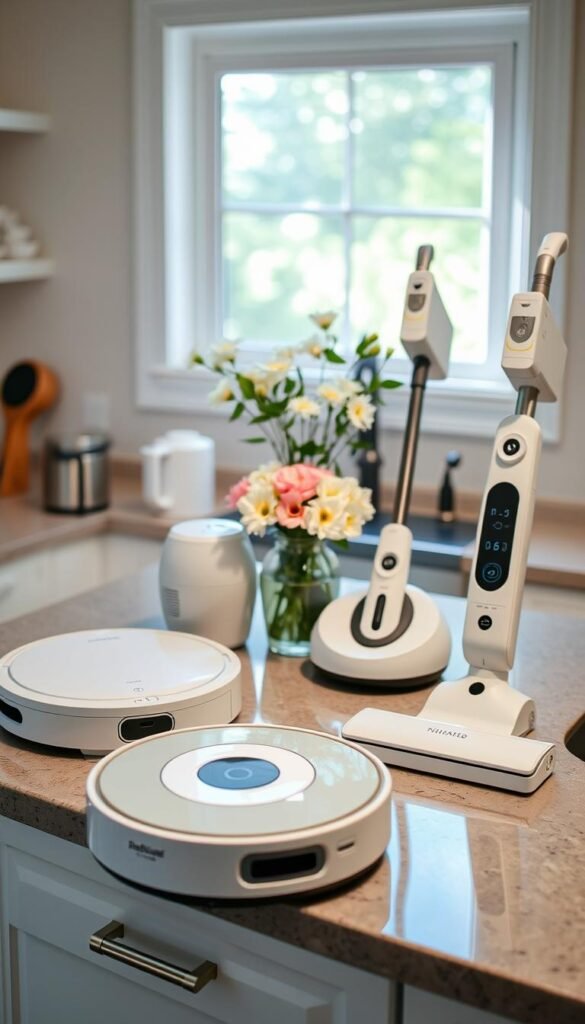
Two real modes: quick daily resets for crumbs and entryway dust, and a weekly deep clean for edges, upholstery, and under furniture. Buy for the routine you actually do.
Real use cases
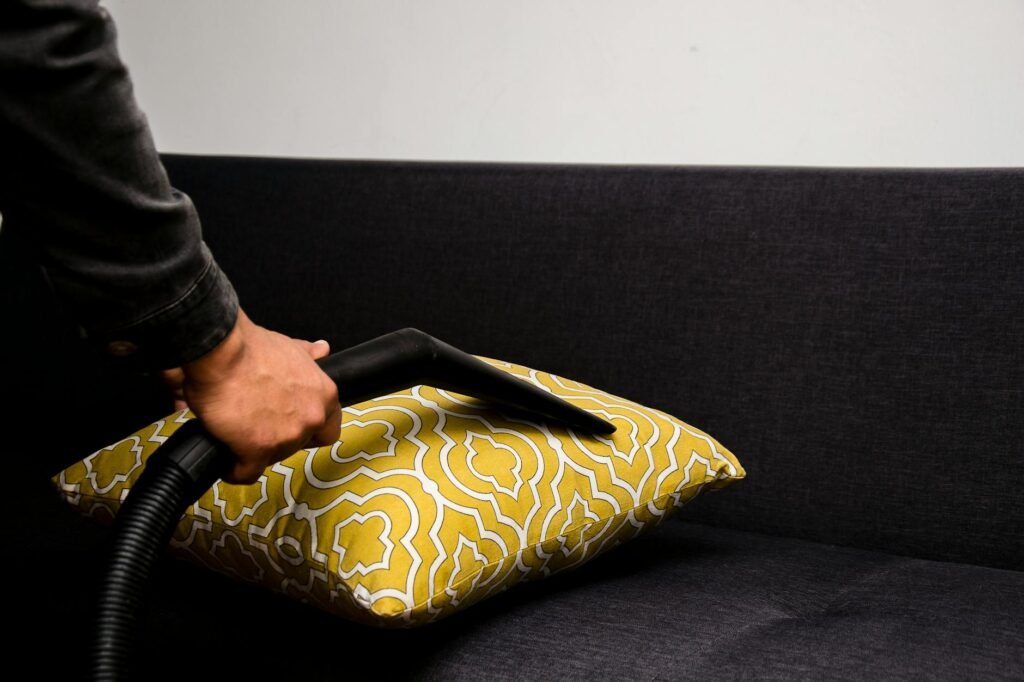
For a fast daily sweep, a compact stick vacuum or small robot handles crumbs in minutes. For couch spills and corners, a handheld is a better example of focused power.
Noise and space trade-offs
Stick vacs store upright in a closet but can be loud. Robots cut your hands-on time but need floor clearing and a charging dock that won’t block walkways.
Maintenance reality
Filters clog, brushes tangle, and bags fill. Performance drops usually mean cleaning is due, not that the device failed. Schedule simple checks monthly.
Budget vs premium
Paid models buy quieter motors, longer battery life, and better filtration. Don’t overpay if you’ll skip maintenance; better batteries and smart navigation only matter if you use them.
| Need | Low-cost option | Apartment fit | Notes |
|---|---|---|---|
| Daily crumbs | Basic stick vacuum | Stores in closet | Good suction, louder motor |
| Hands-off daily | Compact robot | Charging dock footprint | Quiet, needs floor prep |
| Couches & corners | Handheld | Small storage bin | Low power draw, quick to use |
| Allergy control | HEPA filtration model | May be pricier | Better filters, less dust |
Tip: check power draw and plan outlets so chargers and docks don’t overload a single strip.
Setup time
A short setup sprint can turn daily friction into predictable free hours. Start with a few targeted steps so you feel a win quickly and then add one deeper change on a weekend.
Fifteen-minute wins
Install a password manager and save a handful of logins. That alone lowers login friction for errands and work.
Create one or two email rules in Gmail or Outlook and set Undo Send to 20–30 seconds. Then enable Focus or Do Not Disturb on your phone and laptop.
One-hour weekend setup
Share your calendar as free/busy only. Create a booking link with Calendly or a Doodle poll for group booking. Finally, set a single smart plug schedule—like a lamp on at dusk—to notice immediate gains.
Ongoing upkeep
Do a short monthly check: remove unused filters, audit critical passwords, update key logins, and clean device filters/brushes. Aim for „good enough“ first and refine after a week of real use.
„If a step feels confusing, scale it back instead of abandoning progress.“
| Task | 15-minute | 1-hour weekend | Monthly upkeep |
|---|---|---|---|
| Password setup | Install & save 3 logins | Import saved passwords | Audit weak or reused passwords |
| Email rules | Create 1–2 filters | Refine labels & folders | Delete old rules |
| Calendar & booking | Share free/busy | Create Calendly or Doodle link | Adjust availability windows |
| Smart plug | Test one schedule | Add 1–2 automations | Check device firmware & placement |
Practical tip: if you want a framework for building better time and task management, read this guide on how to build a time management routine: time management routine. The goal is to get things done with less mental overhead, not to become your own IT department.
Common mistakes
A well-chosen purchase should fit your shelf, your outlet, and your weekly habits—buying otherwise creates friction fast.
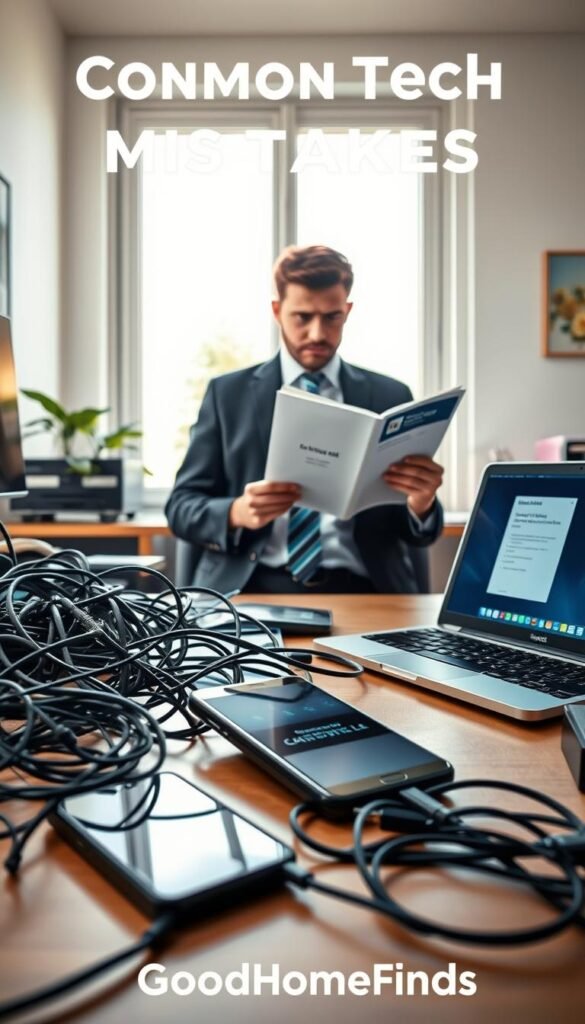
Buying things that don’t fit
#1 small-space mistake: buying a trending thing without checking storage or outlet needs. If a gadget has nowhere safe to plug in, it becomes clutter.
Ignoring noise
Noise matters more than people admit. Loud vacuums, fans, and kitchen tools create tension with roommates and neighbors. Pick quieter models or run them during daytime.
Power draw and overloaded circuits
Older apartments have sensitive circuits. Avoid running multiple high-watt devices together. Use surge protection and spread heavy loads across outlets.
Over-automating and app overload
Too many apps and smart rules create more notifications and troubleshooting than value. Automation should reduce stress, not add steps.
Filter and maintenance traps
Sloppy email filters hide real messages. Review rules weekly. Skipping cleanouts and replacements makes performance fall; then you blame the device instead of doing simple upkeep.
Fix-it mindset: remove one app, one rule, or one gadget at a time until your home feels calm again.
| Problem | Practical fix | Why it helps |
|---|---|---|
| Too many things | Keep daily-use items only | Frees space and attention |
| High noise | Test decibel once | Avoids roommate friction |
| Power overload | Stagger heavy appliances | Prevents trips and hazards |
Conclusion
When your devices quietly serve you, your day stops slipping away.
Build one calm default that saves minutes each day, not a shelf full of gadgets. Focus on easy wins: a password manager, inbox rules with a longer Undo Send, smarter calendar sharing, scheduled focus modes, and automatic night screen settings.
Prioritize renter-friendly choices: quiet gear, compact storage, safe power use, and low-maintenance setups you will keep. If a tool adds stress or upkeep, swap it for something simpler.
Start small: pick passwords or email today, then add scheduling or focus on a weekend. Keep it practical and honest. When your technology works in the background, you get your attention back for the parts of work and life that actually matter.