You’re choosing between a quick, affordable way to control one or two devices and a command center that ties a growing setup together. This short guide focuses on practical use in a small U.S. apartment. It avoids hype and explains what to expect for setup and maintenance.
Outlets, Wi‑Fi stability, and renter-friendly removal matter as much as features. Hubs act like a control center for multiple brands and routines. Plugs add remote power control and simple schedules.
You’ll learn real decision points: how many devices you want to manage, how many apps you’ll tolerate, and whether routines like “goodnight” are worth it. I’ll point out when a basic option will disappoint, for example with devices that don’t restart after power returns.
Value here means three wins: save energy with schedules, improve safety by cutting power remotely, and reduce daily friction with voice and simple automations. For a kitchen, bedroom, or studio, this is about useful, renter-friendly choices—not futuristic hype.
Key Takeaways
- Pick a simple plug if you need one-off remote control and easy setup.
- Choose a control center when you want routines and cross-brand integration.
- Consider outlet access, Wi‑Fi, and renter rules before buying.
- Value = energy savings, safety, and less daily friction.
- See a practical renter setup comparison for more context: renter setup comparison.
Smart plug vs hub: the quick difference (without the marketing)
Forget the sales copy — here’s what each gadget actually changes in your routine.
What a smart plug actually does in daily life
A smart plug is a small device you add to an outlet so you can turn that outlet on and off from your phone. You can set schedules, run simple timers, and in some models see energy use. Many connect to Wi‑Fi and to a voice assistant for hands‑free commands.
What a smart home hub actually does in daily life
A hub pulls different brands and devices into one app or control surface. That means one routine can dim lights, power the TV setup, and start speakers together. A hub shines when you want consistent automations across gear.

When you need one app vs too many apps
The biggest pain point is app overload. Every brand wants its own control screen. Matter‑compatible smart plugs (example: TP‑Link Tapo Matter Smart Plug Mini P125M) can often link straight to Google, Alexa, or Apple and reduce the number of apps you install.
| Task | Plug | Hub |
|---|---|---|
| Turn a lamp on at 6 pm | Easy | Easy as part of a routine |
| Run a multi‑device „movie time“ | Limited | Full control |
| Skip extra apps | Possible with Matter | Yes—one app for many brands |
Note the limit: a plug only cuts power. It won’t press a button on a device that needs manual restart. In short, plugs are fast wins. Hubs are long‑term organization.
Real benefits you’ll notice in a small apartment
What you notice first is less wasted energy and fewer little chores each day.
Energy savings from schedules and cutting “always-on” power.
Set simple schedules to shut chargers, a desk setup, or small kitchen gadgets overnight. This reduces needless energy draw without any extra effort from you.
Automations lower overall energy consumption when you stick to them. Over weeks, that adds up to real savings on your bill.
Safety wins: turning devices off when you’re away
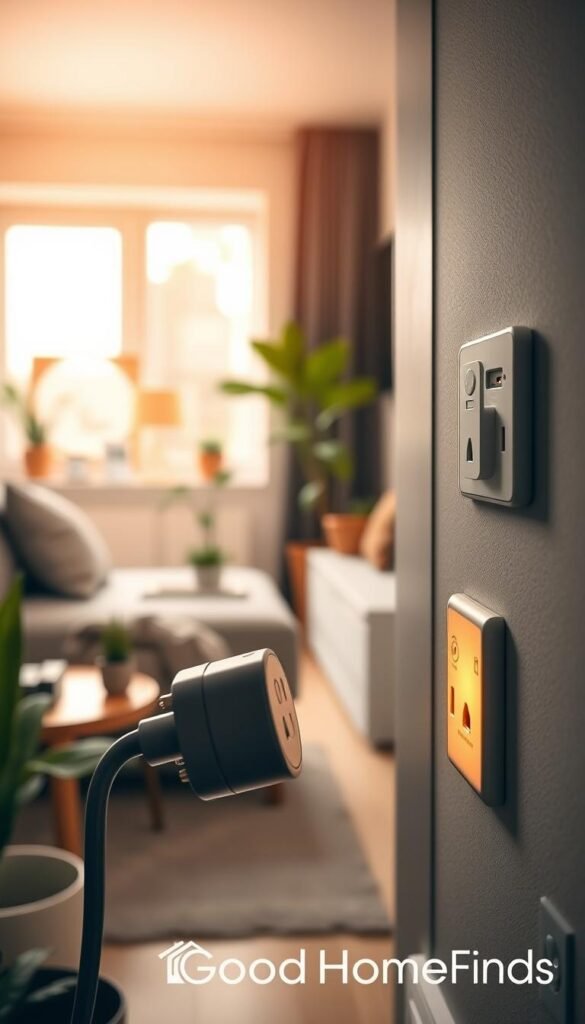
You can double-check and cut power to a curling iron or a rated space heater before you leave. That gives you practical security and fewer „did I turn it off?“ moments.
Convenience: voice commands and one-tap routines
One voice command or one tap can run a “leaving home” routine that shuts lamps, cuts certain outlets, and arms security sensors. That saves time when your hands are full with groceries or laundry.
Space benefits: fewer bulky controls and less outlet clutter
Replace bulky timers and reduce remote hunting. Fewer devices on the counter and easier access to outlets makes a small room feel less crowded.
- Practical example: schedule kitchen lights and a coffee timer for mornings.
- Safety example: turn off electronics you forgot from your phone while out.
- Daily habit: use a single routine each night to cut power and prep the apartment for sleep.
One note: these devices stay powered to work. They save energy by controlling other gear, not by being magically free to run.
For a compact, renter-friendly approach to automations and energy routines, see this practical setup guide.
Who needs this (and who doesn’t)
Your needs fall into two clear groups: minimal control for a couple of outlets or a single control center for many devices.
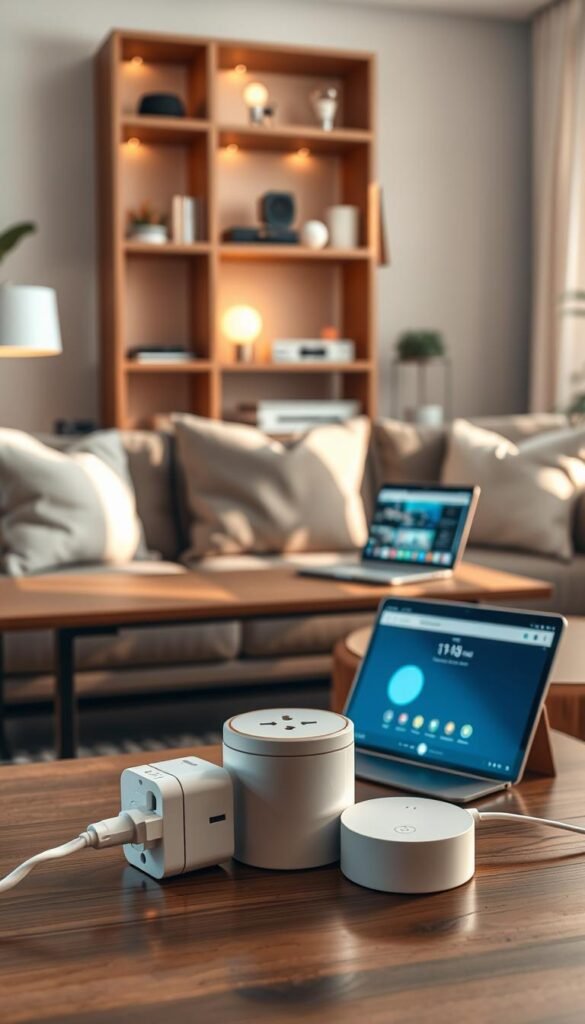
If you cannot change wiring or install switches, a smart plug is the easiest renter-friendly option. It adds control without tools or landlord approval. You get timers, remote off/on, and sometimes energy readings for a few outlets.
Best fit for people building a multi-brand home
A hub makes sense when you plan to mix brands and want one app to control everything. It reduces app clutter and lets you run routines across rooms as you add devices over time.
When a smart plug is enough
Choose a plug if:
- You mainly need simple on/off and schedules.
- You control one or two lamps or chargers.
- You want a renter-friendly, low-cost option now.
When a hub is worth it
Choose a hub if:
- You want routines that run multiple devices together.
- You plan to add many devices and brands.
- Reducing daily friction and apps is a priority.
| Need | Plug | Hub |
|---|---|---|
| Quick, renter-friendly install | Yes | Optional |
| Cross-brand routines | Limited | Strong |
| Scale to many devices | Minor effort | Better long term |
Who doesn’t need either: if you only want one device and are fine with one brand’s app, a hub is overkill. Match the option to daily electronics and keep setup simple.
Best real-life use cases for smart plugs
Pick devices that actually restart when power returns; that’s the core rule for practical automation.
Lamps and easy lighting
The top win is lamps with a physical switch you leave on. Leave the lamp switch set and use the plug to set schedules or voice control. That saves you from crawling behind furniture and makes evening routines effortless.
Simple kitchen appliances
Good kitchen examples are basic coffee makers with a mechanical switch and some slow cookers that safely resume after power returns. Only use appliances that reliably restart without extra buttons.
Hard-to-reach outlets
Put a plug on outlets behind couches or beds to avoid unplugging chargers or lamps by hand. It’s a small convenience that beats awkward reaching in a small apartment.
Outdoor lights and seasonal decor
For balcony lights or holiday inflatables choose weather-rated products. For example, the Cync Outdoor Smart Plug with two outlets works well for timed displays. Always pick outdoor-rated gear for safety.
„Choose targets that need only on/off power; those are the easiest to automate and the least risky.“

- Rule of thumb: the device should resume when power comes back.
- Apartment tip: pick compact models that won’t block the second outlet and support reliable platforms.
Best real-life use cases for a smart home hub
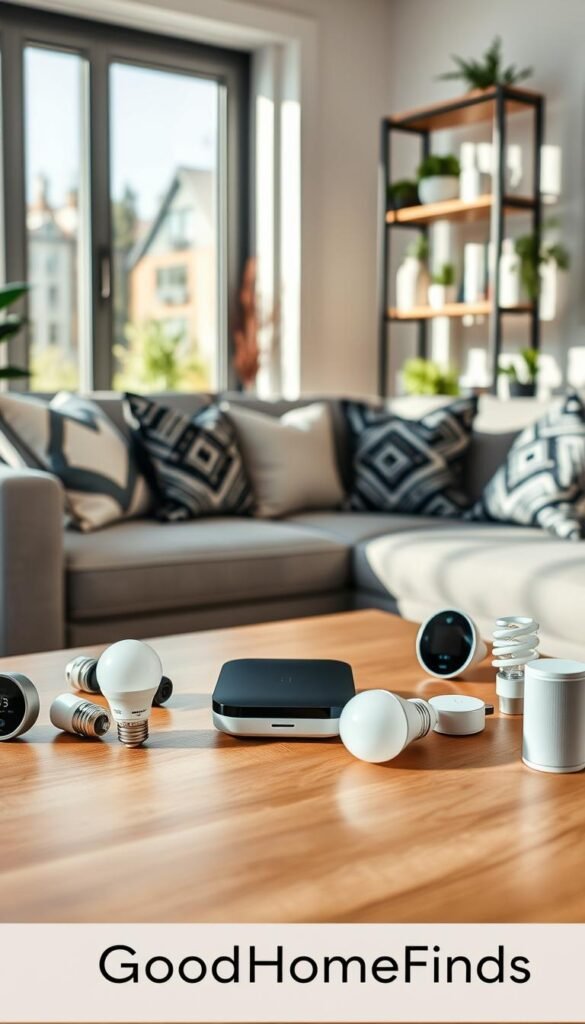
Imagine saying one phrase and your whole living room follows along. A central device turns multiple gadgets into a single routine so you stop juggling apps.
One command to control multiple devices at once
One short command can dim lights, pause music, and shut off an outlet at once. You avoid opening three apps. This saves time and reduces friction in daily life.
Bedtime and “leaving home” routines that run automatically
Use a „bedtime“ routine to turn off lights, cut power to selected outlets, and arm security. A „leaving home“ routine can switch off devices and trigger lights to look occupied.
Managing multiple brands from one place
Hubs unify Philips Hue, Kasa, Sonos, cameras, and alarm systems into one app. For example, a Google Nest Hub can run a „goodnight“ automation that arms SimpliSafe, dims Hue, and shows tomorrow’s weather.
Why a hub with a screen can be easier than voice-only
A touchscreen helps when the kitchen is loud or you don’t want to shout. Tap a routine while cooking or glance at status panels for cameras and lights.
„Committing to one main ecosystem usually saves time later; cross-platform quirks still exist.“
Devices that don’t work well with smart plugs (common disappointment)
Cutting power is not the same as giving a device a „start“ command. A plug can remove and restore electricity to an outlet. But many devices still need a button push or menu choice to run again.

Some appliances won’t resume after power returns. An electric kettle may need you to pick a temperature. Many coffee machines require a brew button. That expectation is the most common letdown.
TVs and media gear
A plug can force a TV off by cutting power. It rarely turns the TV back on when power is restored. That means a plug is not a reliable remote‑on solution for most TVs and set‑top boxes.
High-draw and heavy devices
Avoid using a plug with heavy or high-draw gear like space heaters, full-size washers, or window AC units. Those devices can overload the rating and create a safety risk.
„Think ‚power control only,‘ not ‚full remote control,‘ unless the device explicitly supports remote start.“
Practical tips for small apartments:
- Don’t hide a plug behind heavy furniture where you can’t reach the physical reset.
- Check the device’s manual to see if it resumes on power return.
- When in doubt, avoid high-draw appliances and use the plug for lights, chargers, and simple lamps.
| Device type | Will it restart? | Apartment advice |
|---|---|---|
| Coffee makers | Often no | Use a model that auto-brew or avoid |
| TVs and consoles | Usually no | Use for power cut only; don’t expect remote-on |
| Space heaters / large AC | Not recommended | Safety risk; use rated outlet or avoid |
| Table lamps & chargers | Yes | Best use: easy, renter-friendly control |
For budget-friendly gadget ideas that work well with a plug, see best budget home gadgets. Keep expectations realistic and prioritize safety.
Setup time: what it’s really like on a weeknight
Expect straightforward steps, a little patience when Wi‑Fi acts up, and big wins from doing one device at a time.

Typical smart plug setup (often about five minutes)
For a single smart plug the flow is simple. Plug it in, open the device app or your phone’s platform setup, join the Wi‑Fi network, give it a name, and test on/off.
Real time expectation: about five minutes when the router is behaving. If your router is slow or you’re adding many items, expect more time.
Typical hub setup (longer, but smoother as you add more devices)
A hub takes more effort up front. You place it near the router, connect accounts, apply updates, and confirm device links. That first-hour investment pays off as new smart devices join without repeated app installs.
Practical tip: do initial setup near the router if Wi‑Fi is weak, then move devices where you need them.
How “works across platforms” options can reduce app overload
Matter-certified options (example: TP‑Link Tapo P125M) can join major platforms directly. That means fewer brand apps and less app fatigue on your phone.
Weeknight sanity rule: if you have 15 minutes start with one smart plug. If you have an hour, set up a hub and connect core devices. Choose the option that matches your time and patience.
Learn when a control center is worth the extra setup
Power consumption, noise levels, and space requirements
Before you add gear, factor in steady power draw, light glow, and whether a bulky unit will block a scarce outlet.

Always‑on draws and practical energy tradeoffs
Both plugs and small control units draw a bit of power all the time to stay connected. That steady consumption is small, but it is real.
The goal: save more energy by switching off wasteful loads than you use to keep the controllers running.
Where a control unit should sit in a small home
Place a central unit where Wi‑Fi is strong and ventilation is good. Avoid tucking it behind a TV or in a cramped cabinet where it can overheat or lose signal.
Noise, lights, and bedroom comfort
Some units hum or have bright status LEDs. In a studio or bedroom this can bother sleep. Move noisy gear to a living corner and cover lights with a small piece of tape if needed.
Outlet clearance and compact choices
Many plugs are bulky and block the second outlet. Test a model before you buy and pick a mini design when space is tight.
Quick checklist:
- Confirm energy consumption fits your savings plan.
- Check whether the plug obstructs the outlet next to it.
- Place hubs where they stay cool and keep signal strong.
Maintenance and reliability: what you’ll keep dealing with
Expect small maintenance tasks—these keep routines running and prevent random outages.
Wi‑Fi dropouts are the most common annoyance in apartments. Crowded networks and dead zones make devices feel unreliable. In many homes a local hub can help. For example, the Aqara Hub uses Zigbee so devices keep talking even when Wi‑Fi is flaky. That often makes remote control more consistent than Wi‑Fi‑only gear.

When you’ll need to reset or re-pair
Expect occasional resets after router changes, firmware updates, or app upgrades. A plug may need re‑pairing, or a routine may need a quick redo. Label devices clearly in the app so you don’t guess which outlet is which months later.
Simple security that protects access
Keep your accounts tidy. Use strong passwords, enable two‑factor where offered, and avoid sharing the main login. These steps give basic security without making daily use painful.
- Quick tip: check monitoring data only if you plan to act on it.
- Label gear, update firmware, and keep one reliable control app on your phone.
smart plugs overview can help you pick models that are easier to maintain.
Budget vs premium: what you get for the money
For tight spaces, size and compatibility matter more than headline specs. Your choice comes down to practical tradeoffs: basic on/off control now, or clearer data and less friction later.

Budget options: simple on/off and schedules
Budget models usually give reliable on/off control and simple timers. They are fine for lamps, chargers, and seasonal lights.
Example picks: TP‑Link Kasa EP10 is a dependable, low-cost option that gets the job done without extras.
Premium options: monitoring and better platform support
Premium models add energy monitoring, smaller footprints, and better cross-platform pairing. That matters when you want usage data or need the unit to not block the second outlet.
Look at TP‑Link Kasa EP25 for energy monitoring and the Tapo P125M if Matter support and easier pairing with amazon alexa and google home matter to you.
Budget hubs vs premium hubs with screens
Cheap controllers can join devices and run rules. Premium units like Google Nest Hub or Echo Show make daily control easier with touch and visuals.
If you want quick routines and glanceable status, spending more on a model with a screen often feels worth it.
Hidden costs and ecosystem lock‑in
Buy once, regret later is real. Some products require an ecosystem gateway or limited platform support. For example, HomeKit-focused devices (like some Meross models) may need an Apple accessory to unlock features.
Hidden costs include extra hubs, replacement gear if you switch ecosystems, and time spent reconfiguring apps.
| Price tier | Typical features | Example products |
|---|---|---|
| Budget | On/off, scheduling, larger size | TP‑Link Kasa EP10 |
| Mid | Small size, basic monitoring, better pairing | TP‑Link Kasa EP25, Tapo P125M |
| Premium | Detailed energy monitoring, compact design, wide platform support | Meross HomeKit options, premium outlet controllers |
Quick guidance: in a small apartment, prioritize compact design and compatibility over the lowest price. A slightly more expensive unit that leaves the second outlet free or pairs smoothly with amazon alexa and google home will save frustration.
For the best smart options on switches and related gear, see this best smart review.
How to choose based on compatibility and daily electronics
Choose a single ecosystem first; mixing too many brands creates friction you’ll notice every day. That simple rule saves time and keeps routines reliable.

If you use Amazon Alexa, Google Home, or Apple Home
Pick the platform you already use. If you prefer Amazon Alexa or Google Home, buy devices that list that support clearly.
If you use Apple Home, remember some features may need a HomePod or Apple TV to act as the local control point. Check compatibility notes before buying.
If you want energy monitoring for appliances and electronics
Energy monitoring is worth it for devices that run a long time. Examples include air purifiers, dehumidifiers, and desk setups.
Use monitoring to spot waste and change habits. For occasional gadgets, the extra data often isn’t worth the cost.
If your goal is basics first: lights, cleaning routines, kitchen timers
Focus on reliable daily wins. Use routines for cleaning windows: schedule a vacuum charger window, run “start cleaning” lighting, and silence distractions during a sprint.
In the kitchen, use timers and power schedules only with appliances that restart safely when power returns.
„Pick a main platform, verify device support, and keep expectations realistic for appliances and daily routines.“
For a dedicated local control device, consider this Eve control option when you need tight Apple Home integration.
Common mistakes (and how to avoid them)
Common mistakes can turn a handy outlet controller into a daily headache. This short guide flags safety, app overload, and placement issues so you don’t waste time or risk damage.
Buying a plug for a device that can’t resume after power returns
Don’t buy control expecting a restart unless the device supports it. Many TVs, kettles, and some coffee makers won’t turn back on after power is cut. That leads people to think the system „doesn’t work.“
Check the device manual for resume behaviour before you buy. If it won’t auto‑start, plan to use the outlet only for lamps or chargers.
Overloading outlets or using the wrong type outdoors
Avoid daisy‑chaining adapters or adding too many high‑draw devices to one outlet. That creates heat and fire risk.
For balcony lights or outdoor decor, pick a weather‑rated option like the Cync Outdoor model. Indoor models are not safe outside.
Creating too many apps instead of one control center
When each device needs its own app you stop using automations. Choose one control center where possible.
Matter certified devices help here by reducing extra apps for simple outlets and lights. Aim to add new devices into your main app, not a shelf of separate apps.
Ignoring space and access: placing controllers where you can’t reach the button
Don’t hide a plug behind heavy furniture. A unit behind a bookcase becomes a nightmare when you need to reset it after a Wi‑Fi change.
Keep access so you can see status lights, press the physical button, or unplug quickly for safety.
„Make choices that match real life: safety first, access second, convenience third.“
| Common mistake | Why it matters | Easy fix |
|---|---|---|
| Device won’t resume | Outlet control only cuts power; many devices need a button | Check manuals; use for lamps/chargers or choose auto‑start models |
| Overloaded outlet | Fire and trip risks | Spread loads, avoid daisy chains, match amp ratings |
| Wrong outdoor use | Water and weather damage | Buy weather‑rated outdoor options (example: Cync Outdoor) |
| Too many apps | Won’t use automations | Pick one app or use Matter‑capable devices |
| Poor placement | Hard to reset or unplug | Place where you can reach and see status lights |
Avoid this checklist before buying:
- Confirm the device will resume after power returns.
- Ensure outlet clearance and no blocked outlets nearby.
- Choose indoor or outdoor rating correctly.
- Verify ecosystem compatibility and prefer a single control app.
For common setup missteps and fixes, see this setup mistakes guide. For renter‑friendly hardware ideas, check these best home finds for renters.
Conclusion
Make choices that fit your daily life, not the latest gadget marketing. For a small apartment, start simple. Choose a smart plug for fast, renter-friendly control of lamps and easy kitchen gadgets. That gets you energy wins from schedules and lower consumption right away.
If you add many devices or want unified routines, move to a hub later. A central controller reduces apps and makes multi‑device automations feel reliable. Remember: a plug cuts power, it does not always restart complex gear.
Practical next step: pick your main ecosystem (Alexa, Google Home, or Apple Home), buy one or two plugs for clear daily wins, then consider a central unit if app overload or advanced scheduling becomes a problem. See an analysis of predictive scheduling and energy outcomes here.