This is a practical, no-hype comparison for your small space. You’ll get clear guidance so you can pick the simplest setup that reliably saves energy, improves safety, and makes daily routines easier.
We compare using five smart plug devices against investing in a single hub plus accessories. This is a real-life choice, not a tech debate. You’ll see why the „smart plug vs hub“ question matters for renters and apartment dwellers.
What to expect: cost over time, compatibility, reliability on weak Wi‑Fi, and how deep automation needs to be. Many plugs work fine without a hub, but some ecosystems require a bridge for full features. App quality and long-term support matter as much as specs.
We call out real examples like GE Cync app issues and Wemo’s announced end of support. You’ll get practical use cases—coffee, lamps, air purifiers, desk gear, patio lights—and clear buy or skip guidance for each option.
Key Takeaways
- Decide by ease of setup and energy savings for small spaces.
- Many plugs work without a hub; some ecosystems need one for full features.
- Watch app quality and vendor support before you buy.
- Budget plugs can cover basics; premium setups add deeper automation.
- Examples in this guide help you choose for kitchens, desks, and outdoor lighting.
What smart plugs and smart hubs actually do in daily life
Practical control, without rewiring. Think of these devices as tiny remote switches that let you control everyday gear from an app or voice assistant.
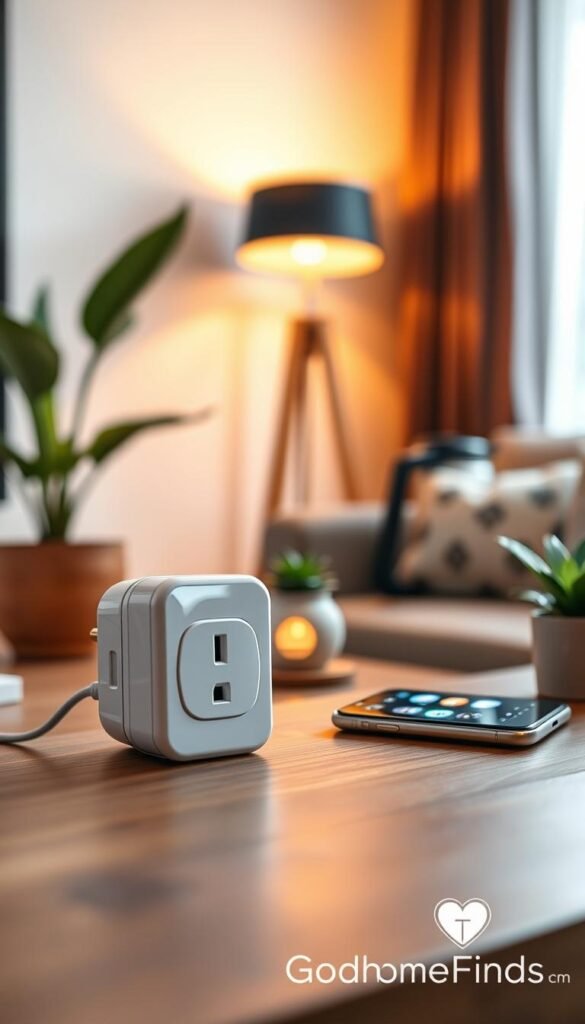
Smart plug basics: you push the device into a wall outlet, then plug your lamp, fan, or coffee maker into it. From the app or your voice assistant you get on/off control. Most only cut power. That means no dimming or fan-speed control unless the appliance already supports it.
How a central system helps
Hubs act as a home base. They let many devices talk together and live in one app. That reduces the number of apps you juggle. A hub also makes larger setups easier to expand later.
Why this matters in small apartments
Outlets are scarce in small spaces. Power strips fill the gaps and bulky adapters can block neighboring sockets. You often can’t place a base station where it works best, and you can’t rewire anything.
- One device is great for a bedside lamp or a single coffee maker.
- A hub shines when you want lights, motion sensors, and routines to work as a group.
- Watch for ecosystem friction: some lights and plugs need a specific bridge, which can be costly if you didn’t plan for it.
Bottom line: For quick, budget-friendly control in a rental, a single device often covers daily needs. If you plan to scale into a full system, a base station can save headaches later.
Real benefits you can expect without the hype
Small gadgets can give big everyday wins when you focus on consistent habits, not flashy features. In an apartment, practical control saves energy and hassle more than high-end specs.
Energy and simple schedules that actually work
Energy savings usually come from cutting standby loads and using repeatable schedules. A few well-placed devices on timers stop chargers and media boxes from drawing power overnight.
Some models offer energy monitoring and threshold shutoff (for example, the Tapo P110M). That helps you see real usage and prevent surprises. Newer TVs use less standby power, so monitoring isn’t always worth the premium.
Safety and stress reduction you’ll notice
Turning off heat-producing items with one tap removes daily worry. You also avoid the „did I leave it on?“ loop that steals sleep.
Important: a plug doesn’t make a heater or cooker intrinsically safer. Follow appliance warnings and common-sense rules.
Convenience and a security bonus
Voice commands, timers, and simple routines stick because they match real habits. Use a morning routine to power lamps and a night timer for chargers.
- Timers and routines save time and prevent forgotten devices from wasting energy.
- Away mode or randomized on/off adds a visible security layer when you’re out.
Bottom line: Your results depend on how you use the app and set routines. Pick features you will actually use and skip gimmicks.
Who needs this and who can skip it
If you move often or lack wiring options, portability and simplicity should guide your choice. For many renters, a compact device you can unplug and take is the easiest upgrade to a modern home.
Renters and small-space dwellers
Buy: if you can’t change switches, these devices let you add timers and voice control without work on the walls.
Tip: avoid ecosystems that force you to buy a bridge for one item (IKEA Tretak is a common example).
Busy households
Buy: when routines for coffee, air purifiers, and charging stations save you time. The right setup keeps daily tasks simple.
When central control makes sense
Consider a system if you have many devices and hate juggling apps. A single app can cut clutter and make automations more reliable.
When to skip and practical alternatives
Skip: if you only need one lamp on a timer. A basic mechanical timer or a regular power strip is cheaper and simpler.
- Middle ground: a smart power strip (for example, the Meross Smart Power Strip) can be better value near a desk or TV stand.
- Start small: add one device, test routines in the app, then expand if it proves useful.
smart plug vs hub: the core trade-offs that decide everything
Deciding between individual wall units and a central base comes down to cost, control, and how much you plan to expand.
Cost upfront vs cost over time
Buying five smart plug items is usually cheaper at first. You pay per outlet and get basic on/off control quickly.
A hub costs more up front but can save money as you add lights, sensors, and routines. If you plan many automations, a base platform can pay off.
Compatibility and convenience
Wi‑Fi models like Tapo and Meross pair straight to your router. That is simple for renters.
Some brands require a bridge. Philips Hue and certain Thread/Matter setups may need a compatible hub or bridge for full features. Check compatibility before you buy.
Reliability on weak networks
If your network is spotty in a bedroom, a plug can drop and stay offline. A central unit can help if you place it well, but it still depends on your home network layout.
Control depth and daily use
For simple on/off schedules, the plug is the easiest option. For scenes, sensor triggers, and multi-device automations, a hub unlocks richer control without juggling apps.
Tip: avoid locking yourself into one ecosystem if you think you might change phone platforms or assistants later.
| Factor | Good for small setups | Good for scaling |
|---|---|---|
| Upfront cost | Lower (per outlet) | Higher (one-time hub) |
| Compatibility | Simple Wi‑Fi pairing | Wider ecosystem support |
| Reliability | Depends on router | Depends on placement & network |
| Control depth | Basic on/off & timers | Scenes, sensors, advanced automations |
Bottom line: For most renters, start with a single device and test routines. If you add many lights and sensors, consider moving to a platform-based system that fits your apartment and habits.
Space requirements and outlet realities in small apartments
In small apartments, physical size matters as much as feature lists. A device that works on paper can be a nuisance if it blocks the second outlet or won’t fit a crowded strip.
Bulky bodies that steal outlets
Some models jut out or cover both sockets. Examples include UltraPro, ConnectSense, and Eve Energy. They can make a useful outlet into an unusable one.
Practical fix: choose compact mini styles for tight kitchen areas and extension cords. Keep bulky units on a single, open wall outlet.
Where a hub should live
Place your hub like a Wi‑Fi router. Keep it central and visible. Avoid hiding it behind metal furniture or in a crowded cabinet.
Placement affects how reliably devices respond across a small home.
Strips versus one-per-device
A smart plug is a good option for one lamp or a single appliance. For a desk or media center, a smart power strip (for example, the Meross Smart Power Strip) often wins on neatness.
- Short extension leads and rotating adapters can help renters without changes to outlets.
- Use a strip when multiple devices share one zone to cut clutter and centralize power.
- Check button access and LED brightness if the outlet sits behind furniture or in a bedroom.
„Measure the outlet layout before you buy. A little planning saves returns and headaches.“
Power consumption and what it really means on your electric bill
Standby power is quiet, but it still shows up on your next electricity bill. A single device drawing a few watts looks harmless. Several devices in the background add up over a month.
Standby draw means the tiny power a plugged-in item uses when “off.” The plug itself uses a small amount of power. The goal is to cut bigger waste from always-on appliances like old dehumidifiers, mini-fridges, or legacy audio gear.
Smart plug standby draw vs potential savings from better habits
Use this decision rule: energy monitoring is worth the extra cost when you suspect a quiet power hog. Examples: an older freezer, a constantly running air purifier, or a drink fridge. If you’re only curious about modern TVs, monitoring often isn’t worth it.
Energy monitoring: when paying extra is worth it and when it isn’t
Some devices (Meross Matter plug, Tapo P110M) offer kWh tracking, cost-per-kWh input, and data export. That helps when you want graphs or to split bills with roommates.
„If you want fewer surprises on the bill, start with schedules and a couple of monitored devices rather than buying monitoring for every outlet.“
Using kWh estimates to compare “always-on” gadgets
Simple math: watts ÷ 1000 = kW. Multiply by hours per day and by your local kWh rate to get daily cost. Example table below shows common quick comparisons you can adapt with your local rate.
| Device | Typical standby (W) | Weekly cost @ $0.15/kWh |
|---|---|---|
| Mini-fridge | 10 | $0.25 |
| Air purifier | 5 | $0.13 |
| Charging cluster (phones) | 3 | $0.08 |
Practical tip: plug your local rate into the app if the device supports it. Then set simple schedules that match your day. Habits and timers often save more energy than extra monitoring features.
Noise levels and daily comfort
Nighttime clicks and bright LEDs can turn a helpful device into an annoyance in a small apartment. Comfort matters because small homes concentrate sound and light. A good routine should not wake you or distract your work.
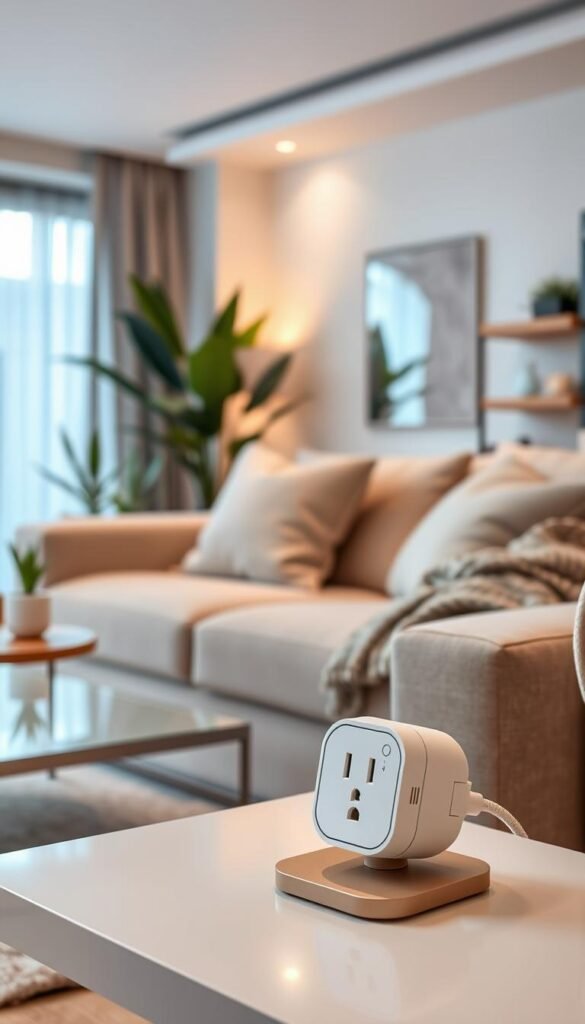
The audible click and what it is
Many outlets use a tiny relay or mechanical switch. When it changes state you hear a click. Some models, like the 4Lite Wiz Smart Plug, are noticeably loud.
Where noise and light matter most
Bedrooms, nurseries, and quiet home offices are the usual trouble spots. A scheduled lamp toggle at night can wake partners or infants.
Practical placement and fixes
- Move clicky units to living areas and use them for daytime schedules.
- Choose quiet models for bedside use or search reviews for low-noise switching.
- Watch LEDs — strips with fixed indicators can be worse than a click in a dark room.
- Use routines wisely: a great schedule is not worth waking you up every time it runs.
Tip: test a single smart plug in your bedroom for a few nights before buying more.
Kitchen use cases that deliver real value
Before you automate an appliance, check whether it can safely resume after power is cut. That simple rule saves you from broken routines and possible hazards.
Coffee makers and kettles: Automate only models rated to resume or that have an internal safety cutoff. A timed morning routine that powers a dedicated coffee station and a small lamp gives a high daily payoff and simple control.
Air fryers and slow cookers: Many of these devices do not restart after a power loss. That breaks routines and can be unsafe. Avoid automating high-heat appliances unless the manufacturer explicitly supports remote power control.
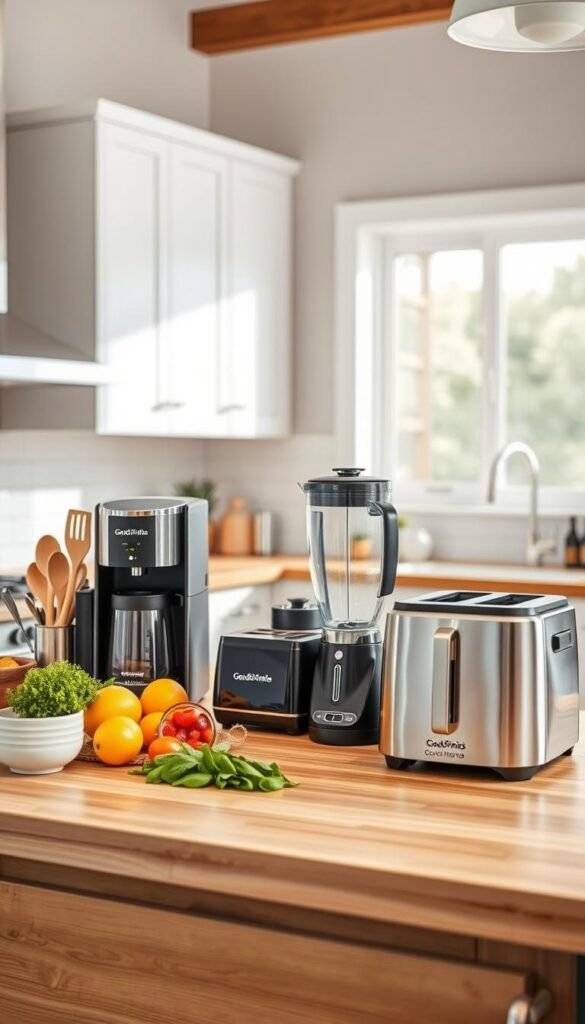
Practical wins and energy tracking
High-value targets: under-cabinet lighting, a corner lamp, or a coffee setup designed to resume safely.
Use energy monitoring to find always-on loads like drink fridges or warming plates. Track kWh for a week, then set schedules that cut waste.
| Use case | Why it helps | Recommendation |
|---|---|---|
| Coffee station + lamp | Mornings simplified; safe if appliance supports resume | Schedule on, then auto shutoff after 30–60 min |
| Air fryer / cooker | May not restart; can confuse household | Avoid automation; use manual controls |
| Countertop always-on gadgets | Silent energy draw adds up | Monitor energy, then schedule downtime |
Practical tip: in tight apartments, choose compact devices or a smart power strip. That keeps outlets usable and routines predictable.
Cleaning and home-care use cases
Make cleaning feel effortless by scheduling air care around your actual day, not the clock on the device.
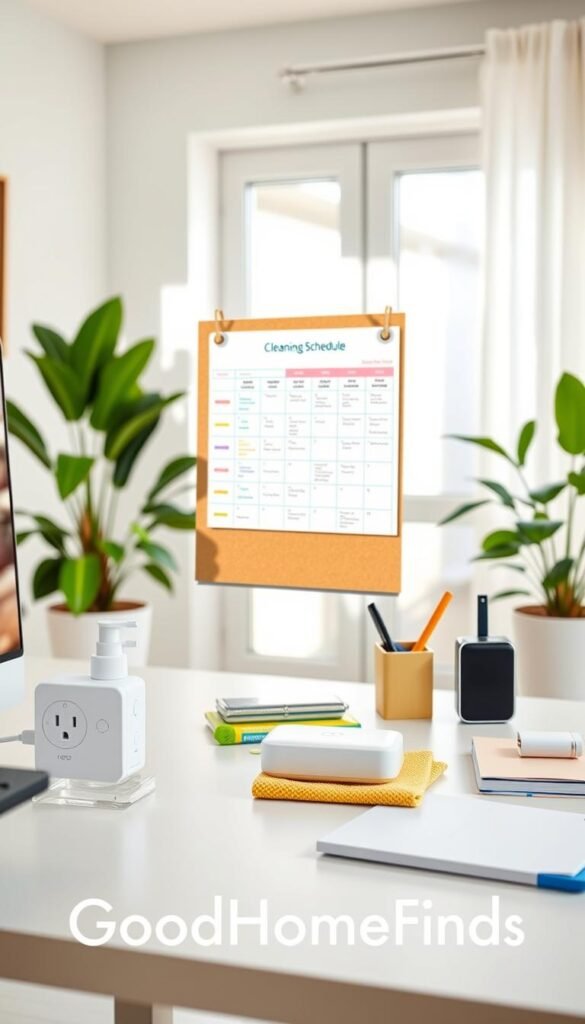
Scheduling air purifiers and fans
Set simple schedules so purifiers and fans run during work hours and slow down before bedtime.
Use daytime boost when you cook or dust. Then run a low overnight mode for sleep comfort.
Humidifiers and dehumidifiers: safety first
Automating these devices can save effort but requires safe units. Pick models with auto-shutoff or full-tank sensors.
Avoid long unattended runs that risk overflow or dry-run. If the device lacks protections, skip automation.
Charging stations for vacuums and batteries
Create a timed charge window to top batteries without leaving them powered 24/7. One hour or two after you return is often enough.
Tip: schedule noisy charging when you are out to keep apartment quiet at night.
Start with one cleaning-zone plug to test routines and save energy. Add devices only if the setup proves useful.
| Use | Why | Practical step |
|---|---|---|
| Air purifier | Match to occupancy | Day boost, low night mode |
| Humidifier | Safety concerns | Only automate models with sensors |
| Charging station | Prevent overcharge & standby power | Set a 1–3 hour window |
Daily electronics and desk setups
Your desk is where small decisions about power turn into daily wins or annoyances. You want devices ready when you work and off when you don’t. That balance saves energy and reduces heat on the desk.
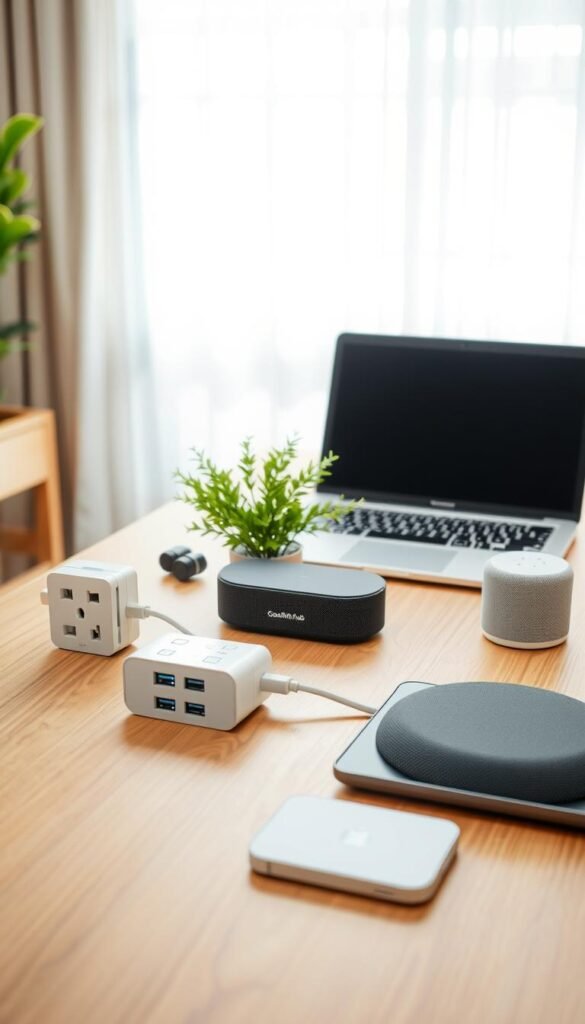
TVs, routers, and streaming gear: what not to cycle
Don’t power‑cycle routers, modems, or networked streaming boxes each night. Doing so can interrupt updates, break connections, and cause flaky performance the next day.
„Avoid nightly cuts to your router or modem unless troubleshooting a real problem.“
Monitors and chargers: simple schedules that work
Schedule monitors, desktop speakers, and phone chargers to turn off at night. That cuts standby waste and keeps your workspace cooler.
Set one shutdown time and one wake time. Use the app or a routine so it becomes automatic.
One plug or a power strip near your desk?
A single device is fine for one lamp or charger. For multiple items, a power strip wins for neatness. The Meross Smart Power Strip gives four outlet controls plus grouped USB ports. It uses 2.4GHz for setup and some LEDs can’t be disabled.
Pros: one cord, individual outlet control, fewer bulky adapters. Cons: strips take space and can have bright indicators in dark rooms.
- Keep it simple: label outlets so you don’t cut power to equipment that needs to stay online.
- Routine tip: add a voice command for „work mode“ to power up all desk gear at once.
Outdoor lighting and seasonal setups
A simple outdoor schedule keeps porch and patio lights working for you, not against you. Set sunrise/sunset routines and the lights come on when it matters. That saves effort and adds a quiet layer of security by making your place look occupied.

IP ratings made plain
IP44 means splash and rain resistance — fine for covered porches and string lights, not for sitting in puddles. Connections and sockets are the weak points. For heavy rain or winter exposure, use a waterproof box or better-rated devices.
Schedules and practical uses
Use sunrise/sunset schedules for porch lighting and patio strings. They follow daylight, so you stop fiddling with timers each season. Look for devices that offer individual outlet control if you run two lighting zones.
Distance and network realities
If the outlet is far from your router, Wi‑Fi units can drop. A central base can extend reach in some systems, but placement still matters. Test the device indoors first, then move it outside once pairing and schedules are stable.
„Buy compact models with longer cords and individual outlet control when you need two zones. Test before permanent mounting.“
Setup time and difficulty: what to expect in the real world
Getting devices up and running usually takes less time than you fear, but the small hassles add up. A single outlet module can pair in minutes. Most of the work happens in the app, account creation, and firmware updates.
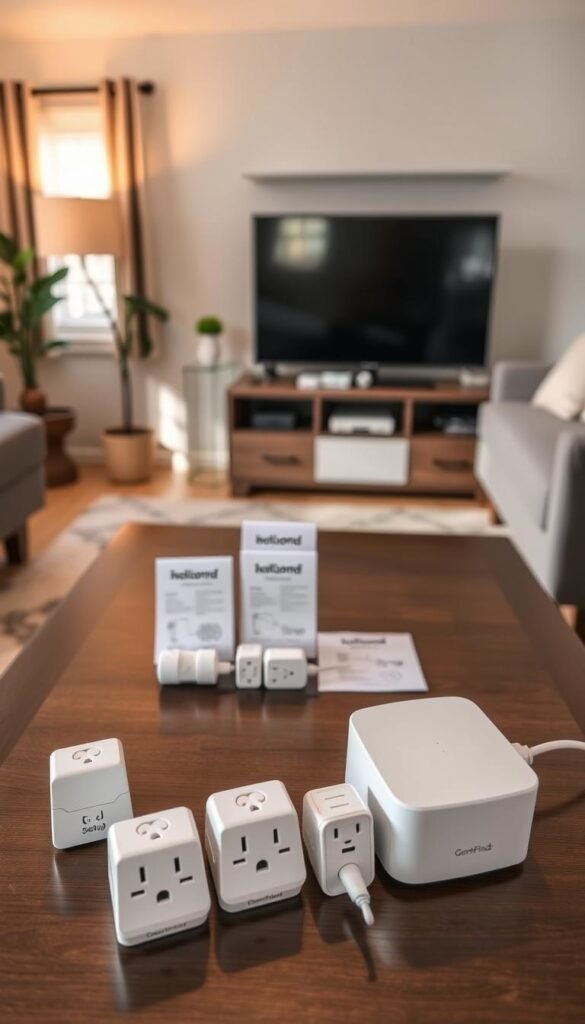
Typical setup for an outlet module
Expect about 5–15 minutes per unit if your router is nearby and you use the companion app. Time goes to creating an account, granting permissions, and waiting for any firmware patch.
Reality check: brands like GE Cync and some Geeni devices have needed extra manual pairing steps or confusing UI flows. If an app asks for 2.4 GHz Wi‑Fi, switch bands on your phone first.
Typical setup for a central base
Initial setup takes longer. You plug in the base, follow the platform prompts, and often create an account. The payoff comes later: adding more devices is usually faster once the platform is stable.
Common pairing headaches
Caveats to watch for:
- Unclear app flows that demand several retries.
- Devices that „un-added“ themselves in early Matter tests (reported for some Meross models).
- Apple Home or Matter pairing that can be harder than vendor pairing for some TP‑Link models.
Matter and Thread in plain English
Matter aims to make brands play nice together. Thread is a low-power mesh network that can improve reliability. Both help, but they do not remove every friction point.
Practical tip: you may still need a compatible base or bridge and the right companion app. Check Google Home, Google Assistant, and Amazon Alexa compatibility before you buy to avoid a long evening of troubleshooting.
Setup time: do the first installs near your router, confirm 2.4 GHz access, and schedule firmware updates when interruptions won’t matter.
Common mistakes that cause returns and frustration
The most common buyer mistakes come from skipping a few setup checks. Small errors during the first day turn into returns, bad reviews, and wasted time.
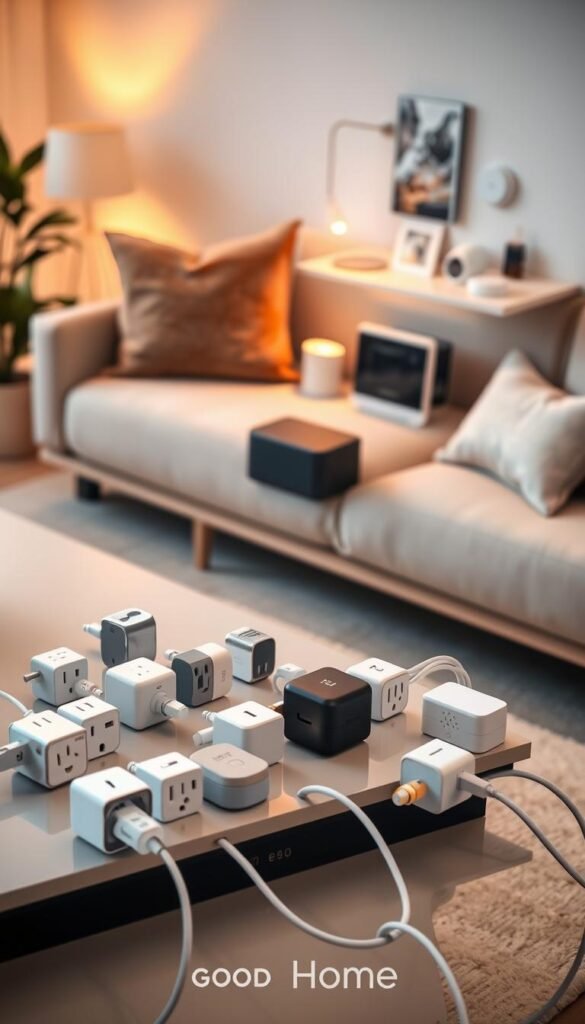
Buying into one assistant ecosystem
Be blunt: some devices work best only inside one assistant family. The Amazon Smart Plug can feel fine—until you want Google Home instead. Check amazon alexa and google assistant support before you commit.
Overlooking 2.4 GHz Wi‑Fi
Many modules require a 2.4 GHz network for pairing. If you try setup on 5 GHz the device will fail to join. Switch your phone band, open the app, and complete pairing near the router.
Blocking a second outlet in tight spaces
Bulky bodies from brands like ConnectSense or UltraPro can cover both sockets. In small kitchens that one mistake makes an outlet unusable. Measure the space and prefer compact models.
Assuming appliances restart safely
Cutting power does not always mean safe restart. Some appliances need manual reset. Don’t automate ranges, air fryers, or unknown heaters without checking the manual.
Expecting identical energy reporting across platforms
Energy features vary by platform. Under Matter some devices lose detailed kWh history. Models like the Tapo P110M and Eve Energy show different data depending on the companion app and platform you use.
„Return-proof checklist: assistant support, 2.4 GHz access, physical size, appliance restart behavior, and which features actually work in the app.“
Maintenance, updates, and long-term reliability
Updating and tidy routines keep your setup useful for months, not just days. Treat software care as part of ownership. It fixes bugs, improves reliability, and closes security gaps without buying new hardware.
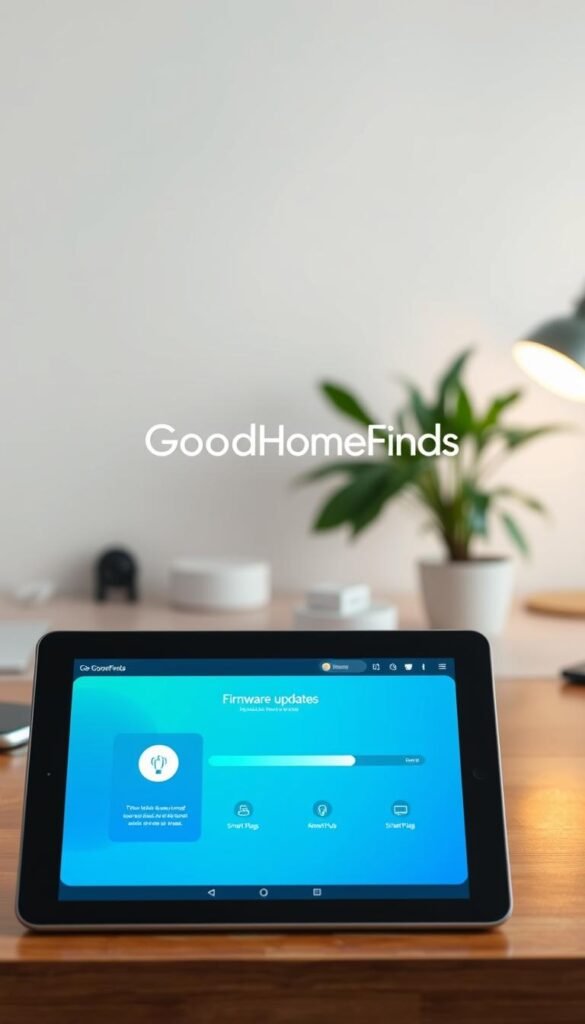
Why firmware updates matter and when to run them
Firmware updates fix real issues. They stabilize connections, add useful features, and patch security flaws. For example, the Tapo P110M can apply updates in the background at a scheduled time so you don’t lose control during peak hours.
Schedule updates for late night or another low‑use window. That avoids interruptions during dinner, work calls, or streaming.
App support risk and device end‑of‑life realities
App quality shapes your daily experience. Poor apps can make good hardware feel broken — GE Cync is a common example. Wemo announced support ending Jan 31, 2026, and that reality should influence purchases today.
Choose brands with clear update policies and active app teams. Check recent reviews for ongoing support before you buy.
Keep routines clean as you add more devices
Name devices clearly and group them by room. Delete old schedules you no longer use.
- Use simple names so voice commands work without confusion.
- Remove duplicate automations that run at the same time.
- Audit routines every few months to keep the system reliable.
Tip: reliability is a long game. The best setup is the one you still use six months from now without constant troubleshooting.
Budget vs premium: what you actually get for the money
Not every extra feature is worth the price in a small space. Your choice should match daily needs: simple timers or deeper energy insight.
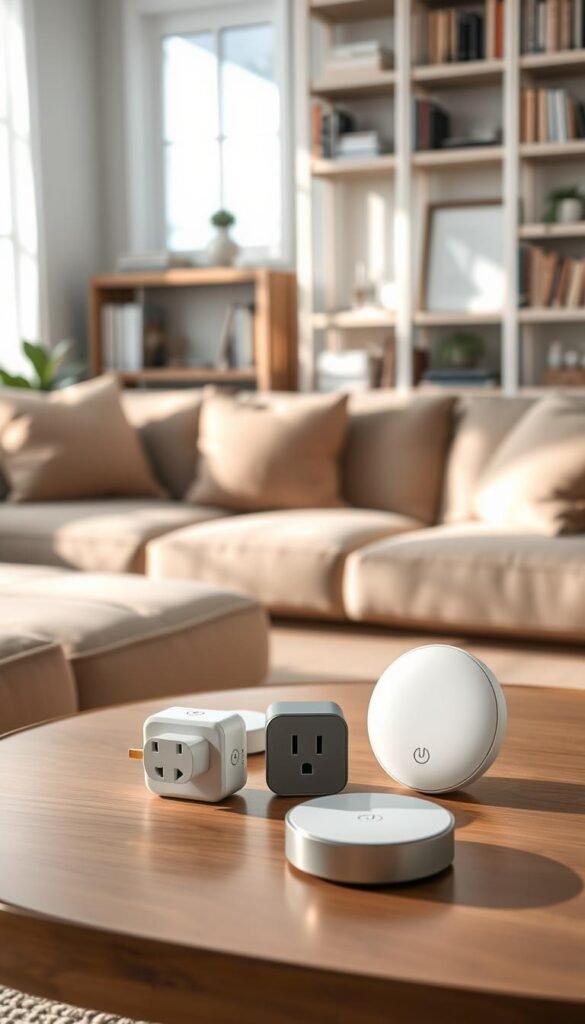
Budget outlet modules: basics that work
Low-cost models like the Tapo P100 cover schedules and voice control. They are compact and renter-friendly.
What you lose: energy monitoring, HomeKit, and some advanced automations. That may not matter if you only want on/off routines.
Premium outlet modules: what the extra pays for
Higher-tier options such as the Tapo P110M and Eve Energy add monitoring, threshold shutoff, and tighter platform support.
Expect faster response, away mode, and better local control. Trade-offs: bigger size and higher cost.
Budget hubs and premium base stations
Cheap hubs give core device pairing and a single app. They work if you commit to one ecosystem.
Premium bases reduce cloud dependence, speed automations, and scale as your system grows. Spend more only if you will use those features.
Tip: prioritize reliability, compatibility, and physical fit over flashy extras you won’t use.
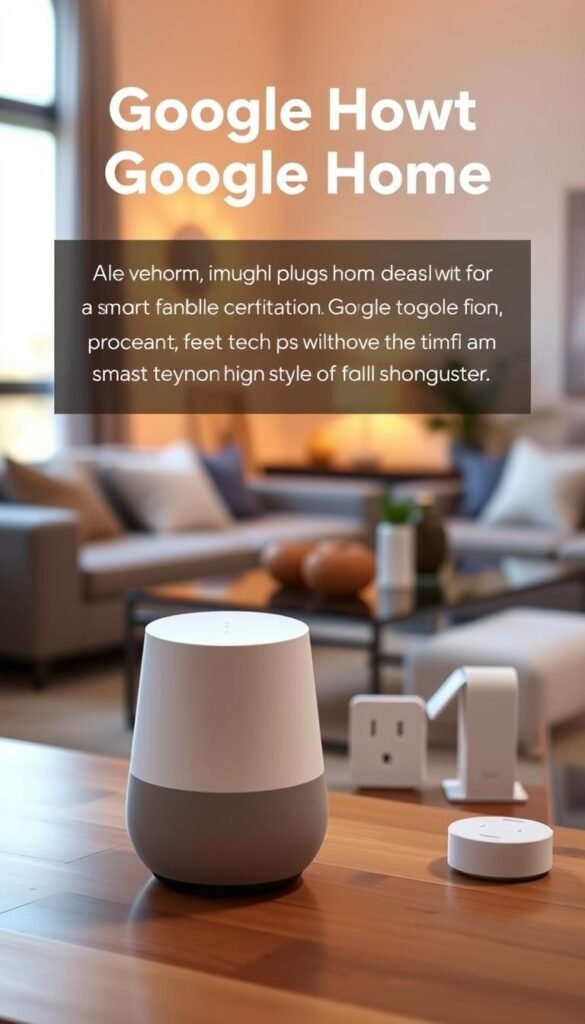
How to choose your best option for Google Home and Amazon Alexa
Choose the voice platform that matches what you actually use each day. That decision makes setup simpler and keeps routines reliable. Start by listing the two or three tasks you will use most.
Voice commands and routines: where plugs are enough
You don’t need extra gear to say a single command and turn a lamp or fan on and off. For quick on/off schedules, a small outlet module plus Google Home or Amazon Alexa usually covers it.
When this works: one-room control, simple timers, and basic voice commands for daily tasks.
When a hub makes routines more reliable across many devices
Use a base platform when you coordinate many devices across rooms. A single platform reduces app juggling and cuts missed routines.
If you want sensor triggers, grouped scenes, or fewer connection dropouts, a central base is worth the extra cost.
Companion app quality: why it can make or break the experience
The app is where you set names, schedules, and fixes. A clunky app can ruin an otherwise good setup. GE Cync has had app friction; Tapo P110M and Meross mini pair more smoothly in tests.
Quick checklist for Google Home and Amazon Alexa
- Confirm device support in the Google Home or Alexa app.
- Check which features carry across (energy data often does not).
- Avoid ecosystems that lock features to one assistant.
| Need | Best first step | When to scale |
|---|---|---|
| Single-room control | Use direct voice commands | No scale needed |
| Many devices & scenes | Pick a platform with a reliable base | Add sensors and grouped routines |
| Long-term reliability | Check companion app reviews | Choose brands with steady updates |
Practical rule: start with two routines you will keep—morning and bedtime. Expand only if those run reliably on your chosen assistant.
Conclusion
Pick the option that saves time and fits your outlets, then expand later if it proves useful.
For quick, renter-friendly control, choose a smart plug or two. They give simple on/off control and fast returns on daily convenience.
If you plan many rooms and scenes, a single hub can make expansion easier and keep apps tidy. Match that choice to app quality and 2.4 GHz needs before you buy.
What to expect: modest energy savings, better peace of mind, and clearer routines — not dramatic bill drops. Prioritize physical fit, stable connectivity, and routines that do not add noise or clutter.
Next step: pick one spot (lamp, desk strip, or purifier). Test it for a week. If reliable, scale slowly.
Keep firmware current and avoid brands with shaky app support. The best smart home setup is the one you actually use every day without fighting it.