
Practical, easy-to-use advice to make daily life simpler without overcomplicating your space. You will get clear guidance on what is worth buying and what can wait.
Many older adults use phones and the internet every day. About 76% of adults age 65+ own a smartphone in 2024, and roughly 95% own a cell phone. That makes simple tools useful and familiar.
This guide focuses on phones, tablets, small smart home basics, kitchen helpers, cleaning devices, and helpful apps. Each item includes real-life use cases, honest pros and cons, and setup and maintenance notes.
You will learn what fits a small apartment, how to keep energy and noise low, and what improves safety and compatibility. The aim is practical benefits you can use right away, not buzzwords or expensive upgrades.
Key Takeaways
- Clear priorities: start with what replaces daily chores.
- Small-space friendly: pick compact, renter-friendly solutions.
- Setup & upkeep: expect easy setup and low maintenance.
- Energy & noise: choose quiet, efficient options.
- Safety basics: focus on scams, passwords, and privacy.
Real benefits seniors actually get from everyday technology at home
A few reliable devices can make independent living feel safer and more manageable. Start with small changes that match daily routines. This keeps things useful and not overwhelming.
Staying independent: reminders for meds, calendar alerts, and simple voice commands reduce friction. Bigger screens and one‑tap calling help you handle appointments and grocery lists without strain.

Safer days and nights with alerts and check-ins
Medical alert buttons give quick access to help. Doorbell cameras let you answer safely. Scheduled check-ins can notify loved ones if something seems off.
Less isolation through calls, video, and shared photos
Regular calls and short video sessions with friends and loved ones keep relationships active. Simple photo sharing takes minutes and brings real smiles.
Mental stimulation with simple games, reading, and hobbies
Try large‑text e-readers, easy brain games, or hobby apps for recipes and music. Small daily habits like a short puzzle or an audiobook boost mood and memory.
Convenience for meals, errands, and appointments
Online grocery orders, ride services to clinics, and telehealth visits save time and reduce stress. The goal is fewer missed appointments and more confident days at home.
- Practical benefit: less effort, more routine.
- Health and safety: quick help and fewer risky outings.
- Connection: easy calls and video to stay close to friends.
Who needs this and who can skip it
If you live alone or worry about falls, this guide will point you to a small, practical set of items that add real value. More than one in four adults age 65+ fall each year in the U.S. Medical alert options can summon help after a fall, and simple alerts and larger screens cut daily strain.
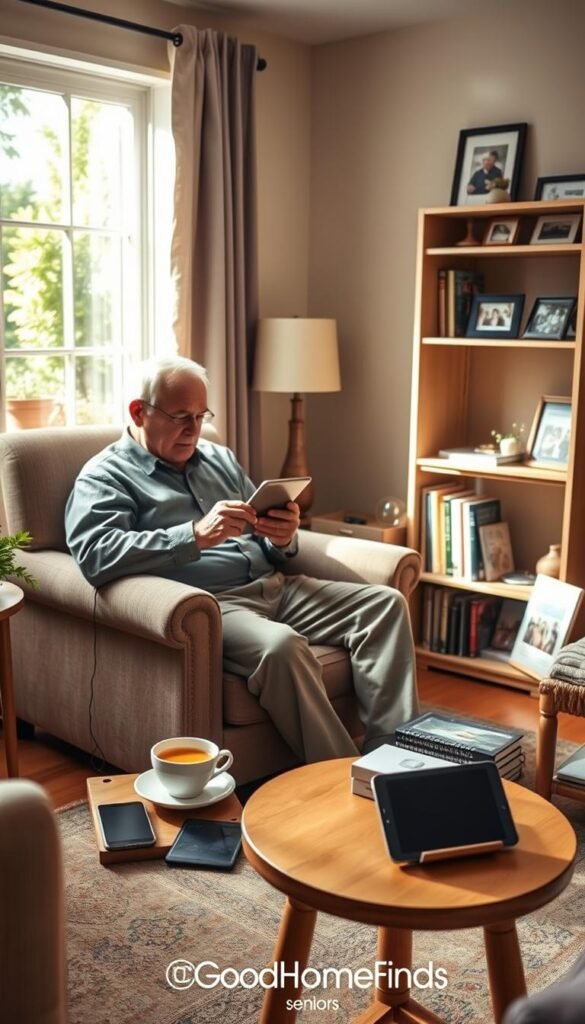
Seniors living alone or managing fall risk
If you live alone, look at automatic fall detection and a button you wear. These give quick help without depending on luck. They reduce the biggest safety risk many face at home.
Older adults in small apartments with limited space
Choose renter‑friendly devices that need no rewiring. Small footprint, plug‑and‑play units work best. They save counter and floor space and keep your apartment tidy.
Caregivers and loved ones who need peace of mind
Caregivers can set simple check-ins and alerts without constant monitoring. That gives loved ones reassurance while letting the person keep independence.
Anyone tired of missed calls, tiny text, or confusing settings
If missed calls or a small screen cause daily challenges, a clearer phone or tablet often helps more than elaborate systems. You can skip extras if you already feel safe or have strong nearby support.
„Practical tools should solve problems, not create new ones.“
| Audience | Best fit | Skip if |
|---|---|---|
| Living alone | Medical alert + clear phone | Daily in‑home support is already present |
| Small apartment | Renter‑friendly, compact devices | No extra outlets or storage |
| Caregivers | Check-ins and remote alerts | Prefer in-person daily visits |
Quick tip: If you rent, compare simple setups in this renter-friendly setup comparison before you buy.
Tech for seniors that’s worth buying first
Start with a small set of reliable items that cover calls, clear screens, hands‑free help, and emergency support. These four purchases solve the most common daily needs and stay renter‑friendly and energy aware.

A reliable phone for calls, texts, and emergencies
Why buy: fastest way to reach family, doctors, and 911. Modern accessibility settings ease reading and dialing.
Pros: always‑on contact, simple setup, low learning curve. Cons: small screens frustrate some users.
Setup: easy — add emergency contacts and a charging spot. Maintenance: charge nightly and install updates.
A simple tablet for bigger text and easier viewing
Why buy: bigger screen for video calls, reading, and easy menus in one device.
Budget vs premium: budget tablets work well for reading and apps. Premium models give sharper screens and longer software support.
Setup: pair with Wi‑Fi and a large‑text app. Maintenance: keep a routine for updates and a soft case.
A smart speaker for hands‑free help around the house
Why buy: voice control for timers, reminders, weather, music, and short calls.
Cost ranges roughly $50–$350. Pros: hands‑free use and low space needs. Cons: privacy settings to check and occasional false activations.
A basic medical alert option for safety
Why buy: a practical safety layer if you live alone or have fall risk.
Many systems bundle equipment with a monthly service fee. Choose button‑only or add fall detection and caregiver integrations.
- Quick checklist: phone, tablet, smart speaker, medical alert.
- Maintenance note: charging spots, scheduled updates, and battery checks keep devices reliable.
- Small‑space tip: pick compact models and low‑power units to save space and energy.
Getting connected: internet and Wi‑Fi that won’t cause daily headaches
A steady home internet makes daily online tasks feel simple and reliable. It is the foundation that keeps video calls, telehealth, bill pay, and recipe searches working without stress.
What you actually do online: quick video chats with family, healthcare visits, paying a bill, streaming a short how‑to video, and light browsing. These uses need a stable connection more than raw speed.

What “good enough” looks like
A plan that supports one or two simultaneous video calls and a couple of smart devices is usually enough. Look for reliability over headline speed. You rarely need the highest rate unless you stream many HD videos at once.
Typical cost and what raises your monthly bill
Expect U.S. service rates around $50–$120/month. Costs rise when promotional pricing ends, when the provider charges equipment rental, or when only higher tiers are available in your area.
Where to place the router in a small apartment
Put the router near the center of the apartment, off the floor, and away from thick walls and microwaves. Elevate it on a shelf and keep it visible so signals clear furniture and doors.
When slow internet breaks things
Signs you need a better plan or placement: choppy FaceTime or Zoom, delayed doorbell alerts, or smart speaker commands that lag. Those problems hurt daily use more than having extra speed you never use.
Renter‑friendly fixes: try repositioning the router first. If dead zones persist, low-cost add‑ons like a mesh node or an extender can help without rewiring. For device guidance and simple gear suggestions, see best budget home gadgets.
Phones and tablets that feel simple, not frustrating
The right phone or tablet should reduce steps, not add new ones to your routine. Pick a model that matches how you actually use it each day. Focus on clear screens, louder sound, and simple menus.

Flip phone vs smartphone: best fit by comfort
Flip phone works if you mainly make calls and want a physical keypad. It is simple to learn and less distracting.
Smartphone is better if you need video and apps. It opens more possibilities but has a learning curve.
Large text, louder sound, and accessibility to turn on
Turn on larger text, higher contrast, and louder ringtones right away. These settings boost readability and make calls easier to notice.
Tip: Set a strong vibration and place favorite contacts on the first screen so calling is one tap.
Tablets and e-readers for reading, video, and browsing
Tablets give a bigger screen for video calls and web browsing. E-readers are lighter and easier on eyes for long reading sessions.
Budget vs premium: what you pay for
Budget models give reliable calling and simple apps. Premium models add brighter screens, better speakers, and longer software support. Decide what matters in daily use, not the headline specs.
Maintenance: charging habits, storage cleanup, and updates
Charge nightly and keep a dedicated spot. Let updates run automatically when convenient.
Clean up unused apps and back up photos to free space. Write down three steps for common tasks and keep them near the charger so you save time later.
| Type | Pros | Cons | Best use |
|---|---|---|---|
| Flip phone | Simple calls, long battery | Limited apps, small screen | Basic calling and texting |
| Smartphone | Video, apps, larger screen | More features to learn | Video calls and web use |
| Tablet / E-reader | Big screen, easy reading | Less portable than phone | Reading, video, browsing |
Home safety tech that helps without feeling invasive
You can add a few simple devices that boost home safety while keeping privacy and daily comfort. Pick tools that focus on quick help and alerts rather than constant monitoring.
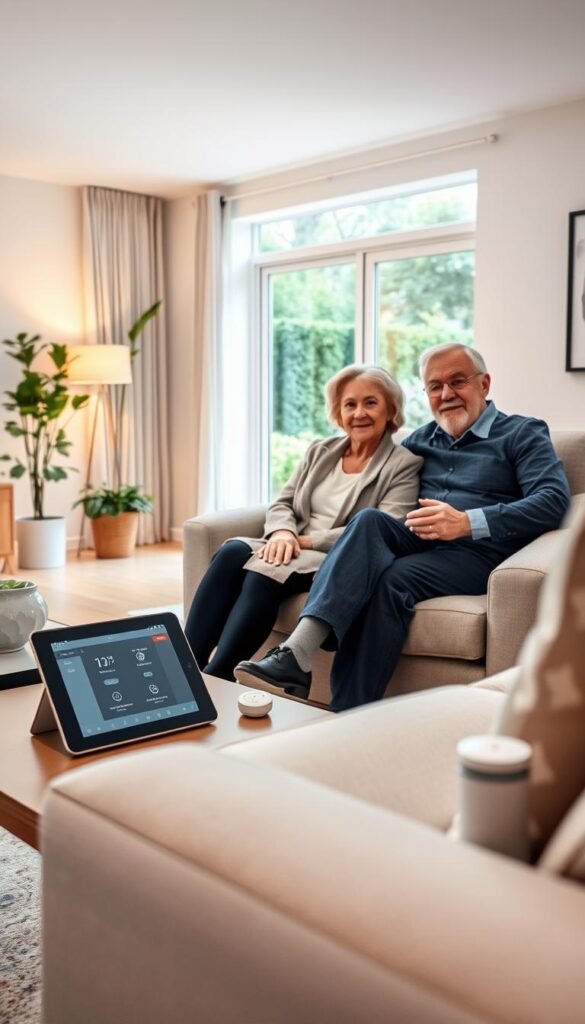
Medical alert systems: button help vs automatic fall detection
Button-only systems are easy to use and private. Wear a pendant or press a base unit to call help. They cost less to start and avoid continuous tracking.
Automatic fall detection adds value if you live alone or have a high fall risk. It can call contacts automatically, but false alarms happen. Choose caregiver integrations if loved ones should be notified.
Smart sensors: useful alerts and realistic limits
Door, motion, and contact sensors run about $40–$250. They send alerts for unusual activity and can detect missed movements.
Be honest about limits: sensors give clues, not caregiving. They can trigger false alerts and need good Wi‑Fi to work reliably.
Video doorbells: safer door answering and package tracking
Video doorbells (roughly $100–$300) let you see and speak to visitors on your phone or tablet. They help with package tracking and reduce risky face‑to‑face encounters.
Consider motion sensitivity to cut false notifications. Check power needs and whether your rental allows hardwiring; many models run on batteries.
Space needs: where devices live in small entryways
In tight entryways, choose compact devices and battery models to avoid drilling. A small base station can sit on a hall table. Put the router or a mesh node near the door so video and alerts reach your phone.
Maintenance notes: charge or swap batteries, keep notifications set to your routine, and test monthly. If something feels invasive, skip the camera and try a peephole camera or a pendant alert instead.
- Pros: targeted safety, renter‑friendly options, caregiver links.
- Cons: false alarms, battery changes, potential privacy concerns.
- Setup tip: start with a button pendant and one sensor, then expand if needed. See a practical gear mix at home problem solver mix.
Kitchen tech for seniors: safer cooking and less daily effort
Simple countertop tools can make cooking safer and keep counters uncluttered in a small apartment.
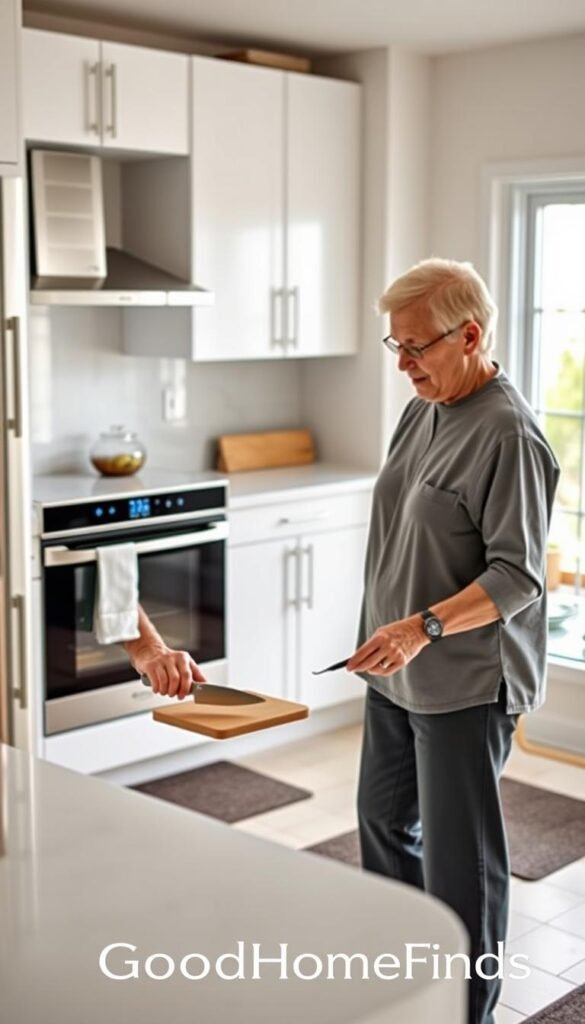
Small-apartment friendly picks: electric kettles with auto shutoff, induction hot plates for controlled heat, instant-read thermometers, and loud, clear timers you can hear across the room.
Noise and space to watch
Some devices like air fryers and blenders can be louder than you expect. Choose models rated quieter and keep noisy tasks to times that won’t disturb neighbors.
Save counter space by picking multi-use appliances. Store bulky pans low so you avoid lifting overhead.
Power basics and safety
Plug heavy-duty appliances directly into wall outlets. Unplug small items after use when circuits are old. Avoid daisy-chaining power strips in older buildings—overloaded outlets are a real fire risk.
Budget vs premium
Budget models often cover core safety: decent auto shutoff and simple handles. Premium models add sturdier build, clearer displays, and easier-to-clean surfaces that reduce accidents and save time.
Maintenance reality
Filters need washing, sensors require wiping, and small tools use batteries. Plan one short monthly check to keep devices reliable.
- Quick wins: induction plate + loud timer + instant thermometer.
- Renter tip: pick plug-in or battery options to avoid drilling or hardwiring.
| Gadget | Safety feature | Space needs | Maintenance |
|---|---|---|---|
| Electric kettle | Auto shutoff, boil-dry protection | Small footprint, stores on counter or shelf | Descale monthly; wipe exterior |
| Induction hot plate | Precise temp control, quick shutoff | Compact, portable when not in use | Wipe surface; check plug and cord |
| Instant-read thermometer & loud timer | Prevents overcooking and burns | Takes minimal drawer space | Replace batteries annually; clean probe |
Cleaning tech that saves time without taking over your space
Cleaning gear can save you hours each week if you pick the right units for a small apartment. This section compares lightweight cordless vacuums and robot cleaners so you can choose what fits your routine and space.

Lightweight cordless vacuums vs robot cleaners
Cordless vacuums: quick to grab for crumbs and corners. You get direct control and stronger suction for rugs. Common challenges include limited battery life and small dust bins.
Robot cleaners: run on a schedule and handle daily upkeep. They need a clear path and a docking spot. They miss deep-clean edges and can tangle on rugs.
Space, noise, and energy
Storage needs matter. A cordless needs vertical space and a stable dock. A robot needs a low-profile docking station and a clear 2–3 foot area to park.
Noise: use lower modes or daytime schedules to avoid complaints in shared buildings. Run louder cycles when you’re out or during mid-day.
Setup and maintenance
- Setup: reserve an outlet near the dock and clear obstacles before the first run.
- Maintenance: empty bins, clean brushes, and swap filters regularly to keep devices worth it.
- Energy tip: run shorter, consistent cycles and charge only as needed to save power and extend battery life.
| Cleaner type | Pros | Cons | Best for |
|---|---|---|---|
| Cordless vacuum | Strong suction, spot cleaning | Battery limits, storage upright | Quick touch-ups and stairs |
| Robot cleaner | Hands-off daily upkeep, scheduled runs | Needs clear floor, misses edges | Flat floors and routine maintenance |
| Combo approach | Daily sweep + weekly deep clean | Higher cost, more storage | Small apartments wanting minimal chores |
If you want a practical gear mix, check a related setup idea in this laundry room solutions guide to optimize space and time.
Staying connected with family, friends, and community
A few reliable tools make staying in touch simple and steady. Use services that do one thing well and repeat them each week. This keeps calls and visits regular without adding stress.

Video chat made simple: FaceTime, Zoom, and easy options
FaceTime and Zoom are free and widely used. Set one contact as your „call button“ and keep the device on a stand. Plug in the tablet during longer chats so battery worries do not interrupt.
Photo-sharing frames and apps that don’t require constant learning
Digital frames let family push new photos without you needing to log in. Choose a single app that sends photos to the frame. That keeps updates regular and low-maintenance.
Virtual retirement communities: what they are and costs
These services offer classes, groups, and support online. Typical yearly costs run about $500–$700 for individuals and $700–$900 for couples (2025 rates). They bring structured connection without travel.
Games for connection and brain workouts
Start with simple options like digital crosswords or Words-with-Friends style play. Use short sessions and invite a regular group. Book clubs and hobby groups on weekly video calls work well in real life.
„Consistency matters more than complexity.“
| Tool | What it does | Good for |
|---|---|---|
| FaceTime / Zoom | Live video calls | Weekly family or friends catch-ups |
| Digital photo frame + app | Auto photo updates | Low-effort family sharing |
| Virtual community services | Classes, groups, support | Structured social programs; budgeting |
Quick tip: If you want a step-by-step guide to getting started with simple video and sharing options, see easy ways to stay connected.
Everyday services that reduce errands and stress
Errand and delivery services can turn a long day into a short, manageable one.
Food and grocery delivery: meal kits like HelloFresh or Blue Apron run about $9–$12 per serving (2025). Restaurant delivery via DoorDash or Grubhub often adds $2–$6 in delivery fees plus tip. Grocery delivery services start at about $3.99 for orders $35+; an Instacart+ plan is roughly $99/year for free delivery on qualifying orders.
Budget tip: compare meal kit cost to grocery+time. If cooking energy is low, a weekly meal kit may cost more but saves time and lifts decision fatigue.

Rides: app-based versus call-in
Rideshare apps like Uber and Lyft give quick access when you are comfortable with an app. Call-in services such as GoGo Grandparent let you request rides by phone without using a smartphone.
App pros: faster quotes, live driver tracking, digital receipts. Call-in pros: phone support and simpler booking.
Real-life use cases
After a healthcare appointment you may be tired. A ride home avoids driving when you feel shaky.
On bad-weather days, delivery cuts exposure and stress. When mobility is limited, scheduled grocery delivery or a meal kit prevents heavy lifting and multiple store trips.
Small safety habits and quick checklist
- Confirm driver name and plate before entering.
- Use well-lit pickup spots and share ETA with a contact.
- Budget for tips and service fees so totals aren’t a surprise.
| Service | Typical cost | Best when | Notes |
|---|---|---|---|
| Meal kits | $9–$12 per serving | Low cooking energy; planned dinners | Good for variety; costs add up weekly |
| Restaurant delivery | $2–$6 fee + tip | Occasional meals; last-minute needs | Convenient but pricier per meal |
| Grocery delivery | $3.99+ for $35 orders; Instacart+ ~$99/yr | Bulky items; limited mobility | Save by ordering weekly and bundling items |
Final note: choose the services that cut the tasks that tire you most. If you want simple help setting up delivery or ride access, check practical guidance at help at home.
Safety basics: avoiding scams, protecting accounts, and staying confident
A few steady routines make online security less work and more reliable. Follow simple steps that fit daily life and keep you in control.

Password habits that actually work
Use a short system: a base phrase + one site letter and a symbol. Write it down once and store it in a safe place.
Consider a password manager if you want fewer notes. It stores strong logins so you only remember one master phrase.
How to spot scam calls, texts, and “too good to be true” offers
Scams often pressure you, promise prizes, or threaten immediate action. If a message rushes you, pause.
Ignore links in unexpected texts. Verify by calling a trusted number from a bill or bank statement. Scams and suspicious offers are common; staying calm stops many of them.
Safer calling: contacts, voicemail screening, and unknown numbers
Save real contacts and use voicemail to screen unknown calls. Let unknown numbers go to voicemail and call back using a number you trust from an official source.
Updates and antivirus: what to turn on and what to ignore
Turn on automatic updates for the device and apps you use most. Install one well-known antivirus and run scans monthly. Ignore pop-up „alerts“ that tell you to call a number or pay immediately.
Social media privacy: what not to share and why it matters
Don’t post your address, vacation dates, phone number, or photos that show where you live. Limit posts to friends and trusted others.
„Protecting accounts is a set of small habits, not a full-time job.“
- If unsure, pause and ask a trusted friend or family member.
- Call the company using an official number before sharing info.
- Learn one routine and keep it simple—confidence grows with practice.
For practical tips on personal cyber practices see personal cyber security.
Setup time: what it takes to get these devices working
A clear, paced setup plan lets you get devices working without turning the day into a long project.

Quick setup items you can do in under an hour
Start with tasks you can finish in one short session. These build immediate value and confidence.
- Turn on large text and louder ringtones.
- Add emergency contacts and one medical ID.
- Install 2–3 key apps and sign in (video, messages, pharmacy).
- Place one smart speaker in a central spot and plug it in.
- Make a test call and send a test photo to confirm basics work.
Half-day setups that may need a helper
More complex work can take several hours and a patient helper makes it faster.
- Improve Wi‑Fi coverage or add a mesh node so systems run reliably.
- Install and test a video doorbell and motion sensors; check notifications reach a contact.
- Pair wearable alerts, test fall detection, and confirm caregiver links.
What to prepare first: passwords, charging spots, and a written checklist
Prepare this before you start:
- One simple password plan and a written backup in a safe place.
- A dedicated charging spot for each device and labeled cables.
- A short checklist saved on paper by the router or in a drawer.
Practical tip: split work into short sessions across two days. A helper can hold the ladder, read a screen, or call the provider so you avoid stress.
„Start small: turn on core features today and add extras later.“
Need extra guidance? If you want step‑by‑step help and a simple gear list, see this practical guide at setup and device help.
Common mistakes that waste money or create new problems
Buying the wrong gadget can turn a helpful plan into clutter and regret. A few simple checks before you buy keep purchases useful and renter-friendly.
Buying devices that don’t match the internet you have
Slow internet breaks real use. Video calls freeze. Video doorbells lag. Before buying, check your plan and the device bandwidth needs.
Ignoring power use, charging routines, and battery replacement
Some devices need daily charging. Others use replaceable batteries. Treat charging as part of household chores so things stay ready.
Choosing gadgets that are too loud or too big for a small apartment
Noise and size matter. A loud vacuum or bulky base can end up unused. Pick compact, quieter models that fit storage spots.
Turning on too many features at once and getting overwhelmed
One change at a time works best. Enable core features first. Add extras only after they prove helpful.
Skipping scam protection and privacy settings
Do this day one: enable basic privacy settings, update the device, and turn on voicemail screening. That reduces scams and improves security.
- You’ll avoid returns and drawer clutter.
- Match device needs to your internet and power routine.
- Buy fewer things and set them up so you can actually live with them.
„Buy less, match what you have, and set one feature at a time.“
Conclusion
A few careful upgrades can make daily life safer and more connected without extra fuss.
Start with one high‑value change: a readable phone, a plain tablet, or a basic medical alert. Plan a short setup session and label chargers so routines stay simple.
Keep choices renter‑friendly: favor compact devices, low noise, and low power use so items are used, not stored. Test features one at a time until they help your daily routine.
Protect your accounts, watch for scams, and teach a trusted contact how alerts reach them. If you want evidence that practical systems can support aging in place, see this research on aging in place.
Use this guide to build a small, sustainable setup that supports safety, health, and connection with family without the hype or the hassle.