
You want less friction, fewer interruptions, and a setup you can reset fast in a real house. This guide steers you to practical, daily-use picks that boost productivity without breaking the bank.
Rule one: nearly everything is under $25 and Amazon-first for US shoppers. Expect fast delivery, easy returns, and options you can test this week.
Each item gets a quick score: why it helps your home office, who it fits, what to avoid, and cheaper alternatives. I flag safety and quality issues like unstable bases, heat, and poor cord materials.
Preview: timers, eye-friendly lighting, video call lights, comfort basics, lap desks, wireless input, cables, monitor height tools, organizers, and small comfort extras. Real brands like Anker and IKEA appear where they make sense.
Key Takeaways
- Choices focus on practical gains and fast fixes under $25 when possible.
- Amazon-first for U.S. buyers gives fast delivery and easy returns.
- Evaluation covers usefulness, who it’s for, pros/cons, and alternatives.
- Prioritize stable build, good cords, and materials that last.
- Topics include lighting, timers, input devices, storage, and comfort extras.
How We Chose These Under-$25, Amazon-First Picks
Short version: you get practical, renter-friendly gear that saves minutes and reduces clutter. We pick everyday items that actually help you set up, clear away, and keep a small space usable.

Our budget rule and value test
Most picks stay under $25. If a cheap option fails fast, we note a slightly pricier alternative that lasts. Good value in 2026 means an item saves you time during the day, reduces discomfort, or makes setup and stow-away easier.
Amazon availability and delivery
We favor items that are in stock, have fast U.S. shipping, and enough reviews to show common failure patterns. That reduces risk and gets you replacements quickly.
Quality and safety checks
- Powered items: check heat behavior, cord thickness, strain relief, and stable plugs.
- Stands/risers: wide base, non-slip feet, no wobble when you type or adjust a laptop.
- Cheap gear: look for materials that don’t crack, buttons that don’t stick, and finishes that won’t peel.
Expectation: recommendations stay small-space and renter-friendly. No showroom gimmicks—just practical fixes you can rely on.
What to Avoid When Buying Cheap Home Office Gear
Practical rule: cheap does not always mean useful. Cheap gear can look helpful, but many pieces add hassle instead of saving minutes.
Overhyped gadgets that don’t save time
Red-flag checklist: vague claims, no clear use case, or a gadget that adds steps instead of removing them. If a product needs constant app setup or daily charging, skip it.
Sketchy electronics and cables
Ultra-cheap hubs and cables can run hot, flicker, or have loose ports. That turns a small problem into a daily failure.
Watch for: stiff jackets that crack, weak strain relief, and wobbling plugs. Replace suspect cords before they damage a laptop or device.
Ergonomics traps
Random cushions or risers can push your posture into a worse angle. Equipment that changes height without support often causes neck and back strain.
Simpler is better: glare, clutter, and neck angle usually have low-cost fixes. Try moving your desk, shifting a lamp, or stacking books safely before buying a new tool.
work from home finds That Actually Save Time During the Workday
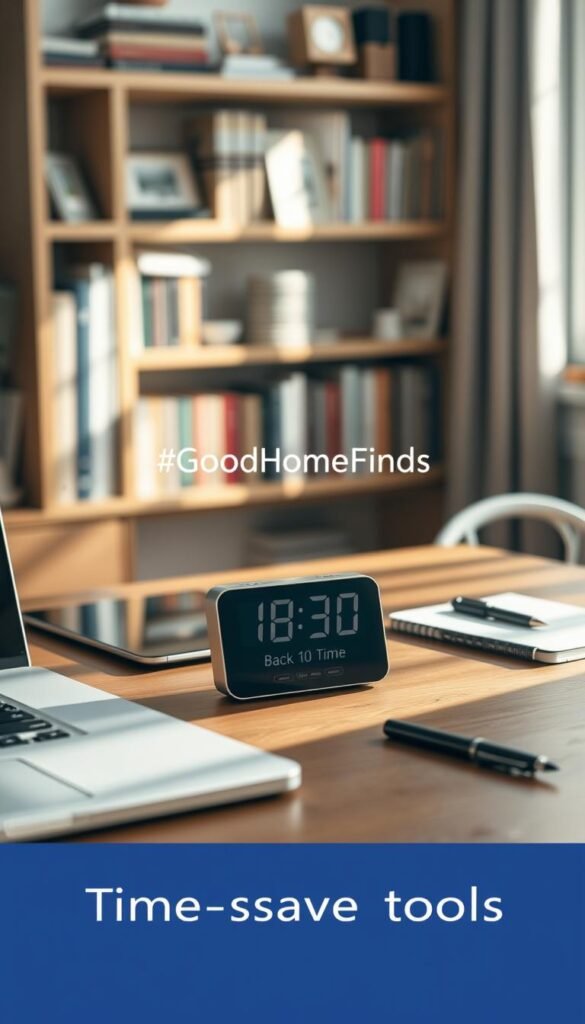
A physical desk timer gives you a clear signal to start and stop, without opening an app. It’s a set-and-forget tool that helps you build short focus blocks between meetings or tasks.
Rotating desk timer: how it works
Rotate the ring to pick 5, 10, 15, 20, or 30 minutes and the countdown begins. Four volume settings let you choose a gentle chime or a louder alert for shared spaces.
Why it’s useful
Faster than phone timers: rotation-to-start removes taps and app friction. The tactile control creates a clear boundary for a quick task or sprint.
„Good build for the price,“ — Angela Reiber
Real-life example
After a meeting you rotate to 10 minutes, answer two emails, and send one follow-up. You finish the block without getting pulled into phone notifications or distracted tabs.
Price-to-value check
At about $16.99 this timer is worth it if it prevents a single distraction spiral each day. That small time saving compounds across a busy week.
Pros and cons
- Pros: tactile control, quick presets (5–30), clear task boundary, volume options for quiet spaces.
- Cons: backlight only stays on briefly when snoozed, so it’s harder to glance at in dim lighting.
Who should buy it and who should skip it
Buy if: you handle frequent short tasks between calls, batch edits, or sprint through marketing and creative bursts.
Skip if: you already rely on a phone timer with notifications managed and it doesn’t pull your attention away.
Cheaper alternatives
Try a free phone timer, browser Pomodoro extensions, or calendar blocks if you prefer software-only setups.
Desk Lighting That Reduces Eye Strain in a Home Workspace
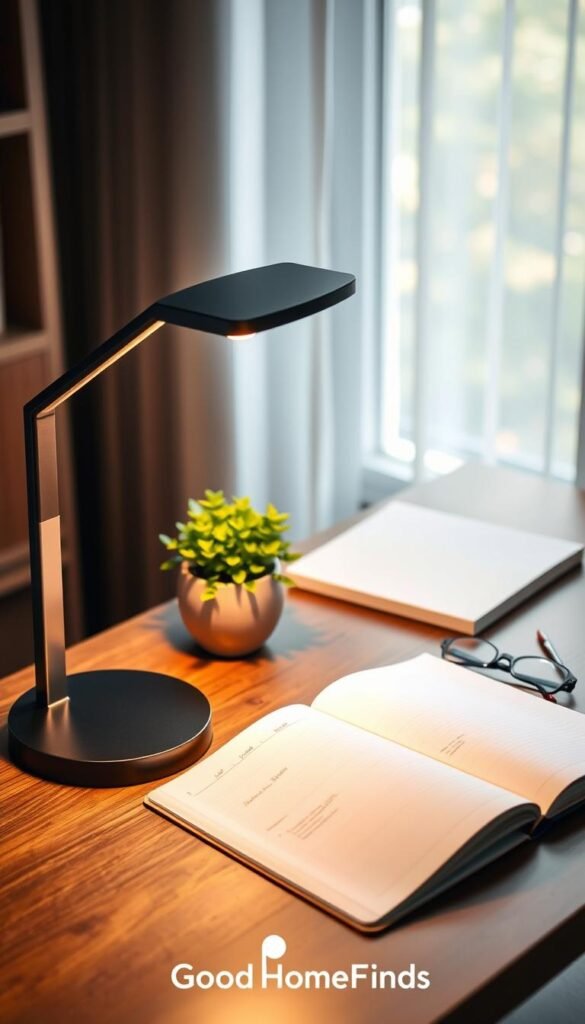
A simple lamp can cut eye strain and make switching tasks easier across the day. Good lighting eases the contrast between your screen and the room. That reduces squinting and fatigue during long hours.
What to look for in adjustable brightness
Why it’s useful: the right light reduces eye strain and makes your screen feel less harsh during long hours. You read better and recover faster between sessions.
- Adjustable brightness — dim for early morning, brighter for paperwork, warm for evening edits.
- Stable base — no tipping when you move the arm.
- Sturdy neck — holds position without drifting.
Real-life example
You start with soft light for morning emails. Midday you raise brightness for planning. In the evening you lower warmth to avoid glare. The lamp adapts and your eyes stay comfortable.
What to avoid and safety checks
Avoid harsh blue-tinted light that makes you squint. Skip lamps with wobbly necks or heads that heat up after an hour. Check cords for solid jackets and no burning smell.
| Feature | Why it matters | Budget target |
|---|---|---|
| Adjustable brightness | Matches light to task and reduces glare | Under $25 |
| Stable base & neck | Prevents drift and keeps angle steady | Under $25 |
| LED heat control | Prevents overheating and odor | Look for cool LEDs |
Quick placement tip: put the light to the side and angle it away from the screen. That cuts reflections without shining in your eyes.
Alternatives: use a warm household lamp or shift your desk to use window light without direct glare if you need a cheaper option.
Video Call Upgrades on a Budget (Without Buying a New Webcam)
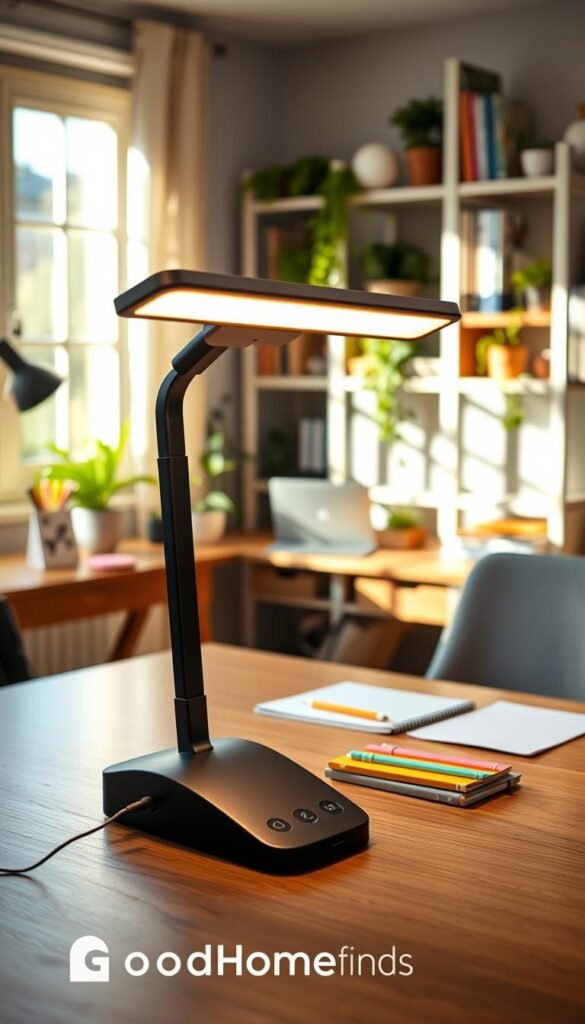
A simple front light fixes most video-call problems in a dim room. Better lighting often helps your image more than a pricier camera. If your room is dark or unevenly lit, a budget ring light gives a fast, reliable boost.
Ring light basics for clearer calls
Why it’s useful: even front lighting reduces harsh shadows and makes skin tones look natural. That helps during client meetings and team check-ins. A UBeesize 10″ ring light is about $20.63 on Amazon and fits small desks and kitchen-table setups.
Real-life example
You get a last-minute Zoom. The ring light clips to your laptop, centers your face, and you stop looking washed out. The change is immediate and predictable.
Pros, cons, and what to avoid
- Pros: quick setup, predictable output, good for small home office spots.
- Cons: cheap units can be harsh; prefer models with dimming and warm settings.
- Avoid: flimsy clamps, flicker, and lights that get hot near your face.
Alternatives: face a window, raise your laptop, or bounce a desk lamp off a wall for softer light if you’d rather not add a device. For frequent meetings, the ~$20 Amazon option is worth it.
Comfort Fixes for Long Hours at a Desk (Affordable First Steps)
A few low-cost fixes make long hours less draining and improve posture fast.
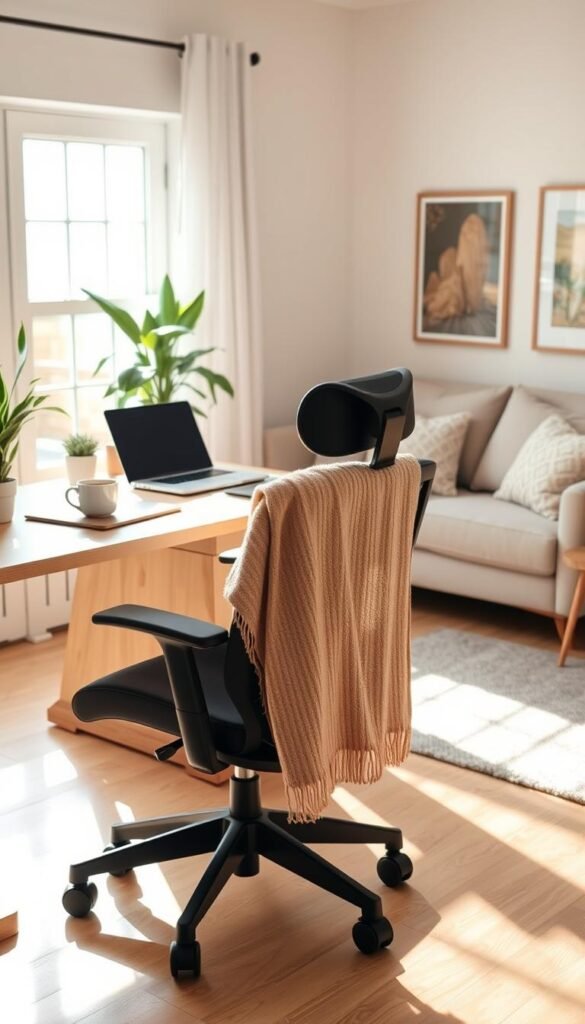
Why it matters: shifting in your chair burns focus and energy. Simple support tools keep you steady so you finish tasks with less strain.
Foot support and a budget test
Why it’s useful: a footrest helps when your feet don’t sit flat. It reduces pressure on your legs and improves posture at the desk.
Try a sturdy box or a thick stack of books first. If it stays put, consider a ComfiLife footrest. Wirecutter notes it has high-density foam, a washable cover, rocker option, and two height settings.
Seat and back support
A seat cushion helps if your chair sits too low or your hips tilt. A lumbar pillow keeps your lower back aligned and reduces slumping.
Premium context: Wirecutter highlights Tempur-Pedic cushions for dense foam that retains shape and removable covers you can wash.
What to avoid and safety checks
- Avoid overly soft foam that flattens fast.
- Pick foam that bounces back and covers that are washable.
- Use non-slip bases for anything on the floor.
Real life: add foot support and you stop tucking your legs under the chair during long edits.
For more small-space fixes see small-space fixes.
Lap Desk Solutions for Couch Days and Kitchen Table Setups
A good lap desk turns a couch or kitchen counter into a stable, portable mini-desk in seconds.

Why it’s useful: a lap desk gives a stable surface when you don’t have a dedicated desk. It keeps a laptop steady, supports a mouse, and creates a clean setup that fits small space living.
What makes a lap desk stable and cool on your legs
Stable and cool means enough width for a laptop plus mouse, a front lip to stop slipping, and materials that don’t trap heat against your thighs. Wirecutter’s pick, the LapGear Designer Lap Desk, scores high for a sturdy build, comfortable finish, and practical features like a handle and phone perch.
Real-life example
You move to the living room for a late call. The lap desk keeps your laptop raised so vents clear. You clip on a mouse and finish the meeting without the machine getting hot on your lap or sliding into cushions.
Pros, cons, and who it’s for
- Pros: portability, fast setup, better posture than hunching over a cushion, fits 13″–17″ laptops.
- Cons: some models still block vents on very soft surfaces; check underside airflow before long sessions.
- Who it’s for: hybrid couch/desk users, small apartments, parents sharing a kitchen table, or anyone who moves rooms during the day.
Cheaper alternatives
If you need a budget option, try a sturdy tray plus a thin mouse pad. Add a hardcover book under the laptop for extra height while keeping vents clear. These makeshift fixes are practical and renter-friendly when you’re testing what works.
„A lap desk gives you a reliable surface and fewer balance problems during short sessions.“
Wireless Keyboard and Mouse: When It’s Worth the Upgrade
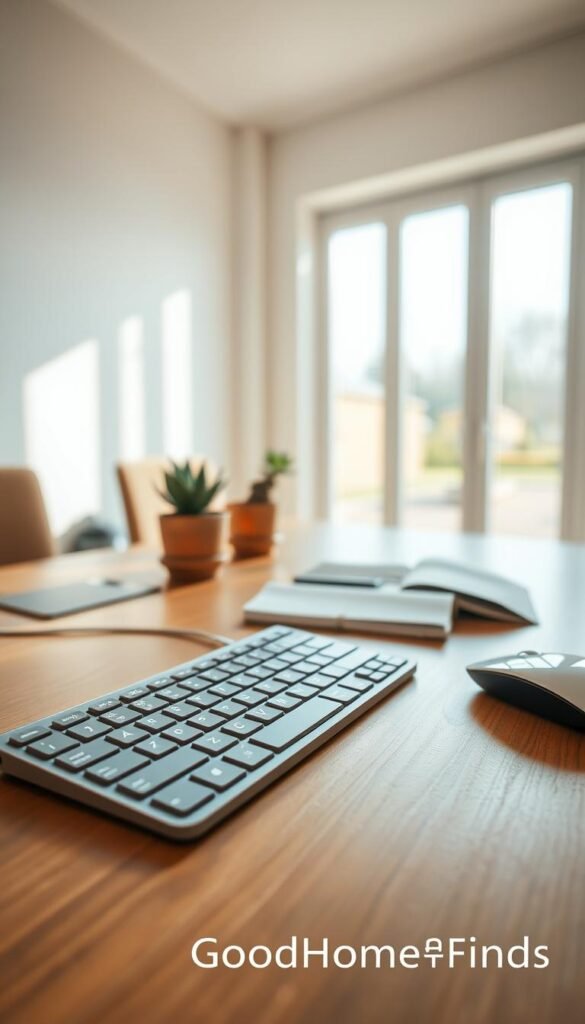
A wireless keyboard and mouse can turn a cramped table into a functional setup fast.
How going cordless declutters and improves positioning
Why it’s useful: a cordless keyboard and mouse let you raise your laptop to eye level while keeping hands at a natural angle. That reduces neck strain and improves posture on a small desk.
Real-life example
You stack books or use a stand to lift the laptop screen. Then you type on the wireless keyboard and move the mouse freely. Your shoulders relax and the surface stays tidy for quick resets.
What to avoid
- Laggy receivers or unreliable Bluetooth pairing.
- Loud mouse clicks if you share a room.
- Forcing USB plugs at odd angles that stress ports.
| Quality check | Why it matters | Target |
|---|---|---|
| Stable connection | Prevents input lag | Reliable dongle or Bluetooth |
| Battery life & switches | Less downtime and easier storage | On/off and rechargeable |
| Key feel & click noise | Comfort and shared-space friendliness | Quiet keys, low travel |
Pros: flexibility and less cable clutter. Cons: you’ll manage batteries and should keep a spare. If you’re on a tight budget, buy a single wireless mouse or a basic keyboard first. This is a practical, renter-friendly upgrade that often proves worth it in a small workspace or a work home setup.
USB Hub: The Cheapest Way to Add Ports Fast
When your laptop only has a couple of ports, a tiny hub is often the fastest fix.
Anker 4‑Port USB 3.0: best use cases
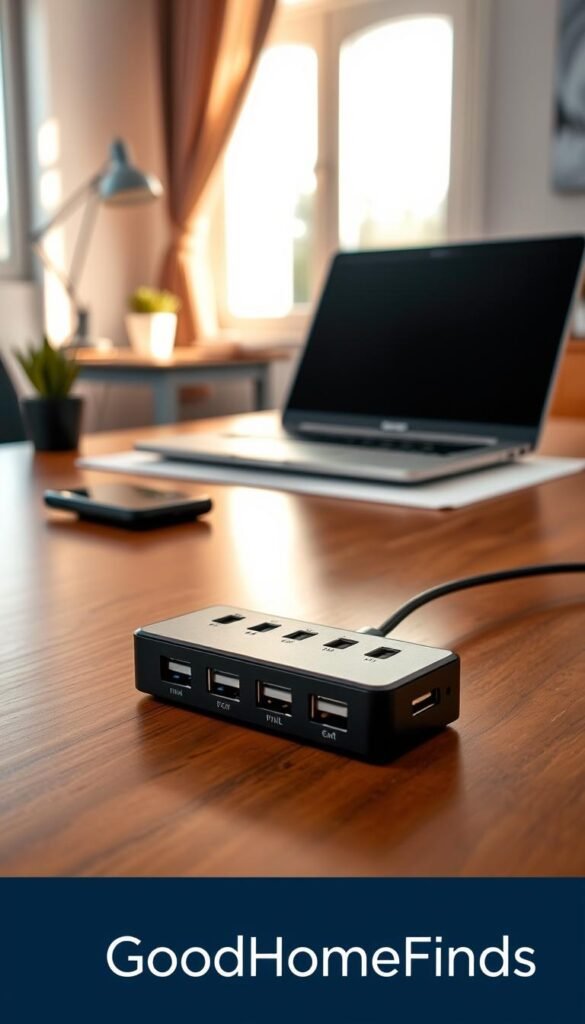
The Anker 4‑Port USB 3.0 hub is an ultra‑slim data hub listed near $9.99. It adds extra ports for basic devices you use every day in a small home office.
- Best for: keyboard, mouse, headset, USB microphone, and flash drives.
- Not for: high‑watt chargers or external drives that need dedicated power.
Real-life example
You leave a keyboard and mouse plugged in all week. No daily swapping during a busy workday. That saves minutes and reduces wear on your laptop’s ports.
Pros, cons, and safety
- Pros: compact, easy to set up, fewer cable swaps, neater desk surface.
- Cons: limited power delivery, can get warm under heavy use, single cable stress at the connector.
- Safety: avoid plugging power‑hungry gear. Stop use if the hub heats up. Don’t bend the cable sharply at the plug.
What to avoid and alternatives
Avoid no‑name hubs with loose ports or flimsy cables. If your laptop uses USB‑C, consider a USB‑C dongle or move to Bluetooth peripherals to cut physical port needs.
For more detailed picks see the best USB hubs guide.
Cable Management for a Cleaner Desk and Fewer Snags
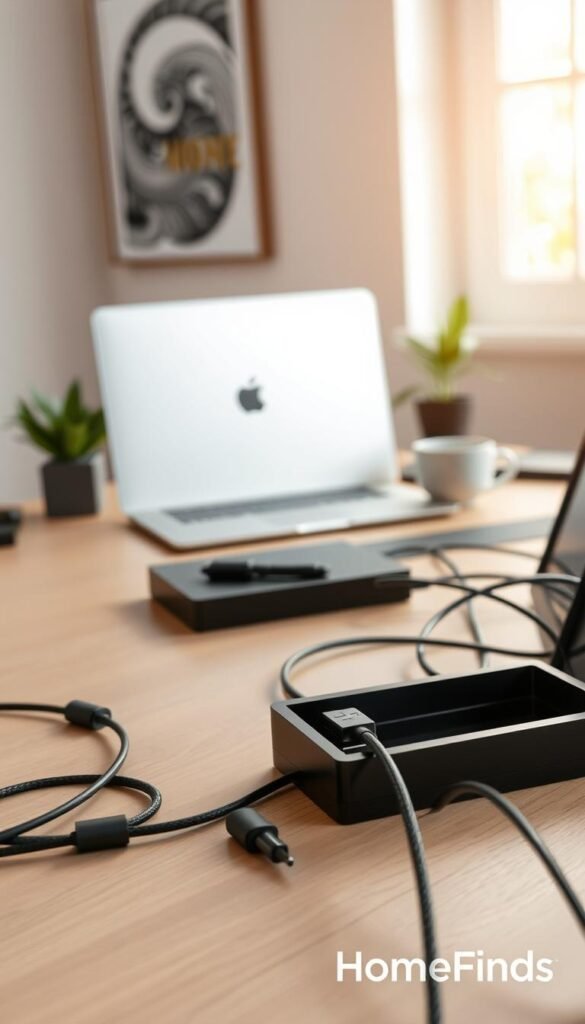
Simple cable fixes stop snags, protect devices, and make cleaning your desk trivial. Small changes keep your workspace reliable and renter-friendly. These are cheap, durable steps you can finish in one afternoon.
Quick wins under $25
- Adhesive cable clips — anchor cords at the table edge so a tug won’t pull gear off the desk.
- Velcro ties — bundle cables so they don’t snag or fray. Pick reusable loops that open easily.
- Under-desk routing — use a small tray or stick-on channels; no drilling needed and renter-friendly.
Real-life example
Clip your laptop charger a few inches back from the table lip. The cord stays anchored during calls and won’t yank the laptop mid-meeting. This simple anchor point saves replacements and headaches.
What to avoid and quality checks
- Avoid cheap adhesives that peel finish or fail in humidity.
- Check clips hold without crushing cables and ties reopen cleanly.
- Label both ends of power and data lines so tracing is fast when something stops working — an easy, low-cost way to save time.
Alternatives: binder clips for temporary routing, painter’s tape for short-term runs, or a small cable box if you want everything hidden. For step-by-step renter-friendly routing ideas see organize cables under desk.
Monitor and Laptop Height: Cheap Ways to Fix Neck Strain
Raising your screen a few inches can stop that slow, nagging neck ache at the end of a busy day.
Why it’s useful: getting the monitor or laptop screen closer to eye level reduces forward head tilt. That eases neck and shoulder tension without replacing your chair or buying a pricey standing desk.
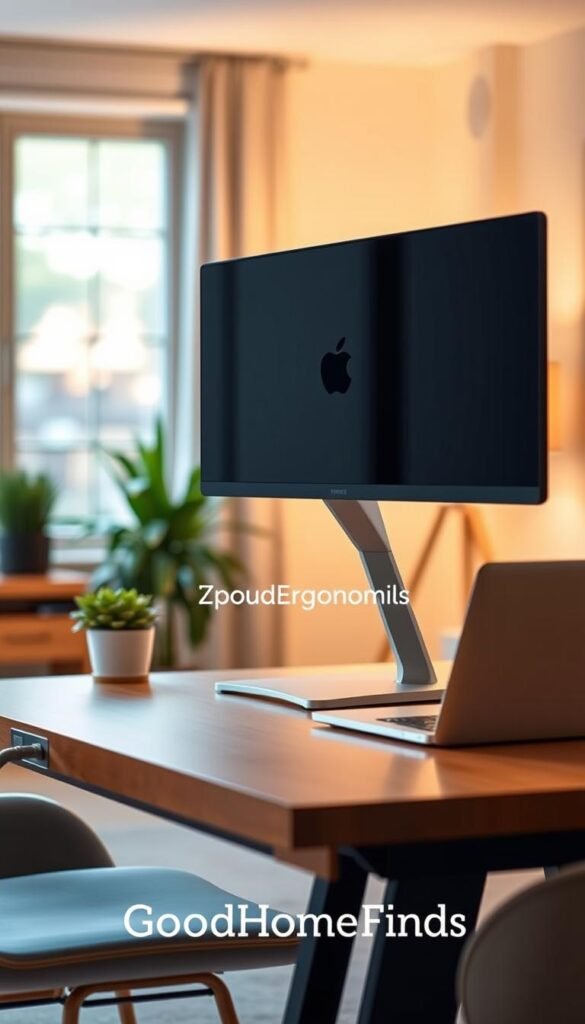
Budget riser options that actually work
- Simple monitor stand — a low-profile riser with non-slip feet and a solid top. Good for monitors and external keyboards.
- Sturdy box or platform — a wooden crate or short storage box that won’t shift under weight.
- Careful book stack — pick hardcover books and add rubber pads between layers to stop sliding.
Real-life example
You raise the laptop screen by stacking a wooden riser and add a wireless keyboard. By late afternoon your neck feels looser. You stop craning forward to read text and end the day with less tightness.
Stability, ventilation, and standing desk habits
If you use a standing desk or a converter occasionally, prioritize stands that lock or have wide feet. Wobble during typing makes posture worse, not better.
What to avoid: unstable stands that shake while you type and setups that block laptop vents. Blocked ventilation raises heat and throttles performance.
Safety checks and quick alternatives
- Check weight ratings and a stable footprint for your monitor or laptop.
- Choose non-slip pads and test wobble before full use.
- If you can’t raise the screen enough, try lowering the keyboard or moving the monitor back slightly to reduce neck angle.
For a practical guide to pairing a laptop and external screen, see this desk setup with laptop monitor.
Desk Organizers That Keep Your Workspace From Taking Over the House
A single tray or mesh caddy gives everything a home and makes resetting your desk fast.
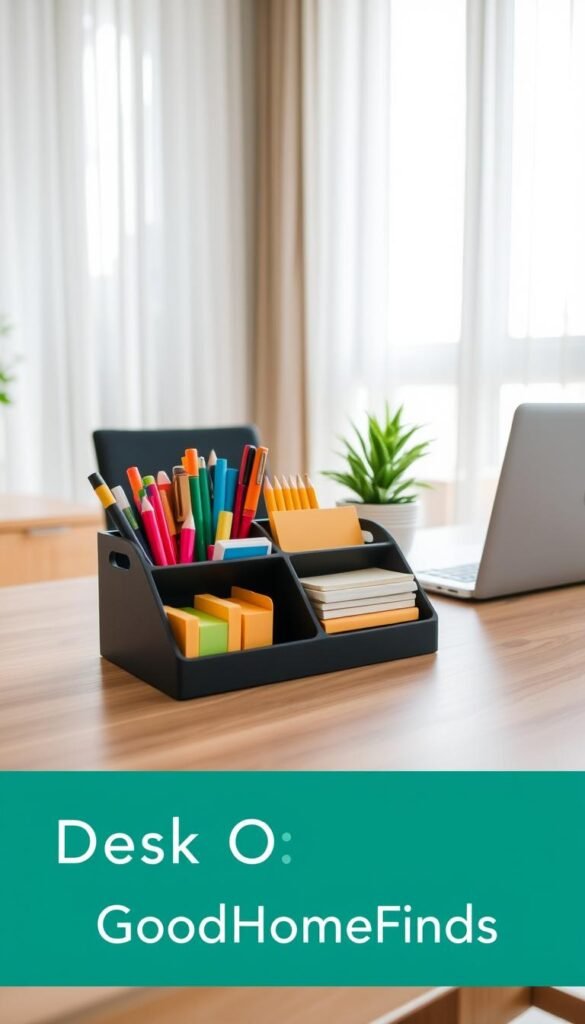
Mesh organizers: why they’re practical for daily grab-and-go supplies
Why it’s useful: a mesh organizer reduces “where did that go?” time. You see cords, sticky notes, and pens at a glance. That stops small items from spreading through the house.
Real-life example
One Simple Houseware Mesh Desk Organizer (about $19.30) gave a freelance editor a single spot for chargers, pens, and sticky notes. She reset the organizer each evening. Morning setup took seconds and meetings started on time.
Pros, cons, and who it’s for
- Pros: visible storage, durable metal mesh, fast reachability.
- Cons: can look busy if overfilled; keep only daily-use items.
- Who it’s for: anyone in a shared apartment, small office, or tight home with limited surface area.
Cheaper alternatives and what to avoid
Repurpose a mug for pens, a kitchen container for chargers, or simple drawer dividers as low-cost storage. Avoid flimsy plastic drawers that jam or tall organizers that become clutter towers.
„Around $20 is worth it if you save even a few minutes a day hunting for small tools.“
Portable Storage for Shared Spaces (Kitchen Table to “Office” in Minutes)
If your table serves double duty, a mobile trolley keeps your setup tidy and ready to roll. This is a renter-friendly trick that saves time and keeps the living space livable.
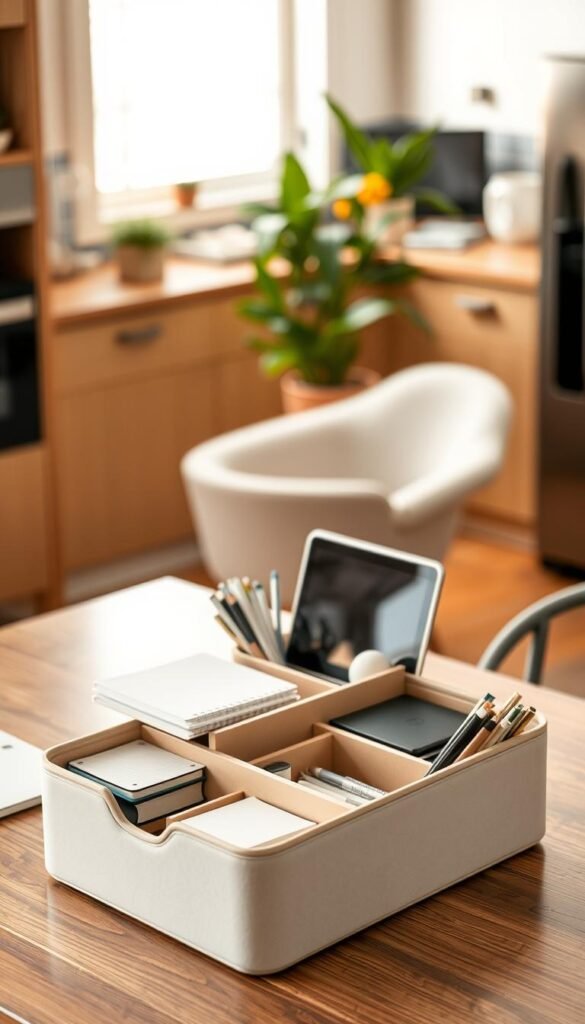
What to look for and when to spend a bit more
Why it’s useful: a small cart turns a kitchen table into a usable office and then disappears at dinner. It holds a laptop, charger, notebook, and headset so you don’t spread cables across the table.
Buying criteria: stable footprint, decent casters, low height, and firm shelves that don’t flex under equipment.
Budget reality and practical advice
Many good carts are under $25. Truly stable three‑tier rolling carts often run about $35.99 on Amazon. That extra cost is worth it if you want long‑term stability and fewer replacements.
Real-life example and quick alternatives
You finish for the day, roll everything into a closet, and clear the table for dinner. No piles, no cable sorting, and a fast reset.
- Pros: fast resets, less clutter, portable storage for shared space.
- Cons: avoid overloading the top shelf; top-heavy carts tip.
What to avoid
Avoid flimsy casters that snag, tall skinny carts that wobble, and wire shelves that bend under a laptop bag. Cheaper alternatives include a handled tote, a lidded bin, or a sturdy shopping bag dedicated to office gear.
Noise and Focus Helpers for Busy Homes
Small noise fixes often give bigger gains than an expensive headset. Reducing interruptions keeps your train of thought longer so you get more done during key hours.
Affordable options before pricey headphones
Start with simple, renter-friendly items. Foam earplugs for deep focus. A soft door draft blocker to cut hallway sound.
Signal habits help too. Hang a visible sign or set a predictable block on the calendar to show you’re in focus mode.
Real-life example
One parent used a white-noise playlist and 90-minute blocks while kids did crafts. The steady background cut sudden interruptions and protected a high-focus hour each afternoon.
Expectations and what to avoid
Noise control is a toolkit, not a silver bullet. Avoid blasting loud audio all day and earbuds that cause ear fatigue or mask alarms.
- Alternatives: a white noise app on a spare phone, a small fountain for natural sound, or a steady fan you already own.
- For more on physical soundproofing, see soundproofing work setup.
„Lowering interruptions matters more than perfect silence.“
Small Comfort Items That Pay Off (Warm Hands, Better Mood)
A small comfort upgrade can stop a cold-distracted afternoon before it starts. These tiny changes cost little but help you stay focused and feel better during a long day.

USB heated fingerless gloves: who they help and safety notes
Why it’s useful: fingerless heated gloves keep your fingers nimble for typing while warming hands. They are cheaper than cranking the thermostat for the whole place.
Who they fit: people with cold hands while typing, drafty apartments, or basement office setups. A basic USB pair is often about $5.99 on Amazon and is renter-friendly.
Safety notes: avoid overnight use. Stop using if the cable frays or you feel hot spots. Unplug when you step away and check the cable and connector for wear before each use.
Office plant under $25: low-maintenance picks and placement tips
Why it’s useful: a small plant improves mood and softens a sterile desk. Low-maintenance options include succulents, snake plant, and pothos.
Affordable pick: a Costa Farms Dieffenbachia is often listed near $24.99 and adds real greenery. If you have pets, choose pet-safe species or keep plants out of reach.
Placement tips: put plants in indirect light, away from vents. Don’t place pots where spilled water can reach power strips or chargers.
What to avoid: overheating USB gear, allergy triggers, and pet-unsafe plants
Avoid devices that run hot for long periods. Any USB warmer that gets too hot or shows melted plastic is a reject.
Watch for allergy triggers like strong pollen or perfumed soil additives. If someone in the house sneezes, pick a low-pollen option or skip live plants.
Pet safety: many popular houseplants are toxic if chewed. If you have cats or dogs, skip Dieffenbachia and choose pet-safe greens or use a decorative print instead.
- Alternatives: a small framed print, a smooth stone, or a neutral desktop object can lift the mood without watering or pet risk.
- For more practical picks and gift ideas see a curated gift guide or a list of best practical home products.
„Small comforts add up. A warm hand and a bit of green can change the quality of your day.“
Conclusion
Start with one simple swap. Pick a single fix that solves your biggest daily problem and test it for a week. Small, practical changes make a tight home office and shared workspace feel easier to use.
Choose one for focus (timer or noise aid), one for posture (raise the screen or add foot support), and one for clutter (hub, cable control, or organizer). Short standing bursts and small height tweaks beat a full standing desk for many people.
Build a setup that fits your space. Keep laptop vents clear, use stable stands, and check cords for wear. If you want more context on remote trends see this remote work study.
Quick buy checklist: confirm dimensions, read low-star reviews for repeat failures, and favor quality over style. The result: less wasted time, fewer annoyances, and a practical, lasting setup that improves productivity and comfort.